> ## Documentation Index
> Fetch the complete documentation index at: https://docs.getcuemanager.com/llms.txt
> Use this file to discover all available pages before exploring further.
# Branches
> Run multiple locations from one account.
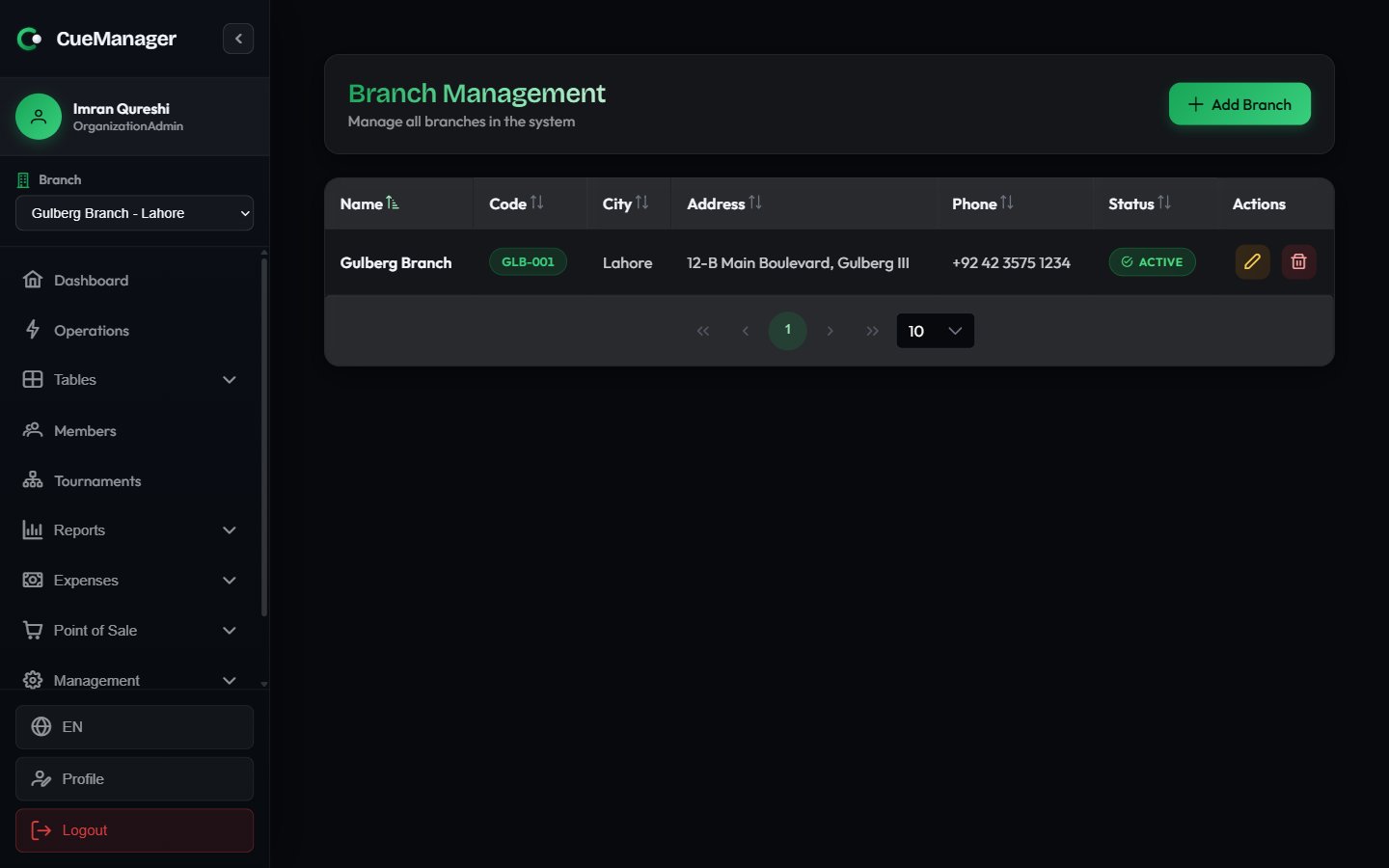
A branch is one physical club: its own tables, its own rates, its own staff, its own takings. This page covers adding a branch, what each field controls, and how switching branches changes what you see.
Branches live under **Management → Branches**. Viewing the list needs the Settings module with **View**; **Add Branch**, edit, and delete are limited to the club owner (OrganizationAdmin) or a SuperAdmin. Your first branch is created for you in the [onboarding wizard](/getting-started/onboarding-wizard).
 ## Add a branch
Go to **Management → Branches** and select **Add Branch**.
Enter **Branch Name** (for example, Gulberg Branch), **Branch Code** in the format XXX-00 such as LHR-01, **City**, **Address**, and optionally **Phone**.
Pick a **Time Zone**. This sets the branch business day used for reports and POS sale numbering, so a session that ends at 1 am is bucketed into the right trading day.
Fill in **Pricing Rates** — **Rate Per Frame**, **Rate Per Hour**, and **Rate Per Minute** — then optionally **Pool Table Rates**.
Leave **Active** checked, decide whether to tick **Enable open tabs (running bills) for this branch**, and select **Create**.
## Rates
The rates on the branch are the defaults that the **Start Session** dialog pre-fills. Staff can still override the rate on an individual session, and a table can carry its own override — see [Managing tables](/tables/managing-tables) and [How billing works](/concepts/how-billing-works).
| Field | Used when the session's pricing mode is | Example |
| --------------- | -------------------------------------------------------------- | ------- |
| Rate Per Frame | Frame — the loser of each frame pays this, doubles cost double | Rs 500 |
| Rate Per Hour | Hourly | Rs 800 |
| Rate Per Minute | Per-minute | Rs 15 |
**Pool Table Rates (optional)** holds a second set of the same three fields for pool tables. Each field shows *Same as base rate* as its placeholder: leave it blank and pool tables are charged at the snooker rates above. Fill it in when a pool frame at Gulberg Branch costs less than a snooker frame.
Rates are per branch. Two locations of Crown Snooker Club can charge different amounts for the same game, and each branch's revenue is reported separately.
## Switching branches
The branch selector sits in the top bar of the app. Choose a branch from **Select Branch** and everything below it — the live floor, sessions, POS, tabs, expenses, and report figures — reloads for that location. Staff assigned to a single branch only ever see their own; the owner and SuperAdmin can switch freely.
## What is scoped to a branch
| Scoped to the selected branch | Shared across the whole club |
| --------------------------------- | ------------------------------------------------ |
| Tables and table cameras | Members and their wallet balances |
| Sessions and frame history | Staff accounts (each user belongs to one branch) |
| POS catalog, stock, and sales | Your CueManager subscription |
| Customer tabs | WhatsApp messaging settings |
| Membership plans and their prices | |
| Expenses and expense categories | |
| Report figures | |
Because members are club-wide, Ahmed Raza can play at either location and spend the same wallet balance. Because POS items are branch-scoped, Chai at Rs 100 has to exist in each branch's catalog. See [Managing members](/members/managing-members) and [Catalog and stock](/pos/catalog-and-stock).
## Deactivate or delete a branch
To close a location without losing its history, open the branch with the pencil icon and clear the **Active** checkbox.
Deleting a branch is permanent. Do it only for a branch created by mistake — deactivate instead when the location has traded, so its sessions, sales, and reports stay intact.
## Related
* [Managing tables](/tables/managing-tables) — add the snooker and pool tables for a branch
* [Users and roles](/admin/users-and-roles) — assign staff to a branch
* [Reports](/club/reports) — figures follow the branch selector and the branch time zone
* [Your subscription](/admin/subscription-billing) — your plan caps how many branches you can run
## Add a branch
Go to **Management → Branches** and select **Add Branch**.
Enter **Branch Name** (for example, Gulberg Branch), **Branch Code** in the format XXX-00 such as LHR-01, **City**, **Address**, and optionally **Phone**.
Pick a **Time Zone**. This sets the branch business day used for reports and POS sale numbering, so a session that ends at 1 am is bucketed into the right trading day.
Fill in **Pricing Rates** — **Rate Per Frame**, **Rate Per Hour**, and **Rate Per Minute** — then optionally **Pool Table Rates**.
Leave **Active** checked, decide whether to tick **Enable open tabs (running bills) for this branch**, and select **Create**.
## Rates
The rates on the branch are the defaults that the **Start Session** dialog pre-fills. Staff can still override the rate on an individual session, and a table can carry its own override — see [Managing tables](/tables/managing-tables) and [How billing works](/concepts/how-billing-works).
| Field | Used when the session's pricing mode is | Example |
| --------------- | -------------------------------------------------------------- | ------- |
| Rate Per Frame | Frame — the loser of each frame pays this, doubles cost double | Rs 500 |
| Rate Per Hour | Hourly | Rs 800 |
| Rate Per Minute | Per-minute | Rs 15 |
**Pool Table Rates (optional)** holds a second set of the same three fields for pool tables. Each field shows *Same as base rate* as its placeholder: leave it blank and pool tables are charged at the snooker rates above. Fill it in when a pool frame at Gulberg Branch costs less than a snooker frame.
Rates are per branch. Two locations of Crown Snooker Club can charge different amounts for the same game, and each branch's revenue is reported separately.
## Switching branches
The branch selector sits in the top bar of the app. Choose a branch from **Select Branch** and everything below it — the live floor, sessions, POS, tabs, expenses, and report figures — reloads for that location. Staff assigned to a single branch only ever see their own; the owner and SuperAdmin can switch freely.
## What is scoped to a branch
| Scoped to the selected branch | Shared across the whole club |
| --------------------------------- | ------------------------------------------------ |
| Tables and table cameras | Members and their wallet balances |
| Sessions and frame history | Staff accounts (each user belongs to one branch) |
| POS catalog, stock, and sales | Your CueManager subscription |
| Customer tabs | WhatsApp messaging settings |
| Membership plans and their prices | |
| Expenses and expense categories | |
| Report figures | |
Because members are club-wide, Ahmed Raza can play at either location and spend the same wallet balance. Because POS items are branch-scoped, Chai at Rs 100 has to exist in each branch's catalog. See [Managing members](/members/managing-members) and [Catalog and stock](/pos/catalog-and-stock).
## Deactivate or delete a branch
To close a location without losing its history, open the branch with the pencil icon and clear the **Active** checkbox.
Deleting a branch is permanent. Do it only for a branch created by mistake — deactivate instead when the location has traded, so its sessions, sales, and reports stay intact.
## Related
* [Managing tables](/tables/managing-tables) — add the snooker and pool tables for a branch
* [Users and roles](/admin/users-and-roles) — assign staff to a branch
* [Reports](/club/reports) — figures follow the branch selector and the branch time zone
* [Your subscription](/admin/subscription-billing) — your plan caps how many branches you can run