> ## Documentation Index
> Fetch the complete documentation index at: https://docs.getcuemanager.com/llms.txt
> Use this file to discover all available pages before exploring further.
# Settings
> Cameras, WhatsApp notifications, and club configuration.
Two setup screens sit under **Management** alongside branches and users: **Cameras**, which pairs an IP camera with a table for automatic frame-end alerts, and **WhatsApp**, which connects your own WhatsApp Business number so members get booking and reminder messages. Both need the Settings module with **Edit**; the message log needs Reports with **View**.
Other configuration lives with the feature it belongs to: rates and time zone on the [branch](/admin/branches), tables on [Managing tables](/tables/managing-tables), club membership plans on [Membership plans](/members/membership-plans), and staff access on [Users and roles](/admin/users-and-roles).
## Cameras
**Management → Cameras** opens **Camera Management** — *Pair an IP camera with each table for automatic frame-end alerts*. One camera per table; once paired, the table cannot be changed, only the connection details.
Select **Add Camera** and pick the **Table**. The dropdown lists only tables that do not already have a camera, so Snooker 1 disappears from it once it is paired.
Put the camera's stream in **RTSP URL**, for example `rtsp://192.168.1.50:554/stream1`. It must start with `rtsp://` or `rtsps://`.
**Username** and **Password** are optional. When you edit a camera later, leaving the password blank keeps the stored one.
Leave **Active** ticked and select **Save**.
The list shows **Table**, **RTSP URL**, **Enabled**, and **Health**:
| Health | Meaning |
| ------- | ----------------------------------------------------------------------------------------------------- |
| Online | The monitor is grabbing frames from the camera |
| Offline | The camera is enabled but not reachable |
| Unknown | No frame has been grabbed yet — the monitor is off, the camera is disabled, or it has not been polled |
Health updates live, so a camera that drops off the network flips to **Offline** without a page refresh. Hovering the tag shows **Last seen:** and the time.
Each row also has a bell icon, **Send a test frame-end alert**, which pushes a simulated frame-end to the table so you can confirm the alert reaches the front desk. The test needs a live snooker session on that table; if there is none, the error message says so. See [The snooker marker](/sessions/snooker-marker) for what the alert does during scoring.
Deleting a camera removes the pairing and its stored credentials after a confirmation. You will need the RTSP URL and password again to re-pair the table.
## WhatsApp messaging
**Management → WhatsApp** connects your club's own WhatsApp Business Cloud API number. Settings apply to the whole club, not per branch.
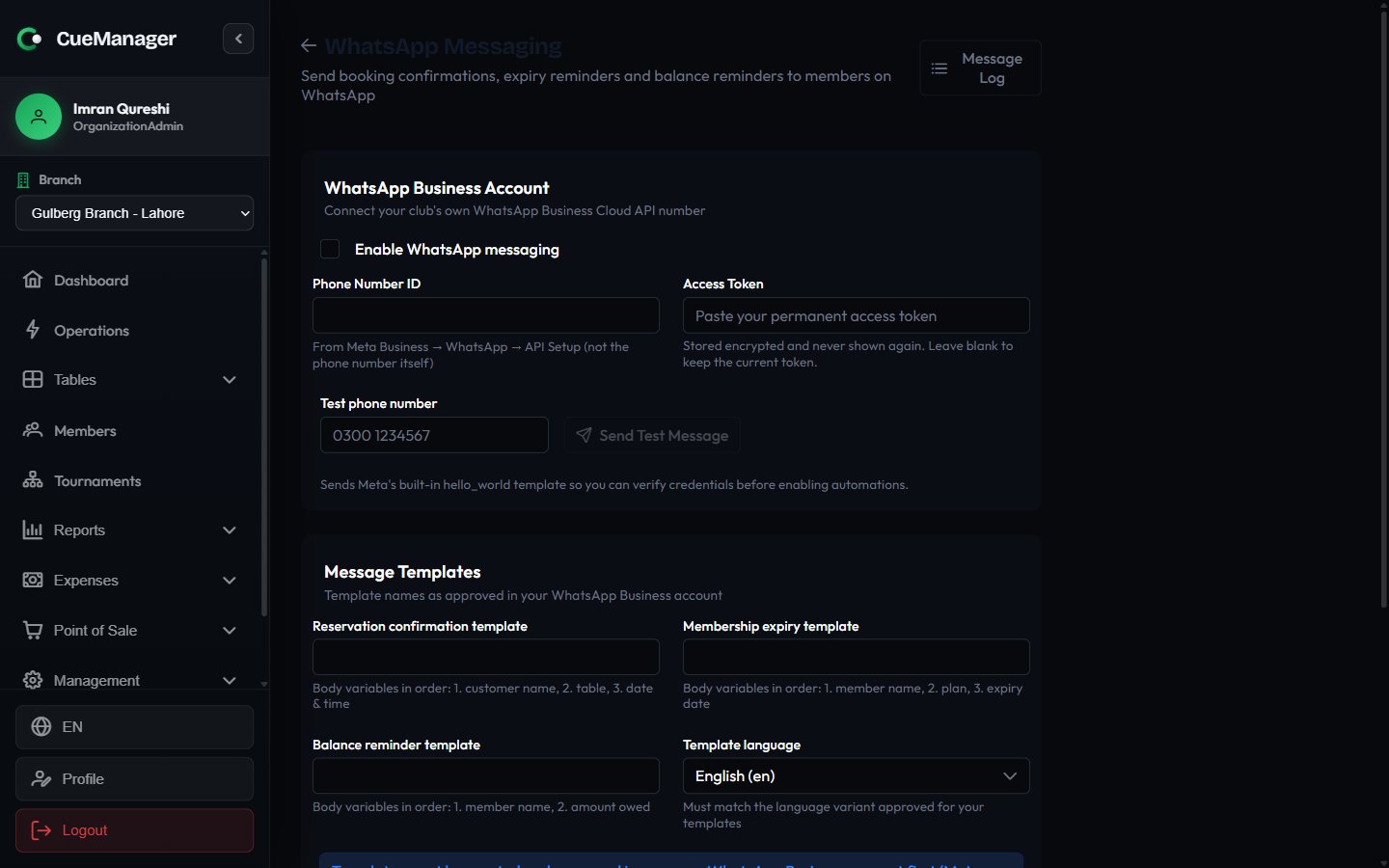 Tick **Enable WhatsApp messaging**, then enter the **Phone Number ID** from Meta Business → WhatsApp → API Setup (the ID, not the phone number) and paste your permanent token into **Access Token**. The token is stored encrypted and never shown again; leave it blank later to keep the current one.
Put a number in **Test phone number** and select **Send Test Message**. This sends Meta's built-in `hello_world` template so you can verify the credentials before enabling any automation.
Under **Message Templates**, enter the names exactly as approved in your WhatsApp Business account: **Reservation confirmation template**, **Membership expiry template**, and **Balance reminder template**, plus the **Template language** variant they were approved in.
Choose which messages go out automatically, then select **Save Settings**.
Each template expects its body variables in a fixed order:
| Template | Variables, in order |
| ------------------------ | -------------------------------------------- |
| Reservation confirmation | 1. customer name, 2. table, 3. date and time |
| Membership expiry | 1. member name, 2. plan, 3. expiry date |
| Balance reminder | 1. member name, 2. amount owed |
Templates must be created and approved in your own WhatsApp Business account first — Meta review usually takes minutes to a day. A send with a wrong template name or variable count fails, and the exact error appears in the message log.
### Automations
* **Send a confirmation when a reservation is created with a phone number** — fires from the reservation flow on the [live floor](/tables/live-floor).
* **Remind members before their membership expires** — set **Days before expiry** between 1 and 30. Applies to [membership plans](/members/membership-plans).
The balance reminder is not automated. You send it one member at a time with the **Remind** button on the [Member Balances report](/club/reports), which is available for members who have a WhatsApp number on file.
## Message log
**Management → Message Log** lists every message sent or attempted, with **Date**, **Type**, **Recipient**, **Template**, **Status**, and **Error**, and a **Refresh** button.
| Type | Status |
| ---------------------------------------------------- | -------------------- |
| Reservation, Expiry Reminder, Balance Reminder, Test | Queued, Sent, Failed |
Start here whenever a member says a message never arrived: a **Failed** row carries the reason returned by Meta, which is usually a template name or variable mismatch.
## Related
* [Branches](/admin/branches) — rates, time zone, and open-tab settings per location
* [Users and roles](/admin/users-and-roles) — grant Settings **Edit** to reach these screens
* [The snooker marker](/sessions/snooker-marker) — where camera frame-end alerts show up
Tick **Enable WhatsApp messaging**, then enter the **Phone Number ID** from Meta Business → WhatsApp → API Setup (the ID, not the phone number) and paste your permanent token into **Access Token**. The token is stored encrypted and never shown again; leave it blank later to keep the current one.
Put a number in **Test phone number** and select **Send Test Message**. This sends Meta's built-in `hello_world` template so you can verify the credentials before enabling any automation.
Under **Message Templates**, enter the names exactly as approved in your WhatsApp Business account: **Reservation confirmation template**, **Membership expiry template**, and **Balance reminder template**, plus the **Template language** variant they were approved in.
Choose which messages go out automatically, then select **Save Settings**.
Each template expects its body variables in a fixed order:
| Template | Variables, in order |
| ------------------------ | -------------------------------------------- |
| Reservation confirmation | 1. customer name, 2. table, 3. date and time |
| Membership expiry | 1. member name, 2. plan, 3. expiry date |
| Balance reminder | 1. member name, 2. amount owed |
Templates must be created and approved in your own WhatsApp Business account first — Meta review usually takes minutes to a day. A send with a wrong template name or variable count fails, and the exact error appears in the message log.
### Automations
* **Send a confirmation when a reservation is created with a phone number** — fires from the reservation flow on the [live floor](/tables/live-floor).
* **Remind members before their membership expires** — set **Days before expiry** between 1 and 30. Applies to [membership plans](/members/membership-plans).
The balance reminder is not automated. You send it one member at a time with the **Remind** button on the [Member Balances report](/club/reports), which is available for members who have a WhatsApp number on file.
## Message log
**Management → Message Log** lists every message sent or attempted, with **Date**, **Type**, **Recipient**, **Template**, **Status**, and **Error**, and a **Refresh** button.
| Type | Status |
| ---------------------------------------------------- | -------------------- |
| Reservation, Expiry Reminder, Balance Reminder, Test | Queued, Sent, Failed |
Start here whenever a member says a message never arrived: a **Failed** row carries the reason returned by Meta, which is usually a template name or variable mismatch.
## Related
* [Branches](/admin/branches) — rates, time zone, and open-tab settings per location
* [Users and roles](/admin/users-and-roles) — grant Settings **Edit** to reach these screens
* [The snooker marker](/sessions/snooker-marker) — where camera frame-end alerts show up