> ## Documentation Index
> Fetch the complete documentation index at: https://docs.getcuemanager.com/llms.txt
> Use this file to discover all available pages before exploring further.
# Your subscription
> Manage your CueManager plan, usage limits, and invoices.
This page is about the club's own CueManager subscription — the plan you pay to run the software. It is not about the membership plans you sell to players; those are covered in [Membership plans](/members/membership-plans).
**Billing & Subscription** is at **Billing** in the sidebar and is restricted to the club owner (OrganizationAdmin) and SuperAdmin. Staff accounts cannot see it, whatever their permission matrix says.
## What the billing page shows
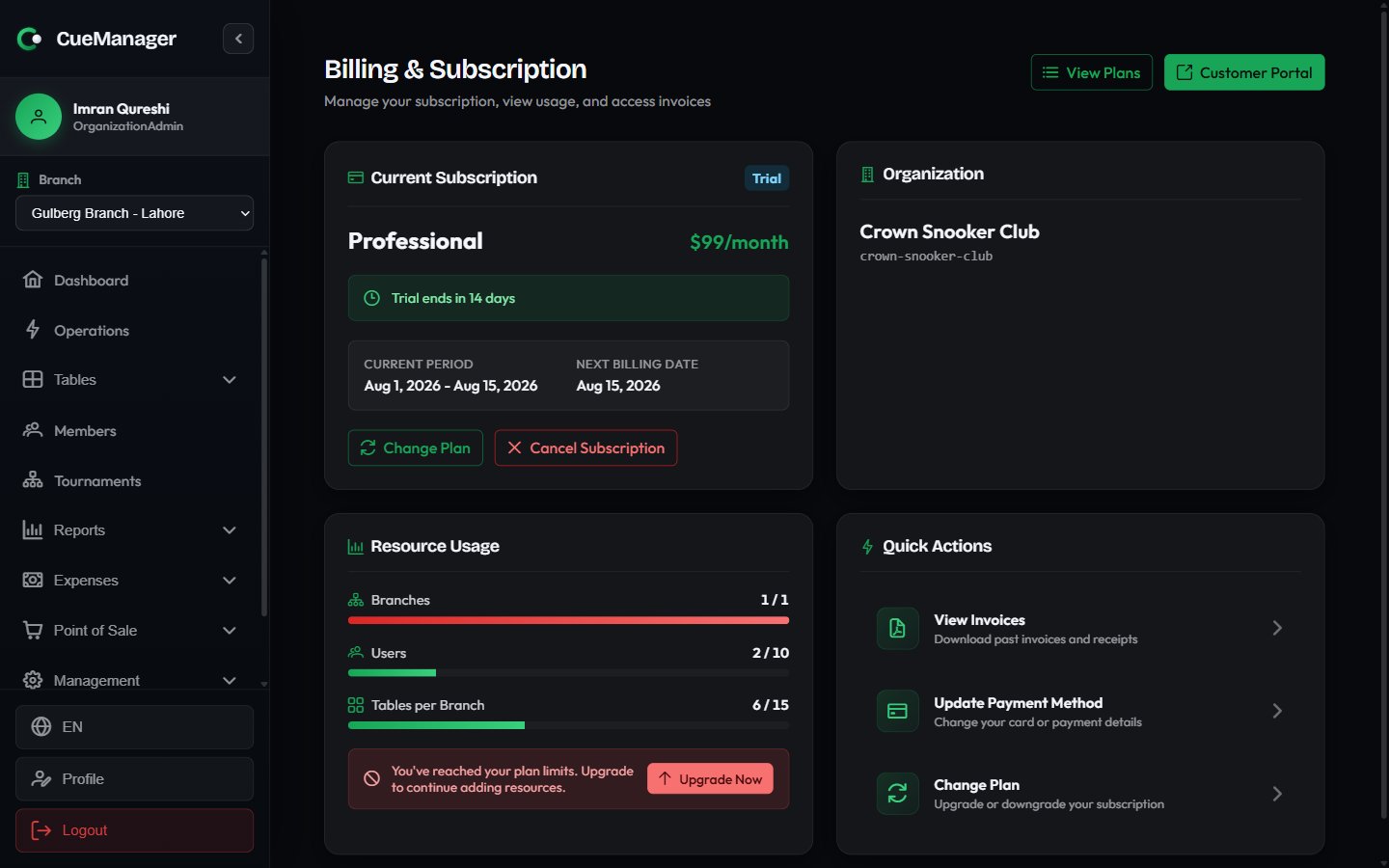 | Card | What it tells you |
| ------------------------ | -------------------------------------------------------------------------------- |
| **Current Subscription** | Plan name, price, status tag, **Current Period**, and **Next Billing Date** |
| **Organization** | Club name, billing email, and owner |
| **Resource Usage** | **Branches**, **Users**, and **Tables per Branch** used against your plan limits |
| **Quick Actions** | Shortcuts to **View Invoices**, **Update Payment Method**, and **Change Plan** |
Statuses on the subscription tag:
| Status | Meaning |
| --------- | ------------------------------------------------------- |
| Active | Paid and running |
| Trial | Free trial; a banner counts down *Trial ends in N days* |
| Past due | A payment failed — a banner offers **Update Payment** |
| Cancelled | Cancelled and no longer renewing |
| Expired | The period has ended; **Re-subscribe** to start again |
| Paused | Temporarily suspended |
Usage bars fill as you add branches, staff, and tables. At around the limit you get *You're approaching your plan limits* with an **Upgrade** button, and once a limit is hit, *You've reached your plan limits* — further branches, users, or tables are blocked until you upgrade. A limit shown as **Unlimited** has no cap.
## Change your plan
Select **View Plans** or **Change Plan** to open **Choose Your Plan**. Switch the toggle between **Monthly** and **Yearly (Save 17%)** to compare, then choose a plan card. The button reads **Upgrade**, **Downgrade**, **Current Plan** (disabled), or **Contact Us** for custom plans.
A **Confirm Plan Change** dialog explains that the change is prorated and charged to your card immediately. The new limits apply as soon as it goes through.
A **Schedule Plan Change** dialog explains there is no charge today, and you keep your current plan and features until the end of the current billing period.
While a downgrade is pending, the billing page shows *Scheduled: your plan changes to X on DATE* with a **Keep current plan** button that cancels it.
If you are still on a trial or your subscription has lapsed, choosing a plan sends you to Stripe Checkout to enter payment details first, rather than switching the plan straight away.
Before you downgrade, check **Resource Usage**. If the smaller plan's limits are below what you are already using — more branches or staff than it allows — bring your usage down first. See [Branches](/admin/branches) and [Users and roles](/admin/users-and-roles).
## Cancel, keep, or reactivate
**Cancel Subscription** sits on the Current Subscription card and asks for confirmation.
Cancelling ends your subscription. You keep access until the end of the current billing period, after which the club can no longer be used until you subscribe again. Cancel only when you intend to stop using CueManager — to move to a cheaper tier, downgrade instead.
After you cancel, a banner reads *Subscription will end on DATE* with a **Reactivate** button. Reactivating before that date keeps everything running without interruption. Once the period has passed, the card offers **Re-subscribe**, which takes you back to the plan list.
## Payment method and invoices
**Customer Portal** opens Stripe's hosted portal in a new tab, where you update your card, billing address, and receipt email. The same portal is behind **Update Payment Method** in Quick Actions and behind **Update Payment** on the past-due banner. CueManager never handles your card details directly.
| Card | What it tells you |
| ------------------------ | -------------------------------------------------------------------------------- |
| **Current Subscription** | Plan name, price, status tag, **Current Period**, and **Next Billing Date** |
| **Organization** | Club name, billing email, and owner |
| **Resource Usage** | **Branches**, **Users**, and **Tables per Branch** used against your plan limits |
| **Quick Actions** | Shortcuts to **View Invoices**, **Update Payment Method**, and **Change Plan** |
Statuses on the subscription tag:
| Status | Meaning |
| --------- | ------------------------------------------------------- |
| Active | Paid and running |
| Trial | Free trial; a banner counts down *Trial ends in N days* |
| Past due | A payment failed — a banner offers **Update Payment** |
| Cancelled | Cancelled and no longer renewing |
| Expired | The period has ended; **Re-subscribe** to start again |
| Paused | Temporarily suspended |
Usage bars fill as you add branches, staff, and tables. At around the limit you get *You're approaching your plan limits* with an **Upgrade** button, and once a limit is hit, *You've reached your plan limits* — further branches, users, or tables are blocked until you upgrade. A limit shown as **Unlimited** has no cap.
## Change your plan
Select **View Plans** or **Change Plan** to open **Choose Your Plan**. Switch the toggle between **Monthly** and **Yearly (Save 17%)** to compare, then choose a plan card. The button reads **Upgrade**, **Downgrade**, **Current Plan** (disabled), or **Contact Us** for custom plans.
A **Confirm Plan Change** dialog explains that the change is prorated and charged to your card immediately. The new limits apply as soon as it goes through.
A **Schedule Plan Change** dialog explains there is no charge today, and you keep your current plan and features until the end of the current billing period.
While a downgrade is pending, the billing page shows *Scheduled: your plan changes to X on DATE* with a **Keep current plan** button that cancels it.
If you are still on a trial or your subscription has lapsed, choosing a plan sends you to Stripe Checkout to enter payment details first, rather than switching the plan straight away.
Before you downgrade, check **Resource Usage**. If the smaller plan's limits are below what you are already using — more branches or staff than it allows — bring your usage down first. See [Branches](/admin/branches) and [Users and roles](/admin/users-and-roles).
## Cancel, keep, or reactivate
**Cancel Subscription** sits on the Current Subscription card and asks for confirmation.
Cancelling ends your subscription. You keep access until the end of the current billing period, after which the club can no longer be used until you subscribe again. Cancel only when you intend to stop using CueManager — to move to a cheaper tier, downgrade instead.
After you cancel, a banner reads *Subscription will end on DATE* with a **Reactivate** button. Reactivating before that date keeps everything running without interruption. Once the period has passed, the card offers **Re-subscribe**, which takes you back to the plan list.
## Payment method and invoices
**Customer Portal** opens Stripe's hosted portal in a new tab, where you update your card, billing address, and receipt email. The same portal is behind **Update Payment Method** in Quick Actions and behind **Update Payment** on the past-due banner. CueManager never handles your card details directly.
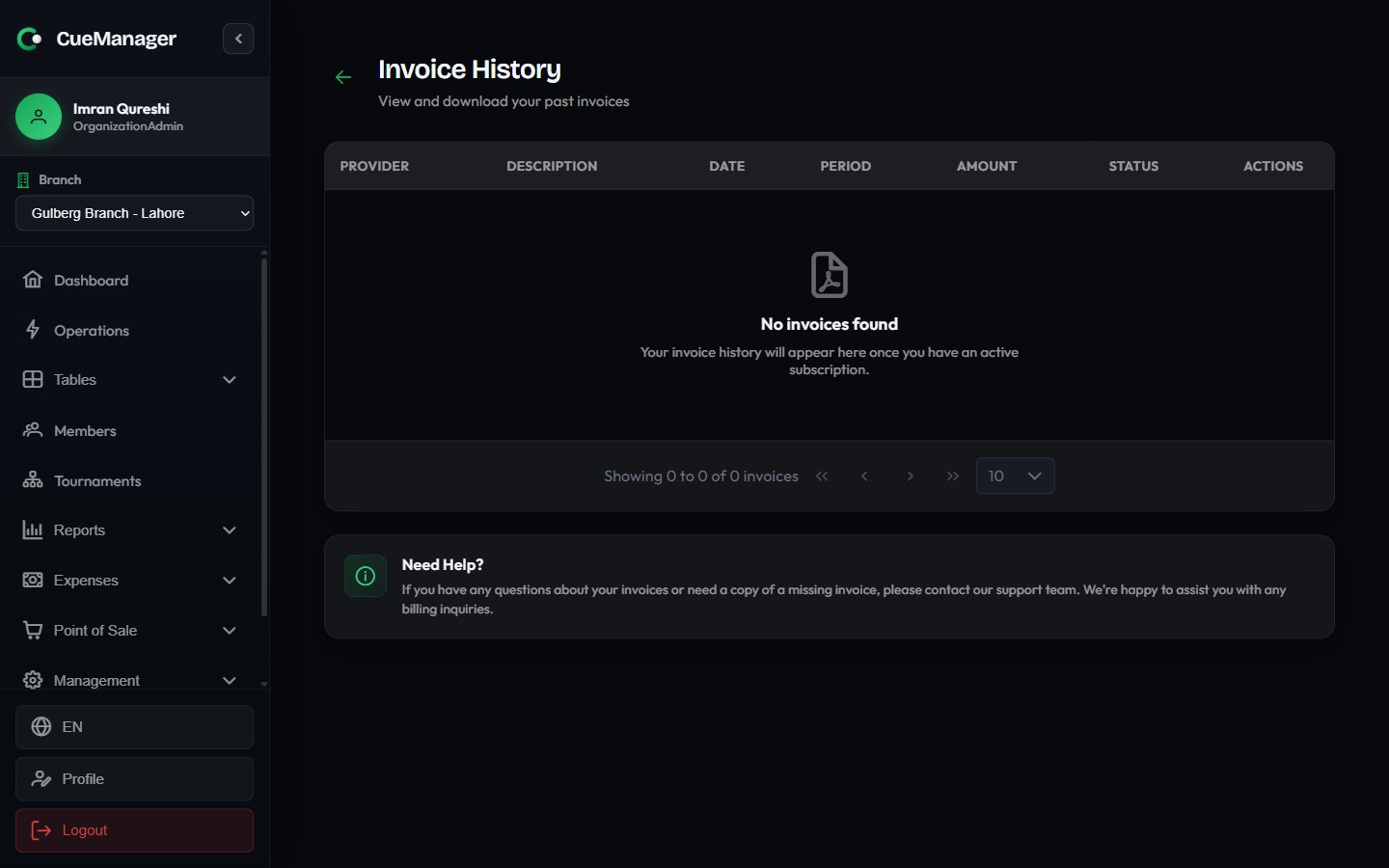 **Billing → Invoices** lists your billing history with **Provider**, **Description**, **Date**, **Period**, **Amount**, **Status**, and a download action. The download button is disabled until the document exists. Invoice statuses are **Draft**, **Open**, **Paid**, **Void**, and **Uncollectible**.
Some organizations are billed manually rather than through Stripe. Those accounts see *This organization is billed manually. Contact support for plan changes or renewals.* in place of the portal and plan-change buttons, and their payments appear in the invoice list under the **Manual** provider.
## Related
* [Create your club](/getting-started/create-your-club) and the [onboarding wizard](/getting-started/onboarding-wizard) — where the trial plan is chosen
* [Branches](/admin/branches) and [Users and roles](/admin/users-and-roles) — the resources your plan limits count
* [Membership plans](/members/membership-plans) — the plans you sell to members, billed inside your club
**Billing → Invoices** lists your billing history with **Provider**, **Description**, **Date**, **Period**, **Amount**, **Status**, and a download action. The download button is disabled until the document exists. Invoice statuses are **Draft**, **Open**, **Paid**, **Void**, and **Uncollectible**.
Some organizations are billed manually rather than through Stripe. Those accounts see *This organization is billed manually. Contact support for plan changes or renewals.* in place of the portal and plan-change buttons, and their payments appear in the invoice list under the **Manual** provider.
## Related
* [Create your club](/getting-started/create-your-club) and the [onboarding wizard](/getting-started/onboarding-wizard) — where the trial plan is chosen
* [Branches](/admin/branches) and [Users and roles](/admin/users-and-roles) — the resources your plan limits count
* [Membership plans](/members/membership-plans) — the plans you sell to members, billed inside your club