> ## Documentation Index
> Fetch the complete documentation index at: https://docs.getcuemanager.com/llms.txt
> Use this file to discover all available pages before exploring further.
# Users and roles
> Invite staff and control access with per-module permissions.
This page is the how-to for creating staff accounts, giving each one a role and a branch, and tuning what they can reach. For the model behind it — what each role means and how permission checks are applied — read [Roles and permissions](/concepts/roles-and-permissions).
Staff accounts live under **Management → Users**. Seeing the list needs the Users module with **View**; the **Add User**, edit, reset-password, and delete buttons only appear for a SuperAdmin or the club owner (OrganizationAdmin).
## Create a staff user
Go to **Management → Users** and select **Add User**. The **Create User** dialog opens.
**Username** (at least 3 characters), **Password** and **Confirm Password** (8 to 50 characters), **Full Name**, **Email**, and optionally **Phone**.
Choose a **Role**. Selecting a role loads that role's default permission set into the matrix below, so set the role before you hand-tune anything.
**Branch** appears for every role except SuperAdmin and is required. A user assigned to Gulberg Branch only works inside that branch's floor, sessions, POS, and tabs.
Tick or clear boxes in **Module Permissions**, leave **Active** checked, and select **Create User**.
## Roles
| Role | Typical use | Branch |
| ----------------- | -------------------------------------------------------------- | ------------ |
| SuperAdmin | Platform-level access across all branches | Not assigned |
| OrganizationAdmin | The club owner — manages branches, users, and the subscription | Required |
| BranchManager | Runs one location day to day | Required |
| FrontDesk | Starts and closes sessions, takes payment | Required |
| POSStaff | Sells food and drinks | Required |
| Marker | Scores frames only | Required |
Only a platform SuperAdmin can assign the SuperAdmin role. When you are signed in as the club owner, the role list does not offer it, and the API rejects the attempt.
## The permission matrix
Roles set the starting point; the matrix decides the detail. Each module gets four independent checkboxes — **View**, **Create**, **Edit**, **Delete** — across Tables, Members, Sessions, Reports, Inventory, POS, Users, Settings, Tournaments, Tabs, and Expenses.
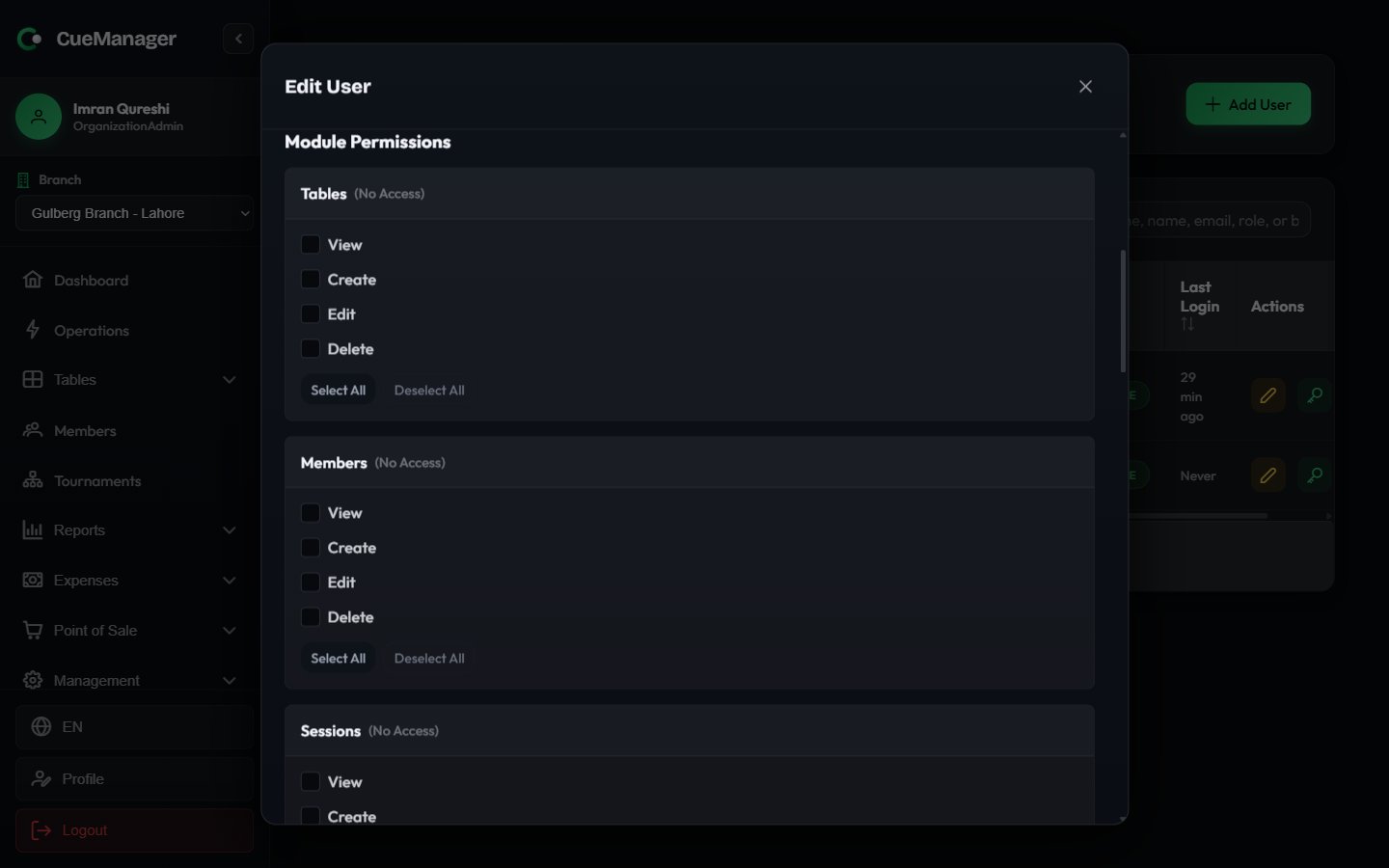 Each module header shows its state as **(Full Access)**, **(Partial Access)**, or **(No Access)**. **Select All** and **Deselect All** set a whole module at once. Two rules are enforced as you click, and repeated under **Permission Rules:** in the dialog:
* Unchecking **View** automatically clears Create, Edit, and Delete for that module.
* Checking **Create**, **Edit**, or **Delete** automatically checks **View**.
Some pages sit behind a specific combination. Branches needs Settings **View**; the camera and WhatsApp screens need Settings **Edit**; the message log needs Reports **View**; the Profit & Loss report needs Expenses access as well. See [Reports](/club/reports) and [Settings](/admin/settings).
Give a Marker only what scoring needs and nothing else. They can then run the [snooker marker](/sessions/snooker-marker) without seeing revenue figures.
## Edit, deactivate, or remove a user
The list shows **Username**, **Full Name**, **Email**, **Role**, **Branch** (or **All Branches**), **Status**, and **Last Login**, with a search box across all of those. Each row carries three actions.
Opens **Edit User** with the same fields. The password is optional here — *Leave password fields empty to keep the current password unchanged.* Changing the role reloads that role's default permissions, so re-check the matrix afterwards.
Opens **Reset Password**, where you set a new password of 8 to 50 characters. Use this when a staff member is locked out; it changes nothing else on the account.
Removes the account after a confirmation.
To take someone off the floor without losing history, open **Edit User** and clear the **Active** checkbox. The account stops working immediately, the list shows it as **Inactive**, and the sessions, sales, and payments they recorded stay attached to their name.
Deleting a user is permanent and cannot be undone. It also revokes any signed-in session that user has. Prefer clearing **Active** unless the account was created by mistake.
## Related
* [Roles and permissions](/concepts/roles-and-permissions) — the access model in full
* [Branches](/admin/branches) — what a branch assignment actually scopes
* [Your subscription](/admin/subscription-billing) — every user counts against your plan's user limit
Each module header shows its state as **(Full Access)**, **(Partial Access)**, or **(No Access)**. **Select All** and **Deselect All** set a whole module at once. Two rules are enforced as you click, and repeated under **Permission Rules:** in the dialog:
* Unchecking **View** automatically clears Create, Edit, and Delete for that module.
* Checking **Create**, **Edit**, or **Delete** automatically checks **View**.
Some pages sit behind a specific combination. Branches needs Settings **View**; the camera and WhatsApp screens need Settings **Edit**; the message log needs Reports **View**; the Profit & Loss report needs Expenses access as well. See [Reports](/club/reports) and [Settings](/admin/settings).
Give a Marker only what scoring needs and nothing else. They can then run the [snooker marker](/sessions/snooker-marker) without seeing revenue figures.
## Edit, deactivate, or remove a user
The list shows **Username**, **Full Name**, **Email**, **Role**, **Branch** (or **All Branches**), **Status**, and **Last Login**, with a search box across all of those. Each row carries three actions.
Opens **Edit User** with the same fields. The password is optional here — *Leave password fields empty to keep the current password unchanged.* Changing the role reloads that role's default permissions, so re-check the matrix afterwards.
Opens **Reset Password**, where you set a new password of 8 to 50 characters. Use this when a staff member is locked out; it changes nothing else on the account.
Removes the account after a confirmation.
To take someone off the floor without losing history, open **Edit User** and clear the **Active** checkbox. The account stops working immediately, the list shows it as **Inactive**, and the sessions, sales, and payments they recorded stay attached to their name.
Deleting a user is permanent and cannot be undone. It also revokes any signed-in session that user has. Prefer clearing **Active** unless the account was created by mistake.
## Related
* [Roles and permissions](/concepts/roles-and-permissions) — the access model in full
* [Branches](/admin/branches) — what a branch assignment actually scopes
* [Your subscription](/admin/subscription-billing) — every user counts against your plan's user limit