> ## Documentation Index
> Fetch the complete documentation index at: https://docs.getcuemanager.com/llms.txt
> Use this file to discover all available pages before exploring further.
# Expenses
> Record club spending and feed your profit and loss report.
Expenses record what the club spends — rent, utilities, salaries, equipment and more — so your revenue numbers turn into real profit numbers. Every expense belongs to a category and to the branch you are currently working in.
Find them under **Expenses** in the sidebar, which has two pages: **Expenses** and **Categories**.
## Categories
Each new branch starts with seven categories, so you can record spending immediately without any setup:
| Category | Typical use |
| ----------- | ----------------------------------------- |
| Rent | Monthly premises rent |
| Utilities | Electricity, gas, water, internet |
| Salaries | Staff pay |
| Equipment | Cues, balls, cloth, cameras |
| Maintenance | Table re-clothing, repairs, cleaning |
| Supplies | Chalk, tea and canteen stock, consumables |
| Other | Anything that does not fit above |
To change them, go to **Expenses → Categories**. Select **Add Category** and set a **Name**, an optional **Description**, and a **Display order** that controls where it appears in dropdowns. Editing a category also exposes **Status (click to toggle)** — switch it to Inactive to retire a category without losing its history, since inactive categories stop appearing in the expense form but keep their past records.
The **Expenses** column shows how many records use each category.
A category with recorded expenses cannot be deleted — the delete action is disabled while the count is above zero. Set it Inactive instead.
## Recording an expense
Expenses are saved against the branch selected in the branch selector. Switch branches first if you are recording for another location — see [Branches](/admin/branches).
Go to **Expenses** and select **Add Expense**.
**Category**, **Amount**, **Date**, and **Description** are required. A good description reads like "Electricity bill for June" — it is what you will scan in the list later.
**Payee** is a free-text vendor or person paid. **Staff member (optional)** links a salary expense to a staff account. **Payment method** records how it was paid, and **Reference number** stores a receipt or invoice number.
Select **Record**. The expense appears in the list immediately and is included in the **Total spent (filtered)** figure.
 The **Staff member (optional)** dropdown only appears if you can also view users. Without the Users module, salaries fall back to the free-text **Payee** field — see [Users and roles](/admin/users-and-roles).
## Finding and correcting expenses
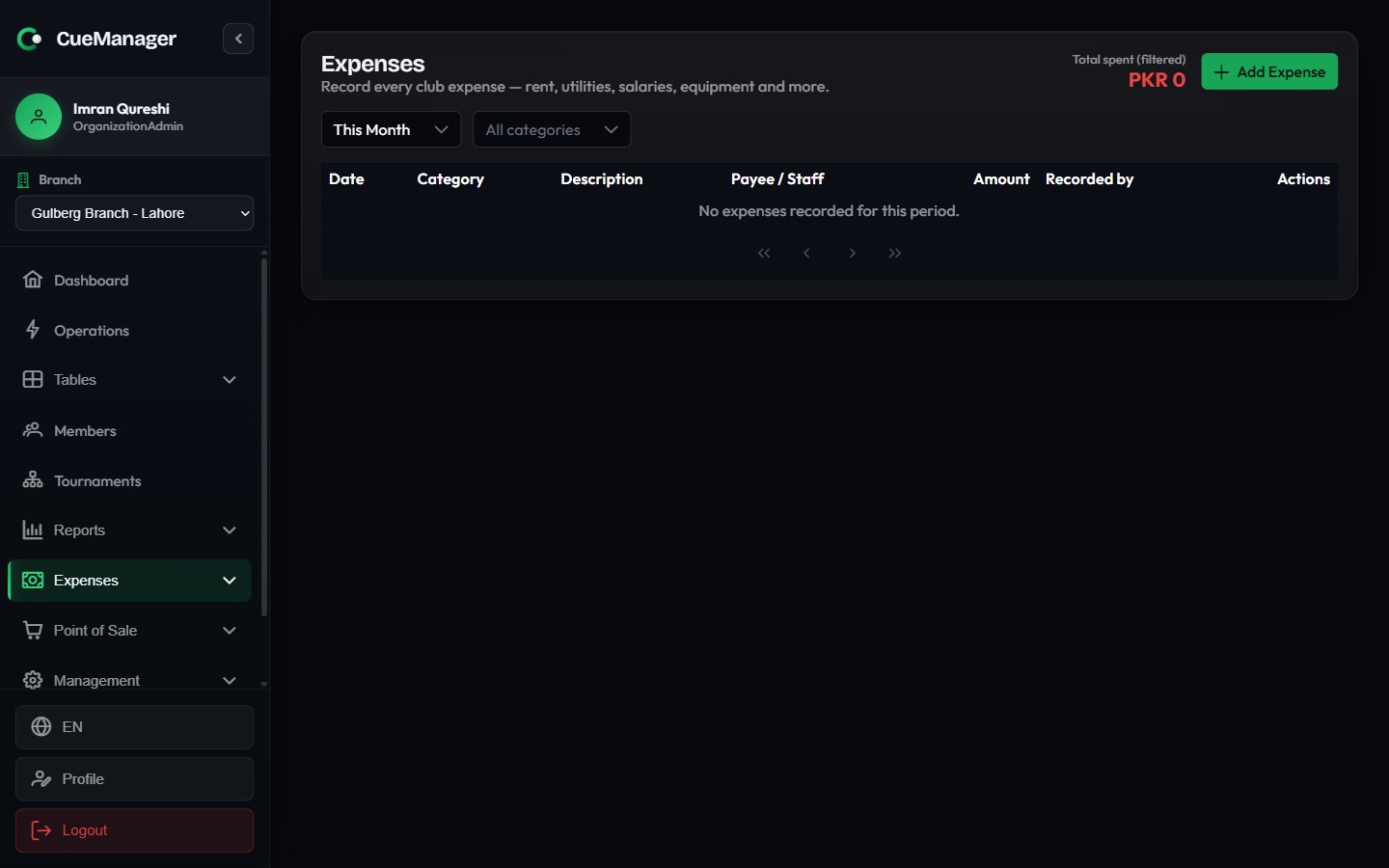
The list shows **Date**, **Category**, **Description** (with the reference number underneath, if any), **Payee / Staff**, **Amount**, and **Recorded by** — so you always know which staff member entered a record.
Two filters sit above the table:
* A date range: **Today**, **Last 7 Days**, **Last 30 Days**, **This Month** (the default), **Last Month**, or **Custom** with a date picker.
* A category filter, defaulting to **All categories**.
**Total spent (filtered)** at the top always reflects the current filters, so it is an easy way to answer "what did we spend on Utilities last month?"
Use the pencil icon on a row to correct an entry and the trash icon to delete it. Both actions depend on your Expenses permissions.
Deleting an expense is permanent and immediately changes your profit figures for that period. Correct the amount with **Edit** where you can, rather than deleting and re-entering.
## How expenses reach Profit and loss
Expenses are the cost side of the **Profit & Loss** report. For the selected date range and branch, that report totals your revenue (sessions, POS, memberships), subtracts the expenses recorded here, and shows net profit, profit margin, a daily revenue-versus-expenses chart, and a breakdown by category.
The [Reports dashboard](/club/reports) also shows **Total Expenses** and **Net Profit** cards, with a link straight to the full report.
Both surfaces are gated on the Expenses module, not just Reports: a user with Reports access but no Expenses access sees revenue only, and the expense and net-profit cards are hidden entirely. That is how you let a manager review takings without exposing salary totals.
Two things follow from how expenses are stored:
* **Dates drive the period.** An expense lands in the period matching its **Date** field, not the day you typed it in. Backdating a bill to the month it belongs to keeps the monthly profit honest.
* **Branch matters.** An expense recorded in Gulberg Branch is counted against Gulberg Branch in the report's **By Branch** table.
## Related pages
The Profit & Loss report and everything else expenses feed.
Grant Expenses view, create, edit, or delete per user.
Each branch keeps its own categories and expense records.
The revenue side of the same picture.
The **Staff member (optional)** dropdown only appears if you can also view users. Without the Users module, salaries fall back to the free-text **Payee** field — see [Users and roles](/admin/users-and-roles).
## Finding and correcting expenses
The list shows **Date**, **Category**, **Description** (with the reference number underneath, if any), **Payee / Staff**, **Amount**, and **Recorded by** — so you always know which staff member entered a record.
Two filters sit above the table:
* A date range: **Today**, **Last 7 Days**, **Last 30 Days**, **This Month** (the default), **Last Month**, or **Custom** with a date picker.
* A category filter, defaulting to **All categories**.
**Total spent (filtered)** at the top always reflects the current filters, so it is an easy way to answer "what did we spend on Utilities last month?"
Use the pencil icon on a row to correct an entry and the trash icon to delete it. Both actions depend on your Expenses permissions.
Deleting an expense is permanent and immediately changes your profit figures for that period. Correct the amount with **Edit** where you can, rather than deleting and re-entering.
## How expenses reach Profit and loss
Expenses are the cost side of the **Profit & Loss** report. For the selected date range and branch, that report totals your revenue (sessions, POS, memberships), subtracts the expenses recorded here, and shows net profit, profit margin, a daily revenue-versus-expenses chart, and a breakdown by category.
The [Reports dashboard](/club/reports) also shows **Total Expenses** and **Net Profit** cards, with a link straight to the full report.
Both surfaces are gated on the Expenses module, not just Reports: a user with Reports access but no Expenses access sees revenue only, and the expense and net-profit cards are hidden entirely. That is how you let a manager review takings without exposing salary totals.
Two things follow from how expenses are stored:
* **Dates drive the period.** An expense lands in the period matching its **Date** field, not the day you typed it in. Backdating a bill to the month it belongs to keeps the monthly profit honest.
* **Branch matters.** An expense recorded in Gulberg Branch is counted against Gulberg Branch in the report's **By Branch** table.
## Related pages
The Profit & Loss report and everything else expenses feed.
Grant Expenses view, create, edit, or delete per user.
Each branch keeps its own categories and expense records.
The revenue side of the same picture.