> ## Documentation Index
> Fetch the complete documentation index at: https://docs.getcuemanager.com/llms.txt
> Use this file to discover all available pages before exploring further.
# Create your club
> Register your account, verify your email, and sign in.
Registering creates the owner account for your club. That account becomes the organization administrator: it runs the setup wizard, owns the subscription, and can create every other user. This page covers registration, email verification, signing in, and password resets.
## Register the owner account
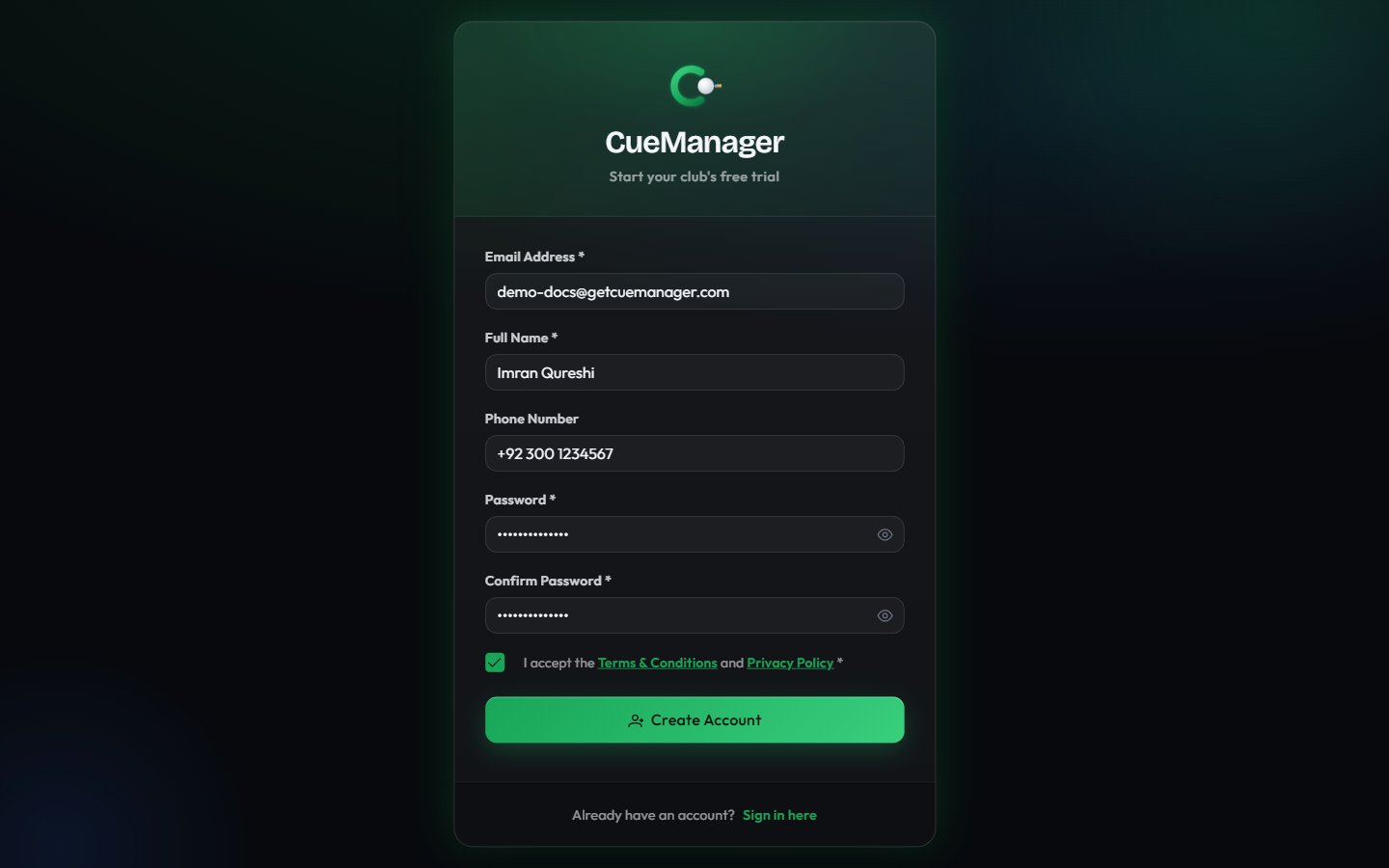 From the sign-in page, choose **Sign up here** under **Don't have an account?**. The page is headed **Start your club's free trial**.
| Field | Required | Notes |
| -------------------- | -------- | ----------------------------------------------------------------------------------------- |
| **Email Address** | Yes | Must be a valid address — the verification link is sent here, and you can sign in with it |
| **Full Name** | Yes | At least 2 characters |
| **Phone Number** | No | Optional contact number |
| **Password** | Yes | Minimum 6 characters (maximum 100) |
| **Confirm Password** | Yes | Must match **Password** exactly |
Tick **I accept the Terms & Conditions and Privacy Policy**. Both links open in a new tab. Registration is blocked until this is ticked.
CueManager creates the account and sends a verification email, then shows the **Check Your Email** page.
Only the club owner registers this way. Staff accounts are created for them — either in [step 5 of the setup wizard](/getting-started/onboarding-wizard) or later under [Users](/admin/users-and-roles) — and they sign in with a username rather than registering themselves.
## Verify your email
From the sign-in page, choose **Sign up here** under **Don't have an account?**. The page is headed **Start your club's free trial**.
| Field | Required | Notes |
| -------------------- | -------- | ----------------------------------------------------------------------------------------- |
| **Email Address** | Yes | Must be a valid address — the verification link is sent here, and you can sign in with it |
| **Full Name** | Yes | At least 2 characters |
| **Phone Number** | No | Optional contact number |
| **Password** | Yes | Minimum 6 characters (maximum 100) |
| **Confirm Password** | Yes | Must match **Password** exactly |
Tick **I accept the Terms & Conditions and Privacy Policy**. Both links open in a new tab. Registration is blocked until this is ticked.
CueManager creates the account and sends a verification email, then shows the **Check Your Email** page.
Only the club owner registers this way. Staff accounts are created for them — either in [step 5 of the setup wizard](/getting-started/onboarding-wizard) or later under [Users](/admin/users-and-roles) — and they sign in with a username rather than registering themselves.
## Verify your email
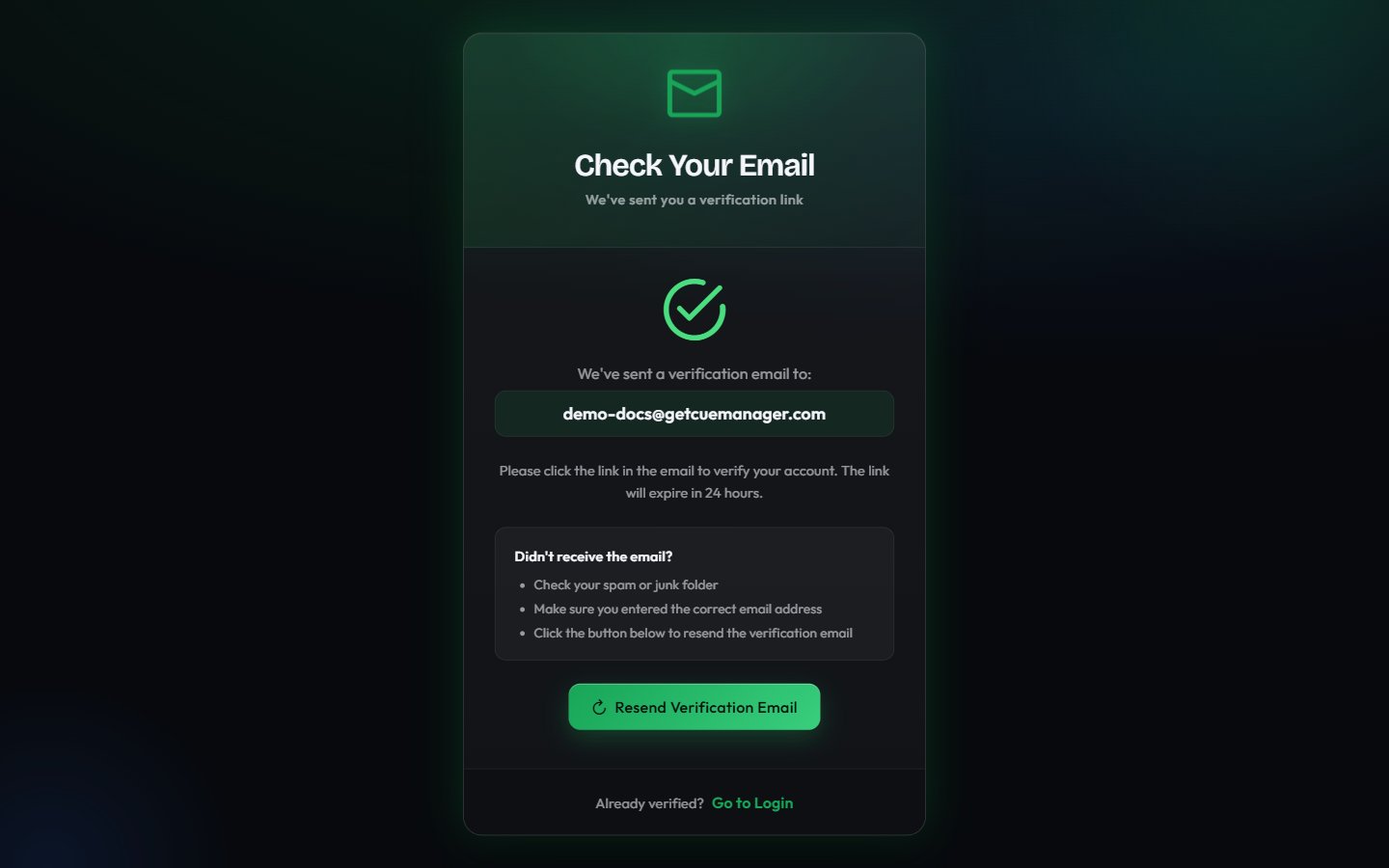 The **Check Your Email** page shows the address the link went to. Open the email and click the link. Verification links expire after **24 hours**.
When the link is accepted you see **Email Verified!** and **Your account is now active**, and CueManager takes you straight to the [setup wizard](/getting-started/onboarding-wizard) — no second sign-in needed.
If the email has not arrived:
* Check your spam or junk folder.
* Confirm the address shown on the page is the one you meant to use.
* Choose **Resend Verification Email**.
If the link fails, the page explains why: the link expired, the email was already verified, or the link was corrupted in transit. Choose **Go to Login** if you are already verified, or **Register Again** to start over with a fresh link.
## Sign in
The **Check Your Email** page shows the address the link went to. Open the email and click the link. Verification links expire after **24 hours**.
When the link is accepted you see **Email Verified!** and **Your account is now active**, and CueManager takes you straight to the [setup wizard](/getting-started/onboarding-wizard) — no second sign-in needed.
If the email has not arrived:
* Check your spam or junk folder.
* Confirm the address shown on the page is the one you meant to use.
* Choose **Resend Verification Email**.
If the link fails, the page explains why: the link expired, the email was already verified, or the link was corrupted in transit. Choose **Go to Login** if you are already verified, or **Register Again** to start over with a fresh link.
## Sign in
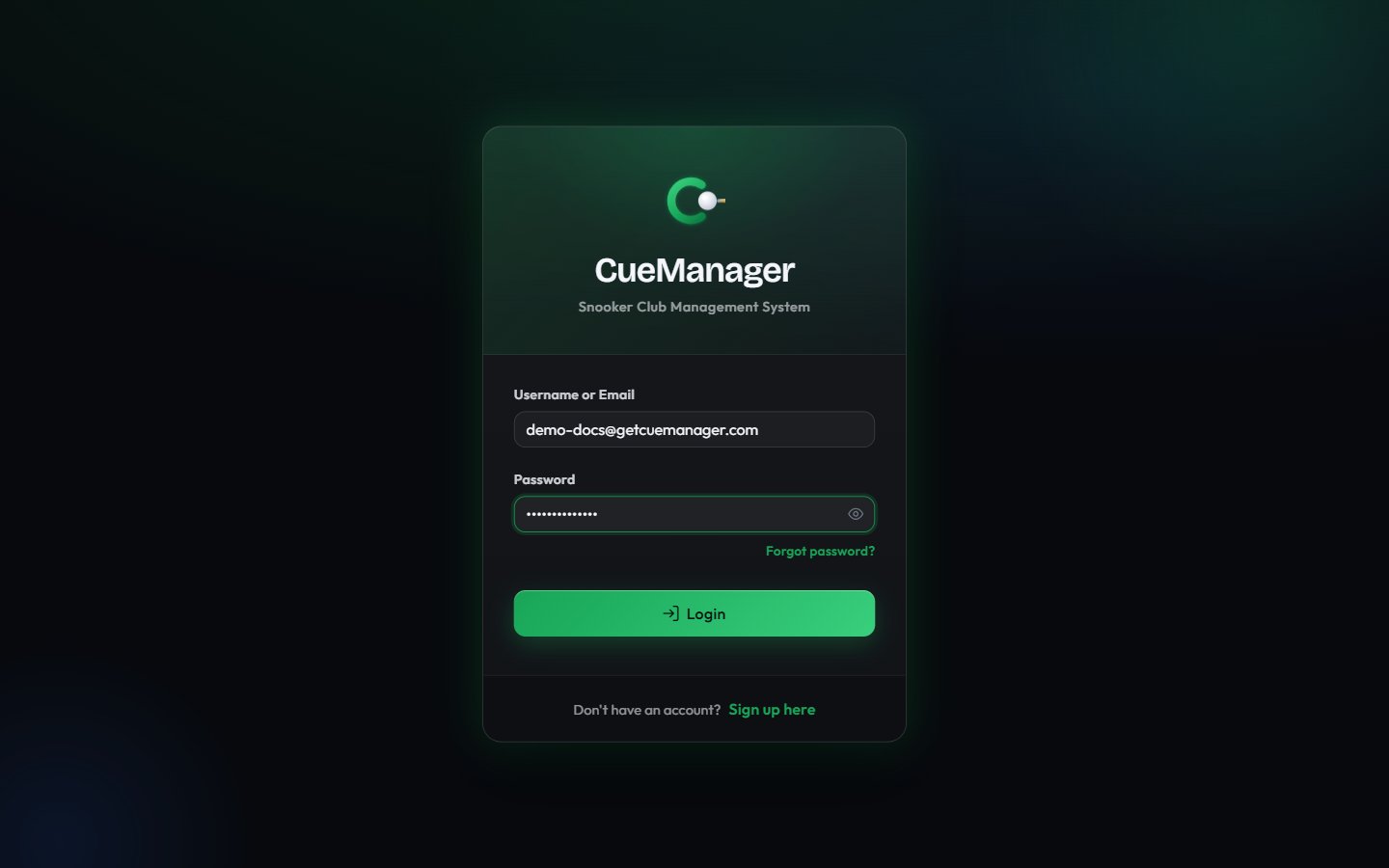 Enter **Username or Email** and **Password**, then choose **Login**.
* Owners sign in with the email address they registered with.
* Staff sign in with the username their manager created for them.
Where you land depends on your setup and role: if the setup wizard is not finished you are returned to it, otherwise you go to the [dashboard](/getting-started/dashboard). What you can see once inside is governed by your [role and permissions](/concepts/roles-and-permissions).
If your club runs more than one location, the branch selector in the sidebar switches which branch you are working in. See [branches](/admin/branches).
## Reset a forgotten password
On the sign-in page choose **Forgot password?**. Enter the account's **Email Address** and choose **Send Reset Link**.
The confirmation is deliberately neutral — it tells you that if an account exists for that address, a reset link has been sent — so the page cannot be used to discover which addresses are registered. The reset link expires in **1 hour**.
Open the link and set **New Password** and **Confirm Password** on the **Reset Password** page. The same rules apply as at registration: at least 6 characters, and both fields must match.
On success you see a confirmation and are redirected to the sign-in page. Use the new password from then on.
A reset link that was already used, or one older than an hour, shows **This password reset link is invalid or incomplete**. Request a new link from the sign-in page rather than reusing the old email.
## Next step
With the account verified you are in the six-step [setup wizard](/getting-started/onboarding-wizard): organization, plan, first branch, tables, and team.
Enter **Username or Email** and **Password**, then choose **Login**.
* Owners sign in with the email address they registered with.
* Staff sign in with the username their manager created for them.
Where you land depends on your setup and role: if the setup wizard is not finished you are returned to it, otherwise you go to the [dashboard](/getting-started/dashboard). What you can see once inside is governed by your [role and permissions](/concepts/roles-and-permissions).
If your club runs more than one location, the branch selector in the sidebar switches which branch you are working in. See [branches](/admin/branches).
## Reset a forgotten password
On the sign-in page choose **Forgot password?**. Enter the account's **Email Address** and choose **Send Reset Link**.
The confirmation is deliberately neutral — it tells you that if an account exists for that address, a reset link has been sent — so the page cannot be used to discover which addresses are registered. The reset link expires in **1 hour**.
Open the link and set **New Password** and **Confirm Password** on the **Reset Password** page. The same rules apply as at registration: at least 6 characters, and both fields must match.
On success you see a confirmation and are redirected to the sign-in page. Use the new password from then on.
A reset link that was already used, or one older than an hour, shows **This password reset link is invalid or incomplete**. Request a new link from the sign-in page rather than reusing the old email.
## Next step
With the account verified you are in the six-step [setup wizard](/getting-started/onboarding-wizard): organization, plan, first branch, tables, and team.