> ## Documentation Index
> Fetch the complete documentation index at: https://docs.getcuemanager.com/llms.txt
> Use this file to discover all available pages before exploring further.
# The dashboard
> Your club at a glance — tables, sessions, revenue, and the daily digest.
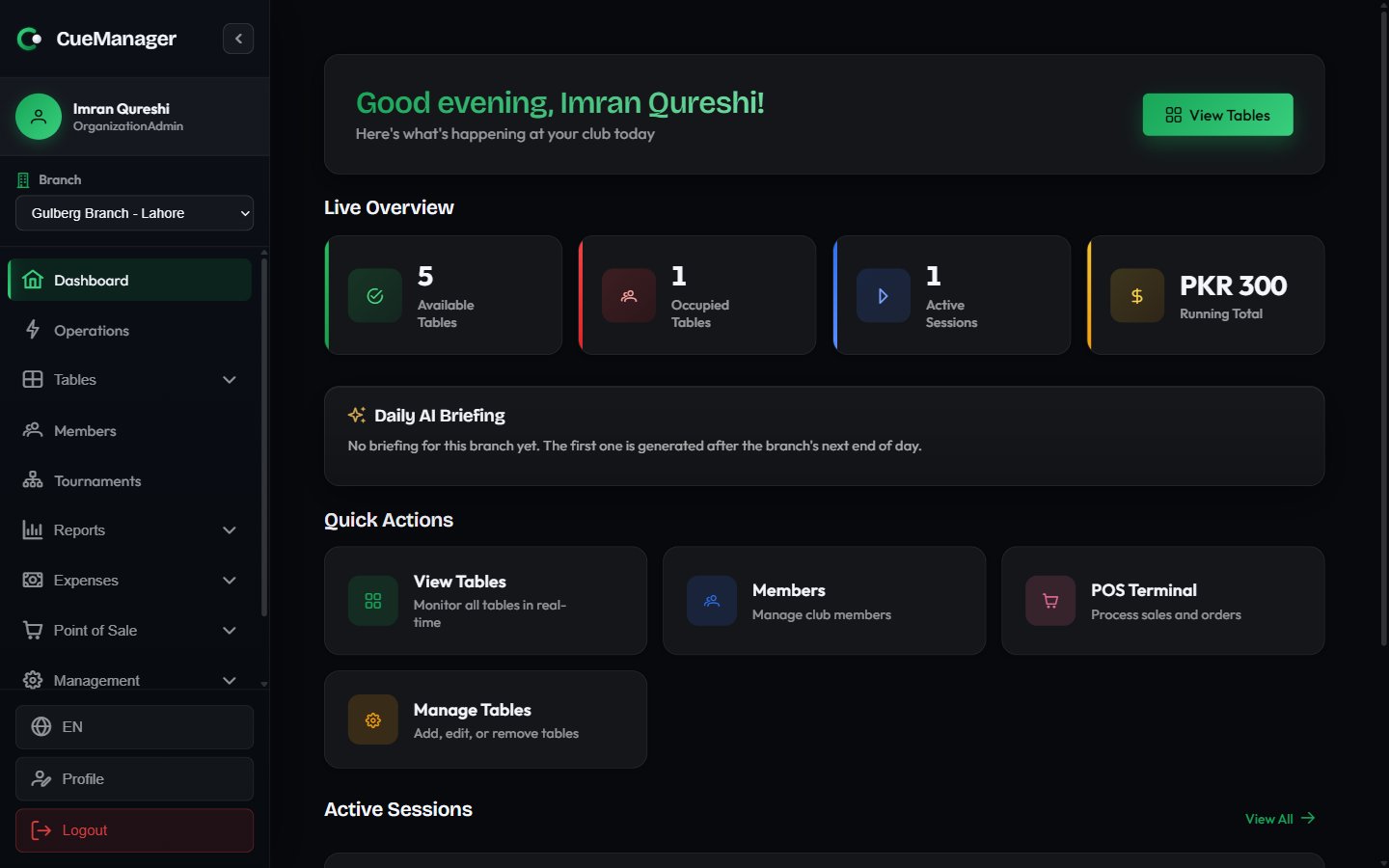
The dashboard is the first screen after sign-in: live table counts, the money currently on the floor, a daily AI briefing, and shortcuts into the screens you use most. This page also covers the **Operations** console, which puts every live session and open tab on one page for the front desk.
 ## Live overview
The header greets you by name ("Good evening, Ahmed") with the subtitle "Here's what's happening at your club today" and a **View Tables** button. Below it, **Live Overview** shows four counters for the branch you currently have selected.
| Card | What it counts |
| -------------------- | ------------------------------------------------- |
| **Available Tables** | Tables free to start a session on right now |
| **Occupied Tables** | Tables with play in progress |
| **Active Sessions** | Sessions currently running |
| **Running Total** | The combined running bill of every active session |
The first three cards are clickable and take you to [the live floor](/tables/live-floor). The numbers are pushed live — when a colleague starts or ends a session on another device, these counters change without a refresh. See [offline and sync](/concepts/offline-and-sync) for how this behaves when the connection drops.
**Running Total** is money still on the tables, not takings. It is the sum of the bills currently accruing, and it drops to zero as those sessions are checked out. For settled revenue, use [Reports](/club/reports).
## Daily AI briefing
**Daily AI Briefing** is a short written summary of a completed trading day for the selected branch, with the numbers underneath it:
* **Revenue**, alongside the **7-day avg** for comparison
* **Sessions** completed, and **Frames** played
* **POS Sales** value and transaction count
* **New Members** registered
* **Open Tabs** total and count
Highlights call out what moved — a jump in takings, a warning worth acting on — and the footer credits the model that wrote it. Use the arrows either side of the date to step through **Previous day** and **Next day**.
The card only appears if you have Reports access. Until a briefing exists for the branch it explains that the first one is generated after the branch's next end of day; if the numbers are in but the summary is still being written, it shows the statistics with a note that the AI summary is being prepared.
## Quick actions
Four tiles jump to the screens used most often:
| Tile | Goes to |
| ----------------- | ------------------------------------------------------------------------ |
| **View Tables** | [The live floor](/tables/live-floor) — monitor all tables in real time |
| **Members** | [Managing members](/members/managing-members) |
| **POS Terminal** | [The POS terminal](/pos/pos-terminal) |
| **Manage Tables** | [Managing tables](/tables/managing-tables) — add, edit, or remove tables |
## Active sessions preview
When play is under way, an **Active Sessions** section lists up to four session cards: the table badge (for example Snooker 1), the session type, the two players or teams, the frame score, and the running total for that table. Choose **View All** to open the full floor.
## The operations console
**Operations** in the sidebar (`/operations`) is the single-screen way to run a busy shift — "Everything live on the floor: sessions, tabs and members in one place." Instead of moving between Tables, Tabs, and Members, you work from one page.
## Live overview
The header greets you by name ("Good evening, Ahmed") with the subtitle "Here's what's happening at your club today" and a **View Tables** button. Below it, **Live Overview** shows four counters for the branch you currently have selected.
| Card | What it counts |
| -------------------- | ------------------------------------------------- |
| **Available Tables** | Tables free to start a session on right now |
| **Occupied Tables** | Tables with play in progress |
| **Active Sessions** | Sessions currently running |
| **Running Total** | The combined running bill of every active session |
The first three cards are clickable and take you to [the live floor](/tables/live-floor). The numbers are pushed live — when a colleague starts or ends a session on another device, these counters change without a refresh. See [offline and sync](/concepts/offline-and-sync) for how this behaves when the connection drops.
**Running Total** is money still on the tables, not takings. It is the sum of the bills currently accruing, and it drops to zero as those sessions are checked out. For settled revenue, use [Reports](/club/reports).
## Daily AI briefing
**Daily AI Briefing** is a short written summary of a completed trading day for the selected branch, with the numbers underneath it:
* **Revenue**, alongside the **7-day avg** for comparison
* **Sessions** completed, and **Frames** played
* **POS Sales** value and transaction count
* **New Members** registered
* **Open Tabs** total and count
Highlights call out what moved — a jump in takings, a warning worth acting on — and the footer credits the model that wrote it. Use the arrows either side of the date to step through **Previous day** and **Next day**.
The card only appears if you have Reports access. Until a briefing exists for the branch it explains that the first one is generated after the branch's next end of day; if the numbers are in but the summary is still being written, it shows the statistics with a note that the AI summary is being prepared.
## Quick actions
Four tiles jump to the screens used most often:
| Tile | Goes to |
| ----------------- | ------------------------------------------------------------------------ |
| **View Tables** | [The live floor](/tables/live-floor) — monitor all tables in real time |
| **Members** | [Managing members](/members/managing-members) |
| **POS Terminal** | [The POS terminal](/pos/pos-terminal) |
| **Manage Tables** | [Managing tables](/tables/managing-tables) — add, edit, or remove tables |
## Active sessions preview
When play is under way, an **Active Sessions** section lists up to four session cards: the table badge (for example Snooker 1), the session type, the two players or teams, the frame score, and the running total for that table. Choose **View All** to open the full floor.
## The operations console
**Operations** in the sidebar (`/operations`) is the single-screen way to run a busy shift — "Everything live on the floor: sessions, tabs and members in one place." Instead of moving between Tables, Tabs, and Members, you work from one page.
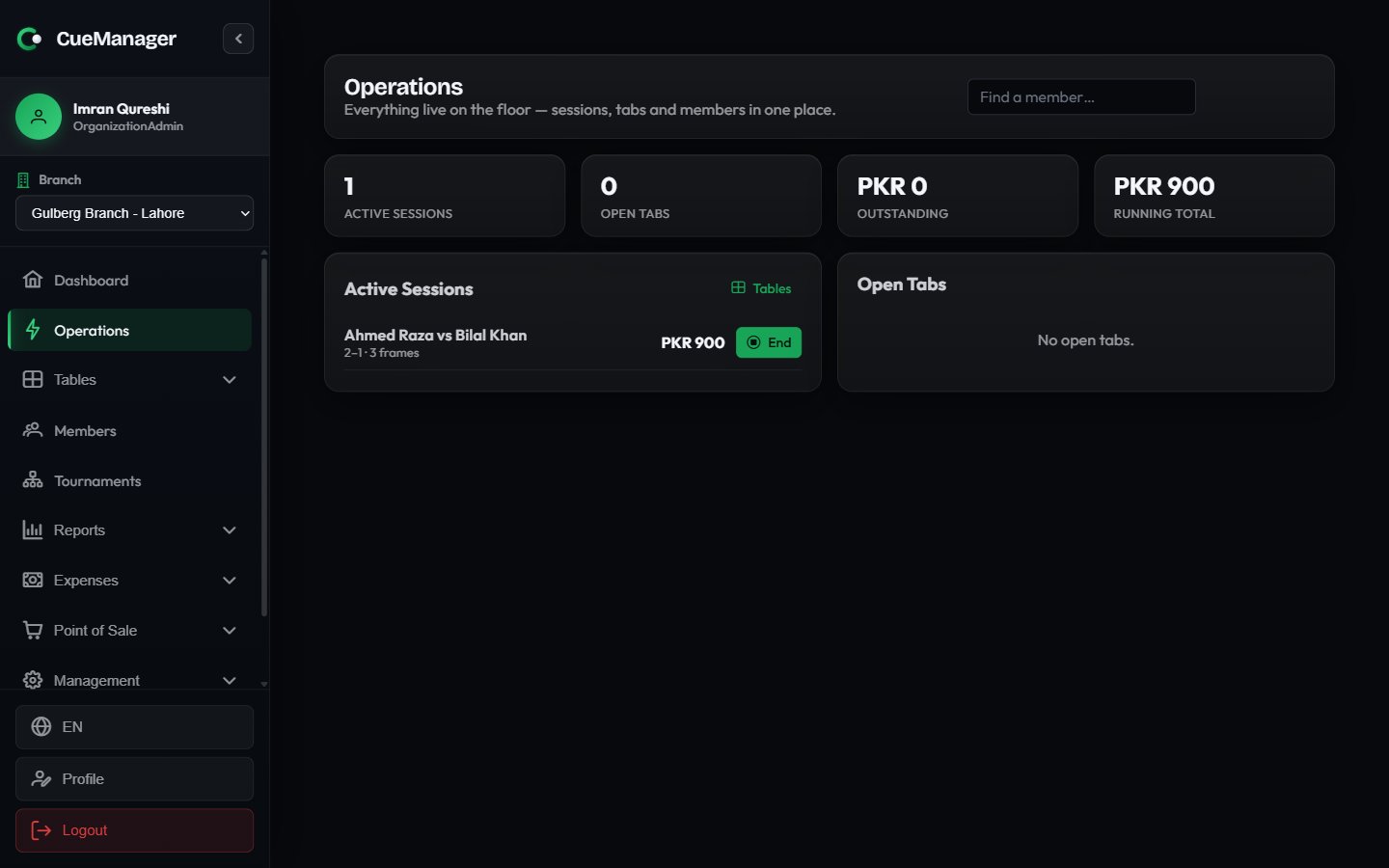 **KPI strip** — **Active Sessions**, **Open Tabs**, **Outstanding** (the combined balance of every open tab), and **Running Total** (the combined bill of every live session).
**Active Sessions panel** — one row per session showing the players, the frame score, the frame count, and the running total. Choose **End** to open the same checkout dialog you get from the table card; see [checkout and payments](/sessions/checkout-and-payments). **Tables** in the panel header opens the full floor.
**Open Tabs panel** — one row per open tab with the customer name, a **Member** or **Walk-in** tag, and the balance. The **+** button adds a charge to that tab, and **Settle** opens the settlement dialog with multi-tender payment. See [customer tabs](/pos/customer-tabs).
**Member lookup** — the **Find a member…** box in the header searches your members by name and opens the profile, which is the fastest route to a wallet balance mid-shift. See [wallets and credit](/members/wallets-and-credit).
The console refreshes itself on live table and session updates, and after any tab change made anywhere in the app, so two people can work the same floor from different devices.
If frames were recorded on a device that lost connection, the session row shows how many are still waiting to reach the server. Let them sync before settling so the bill is final — see [offline and sync](/concepts/offline-and-sync).
## What you see depends on your role
The dashboard and console only show what your permissions allow: the daily briefing needs Reports access, the tab actions need POS or Sessions access, and the branch selector in the sidebar decides which branch's numbers you are looking at. Owners and SuperAdmins can switch across every branch. See [roles and permissions](/concepts/roles-and-permissions) and [branches](/admin/branches).
**KPI strip** — **Active Sessions**, **Open Tabs**, **Outstanding** (the combined balance of every open tab), and **Running Total** (the combined bill of every live session).
**Active Sessions panel** — one row per session showing the players, the frame score, the frame count, and the running total. Choose **End** to open the same checkout dialog you get from the table card; see [checkout and payments](/sessions/checkout-and-payments). **Tables** in the panel header opens the full floor.
**Open Tabs panel** — one row per open tab with the customer name, a **Member** or **Walk-in** tag, and the balance. The **+** button adds a charge to that tab, and **Settle** opens the settlement dialog with multi-tender payment. See [customer tabs](/pos/customer-tabs).
**Member lookup** — the **Find a member…** box in the header searches your members by name and opens the profile, which is the fastest route to a wallet balance mid-shift. See [wallets and credit](/members/wallets-and-credit).
The console refreshes itself on live table and session updates, and after any tab change made anywhere in the app, so two people can work the same floor from different devices.
If frames were recorded on a device that lost connection, the session row shows how many are still waiting to reach the server. Let them sync before settling so the bill is final — see [offline and sync](/concepts/offline-and-sync).
## What you see depends on your role
The dashboard and console only show what your permissions allow: the daily briefing needs Reports access, the tab actions need POS or Sessions access, and the branch selector in the sidebar decides which branch's numbers you are looking at. Owners and SuperAdmins can switch across every branch. See [roles and permissions](/concepts/roles-and-permissions) and [branches](/admin/branches).