> ## Documentation Index
> Fetch the complete documentation index at: https://docs.getcuemanager.com/llms.txt
> Use this file to discover all available pages before exploring further.
# Quickstart
> From signup to your first billed frame in about ten minutes.
This walkthrough takes you from an empty account to a paid session: register, run the setup wizard, open the floor, start a session on a table, record a frame, and check out. Each step links to the full guide if you want more detail.
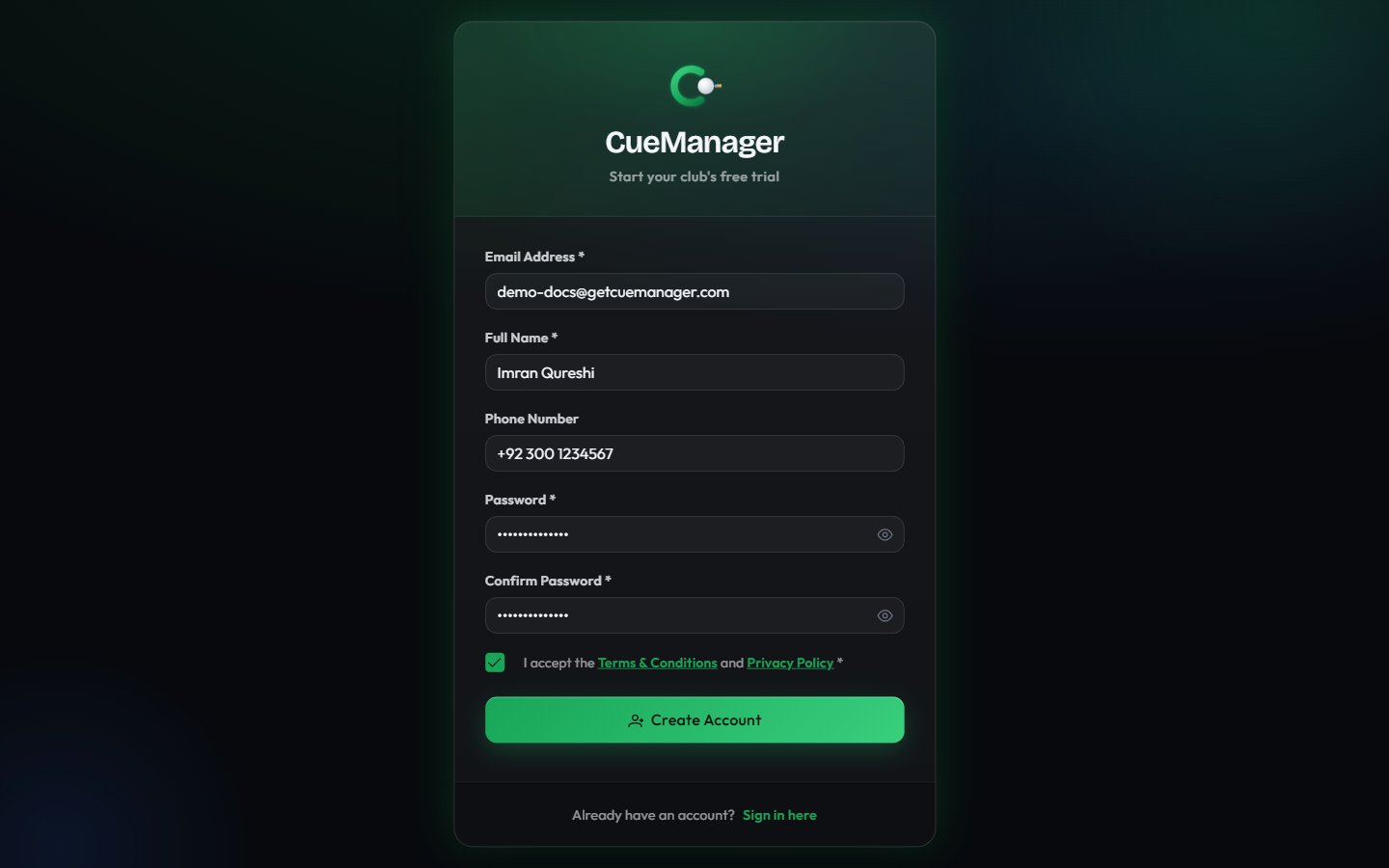
Go to the registration page and fill in **Email Address**, **Full Name**, **Password** (at least 6 characters), and **Confirm Password**. **Phone Number** is optional. Tick **I accept the Terms & Conditions and Privacy Policy**, then choose **Create Account**.
CueManager emails you a verification link that is valid for 24 hours. Click it, and you land straight in the setup wizard.
 Full details, including resending the email and resetting a password: [create your club](/getting-started/create-your-club).
The wizard runs six steps: **Organization** (club name, contact details, currency), **Subscription** (start a 14-day trial), **Branch** (name, code, and your table rates), **Tables** (how many snooker and pool tables to create), **Team** (optional staff accounts), and **Complete**.
For a club like Crown Snooker Club in Lahore, choose Pakistani Rupee as the currency, name the branch "Gulberg Branch", set **Rate per Frame** to 500, and create four snooker and two pool tables. That gives you Snooker 1-4 and Pool 1-2 on the floor.
Step-by-step: [set up your club](/getting-started/onboarding-wizard).
Choose **Go to Dashboard** at the end of the wizard, then **View Tables** (or **Tables** in the sidebar). Every table appears as a card with its status: **Available**, **Occupied**, **Reserved**, or **Maintenance**.
The floor is live. When another device starts or ends a session, the cards update without a refresh. See [the live floor](/tables/live-floor).
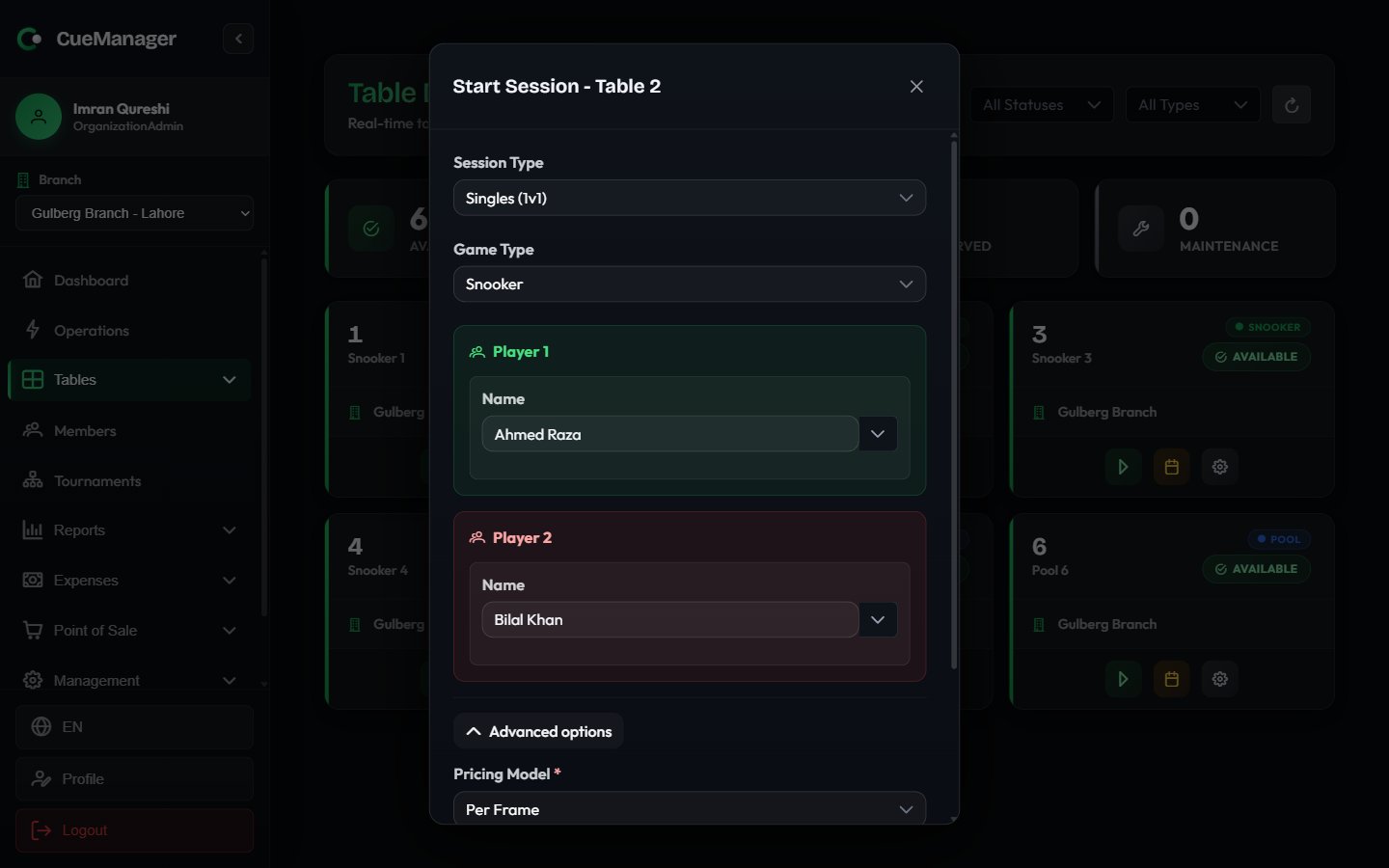
On the Snooker 1 card, choose **Start Session**. In the **Start Session - Table Snooker 1** dialog set:
* **Game Type** — Snooker, 8-Ball, or 9-Ball (snooker is not offered on pool tables)
* **Session Type** — Singles, Doubles, or Practice
* Player names — type a walk-in name, or search for a registered member such as Ahmed Raza
* **Pricing Model** — Frame, Hourly, or Per minute
* **Billing Type** — open-ended or pre-paid
* **Base Frame Price** — pre-filled from the branch rate, for example Rs 500
For doubles, the dialog shows **Doubles: Frame price will be 2x**. Choose **Start Session** and the table flips to **Occupied**.
Full details, including resending the email and resetting a password: [create your club](/getting-started/create-your-club).
The wizard runs six steps: **Organization** (club name, contact details, currency), **Subscription** (start a 14-day trial), **Branch** (name, code, and your table rates), **Tables** (how many snooker and pool tables to create), **Team** (optional staff accounts), and **Complete**.
For a club like Crown Snooker Club in Lahore, choose Pakistani Rupee as the currency, name the branch "Gulberg Branch", set **Rate per Frame** to 500, and create four snooker and two pool tables. That gives you Snooker 1-4 and Pool 1-2 on the floor.
Step-by-step: [set up your club](/getting-started/onboarding-wizard).
Choose **Go to Dashboard** at the end of the wizard, then **View Tables** (or **Tables** in the sidebar). Every table appears as a card with its status: **Available**, **Occupied**, **Reserved**, or **Maintenance**.
The floor is live. When another device starts or ends a session, the cards update without a refresh. See [the live floor](/tables/live-floor).
On the Snooker 1 card, choose **Start Session**. In the **Start Session - Table Snooker 1** dialog set:
* **Game Type** — Snooker, 8-Ball, or 9-Ball (snooker is not offered on pool tables)
* **Session Type** — Singles, Doubles, or Practice
* Player names — type a walk-in name, or search for a registered member such as Ahmed Raza
* **Pricing Model** — Frame, Hourly, or Per minute
* **Billing Type** — open-ended or pre-paid
* **Base Frame Price** — pre-filled from the branch rate, for example Rs 500
For doubles, the dialog shows **Doubles: Frame price will be 2x**. Choose **Start Session** and the table flips to **Occupied**.
 More on the options: [starting a session](/sessions/starting-a-session).
When a frame ends, use the session panel on the table card and choose **P1 Wins** or **P2 Wins** (**Team 1 Wins** / **Team 2 Wins** in doubles). The frame count and the running total update immediately on every device.
In frame pricing, the loser of the frame is charged for it, so recording the winner is what drives the bill. For ball-by-ball scoring with pots, fouls, and a public spectator scoreboard, choose **Open marker** instead — see [the snooker marker](/sessions/snooker-marker).
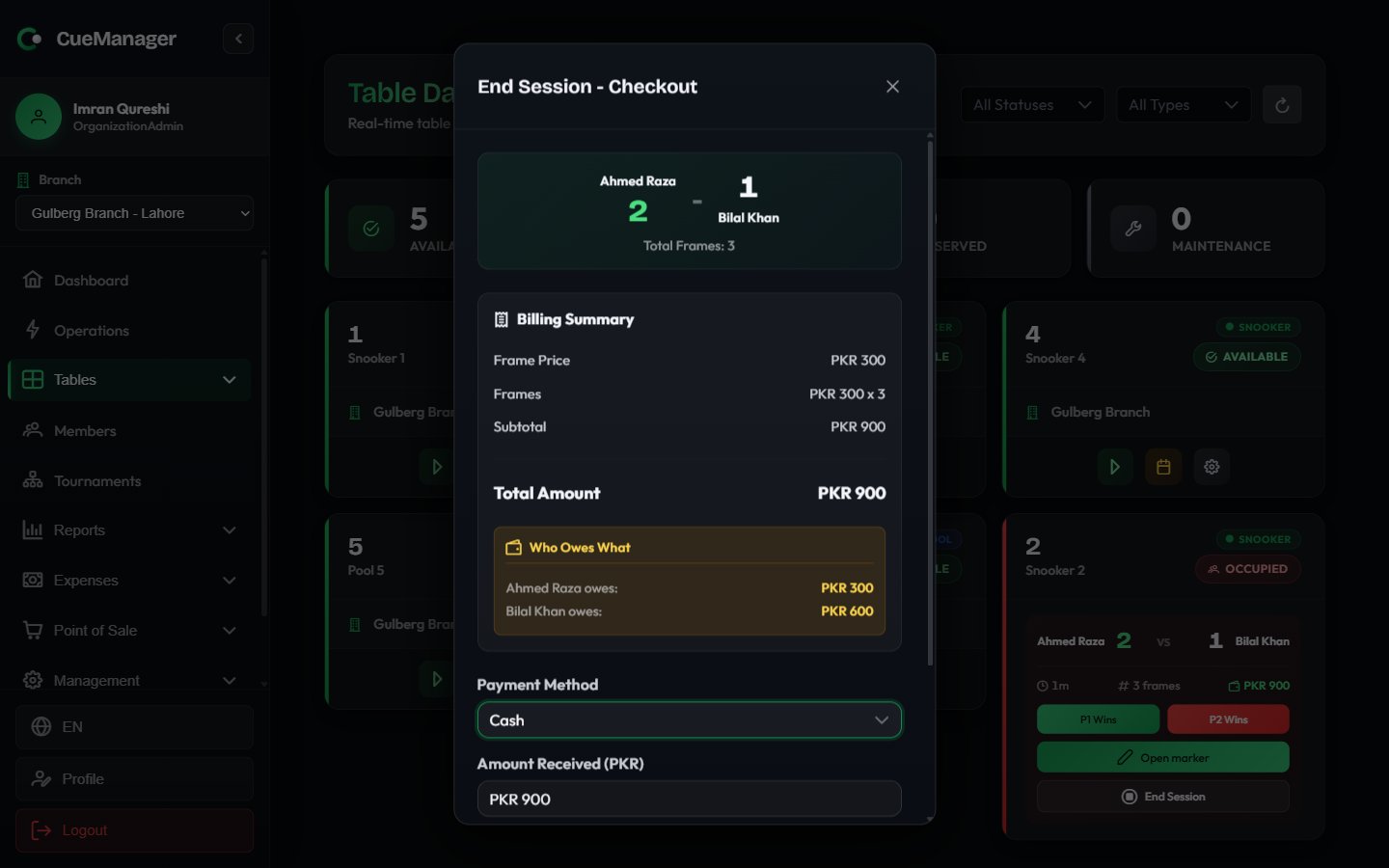
Choose **End Session** to open **End Session - Checkout**. The dialog itemizes frames or table time, applies any member discount, adds POS charges, and shows **Who Owes What** per player.
Pick a **Payment Method** — Cash, Card, JazzCash, Easypaisa, Raast, bank transfer, or a member's wallet credit — enter **Amount Received**, and choose **Complete Payment**. If the players want to pay later, choose **Add to Tab** instead and settle the tab at the end of the night.
More on the options: [starting a session](/sessions/starting-a-session).
When a frame ends, use the session panel on the table card and choose **P1 Wins** or **P2 Wins** (**Team 1 Wins** / **Team 2 Wins** in doubles). The frame count and the running total update immediately on every device.
In frame pricing, the loser of the frame is charged for it, so recording the winner is what drives the bill. For ball-by-ball scoring with pots, fouls, and a public spectator scoreboard, choose **Open marker** instead — see [the snooker marker](/sessions/snooker-marker).
Choose **End Session** to open **End Session - Checkout**. The dialog itemizes frames or table time, applies any member discount, adds POS charges, and shows **Who Owes What** per player.
Pick a **Payment Method** — Cash, Card, JazzCash, Easypaisa, Raast, bank transfer, or a member's wallet credit — enter **Amount Received**, and choose **Complete Payment**. If the players want to pay later, choose **Add to Tab** instead and settle the tab at the end of the night.
 Full detail: [checkout and payments](/sessions/checkout-and-payments).
## Where to go next
Pricing modes, doubles pricing, member discounts, and what the loser pays.
Profiles, playing history, and prepaid wallet credit.
Categories, items, and stock levels before your first sale.
Roles and the per-user permission matrix.
Full detail: [checkout and payments](/sessions/checkout-and-payments).
## Where to go next
Pricing modes, doubles pricing, member discounts, and what the loser pays.
Profiles, playing history, and prepaid wallet credit.
Categories, items, and stock levels before your first sale.
Roles and the per-user permission matrix.