> ## Documentation Index
> Fetch the complete documentation index at: https://docs.getcuemanager.com/llms.txt
> Use this file to discover all available pages before exploring further.
# Catalog and stock
> Organize items into categories and track inventory.
Everything the [POS terminal](/pos/pos-terminal) sells comes from the catalog: categories that group products, and items that carry the price and the stock count. This page covers building the catalog, adjusting stock, and reviewing what was sold.
Categories and items live under **Point of Sale → Categories** and **Point of Sale → Items**, and both need POS **Edit** permission. The catalog is per branch, so Gulberg Branch and any other branch each keep their own.
## Categories
**POS Categories** is the grouping layer — the strip of buttons across the top of the terminal. Press **Add Category** and fill in:
| Field | Purpose |
| ----------------- | ---------------------------------------------------------------------- |
| **Category Name** | Shown on the terminal tab and in the items list |
| **Description** | Internal note |
| **Icon** | Food, Drink, Snacks, Gaming, Accessories, Services, Merchandise, Other |
| **Color** | Tints the tab so staff can find it at a glance |
| **Display Order** | Lower numbers appear first on the terminal |
The list shows **Order**, name, description, **Items** (how many products sit in the category), and status. Use the pencil to edit and the bin to delete.
Deleting a category affects every item in it. The confirmation says so explicitly: **This will also affect all items in this category.** Move the items to another category first if you still want to sell them.
## Items
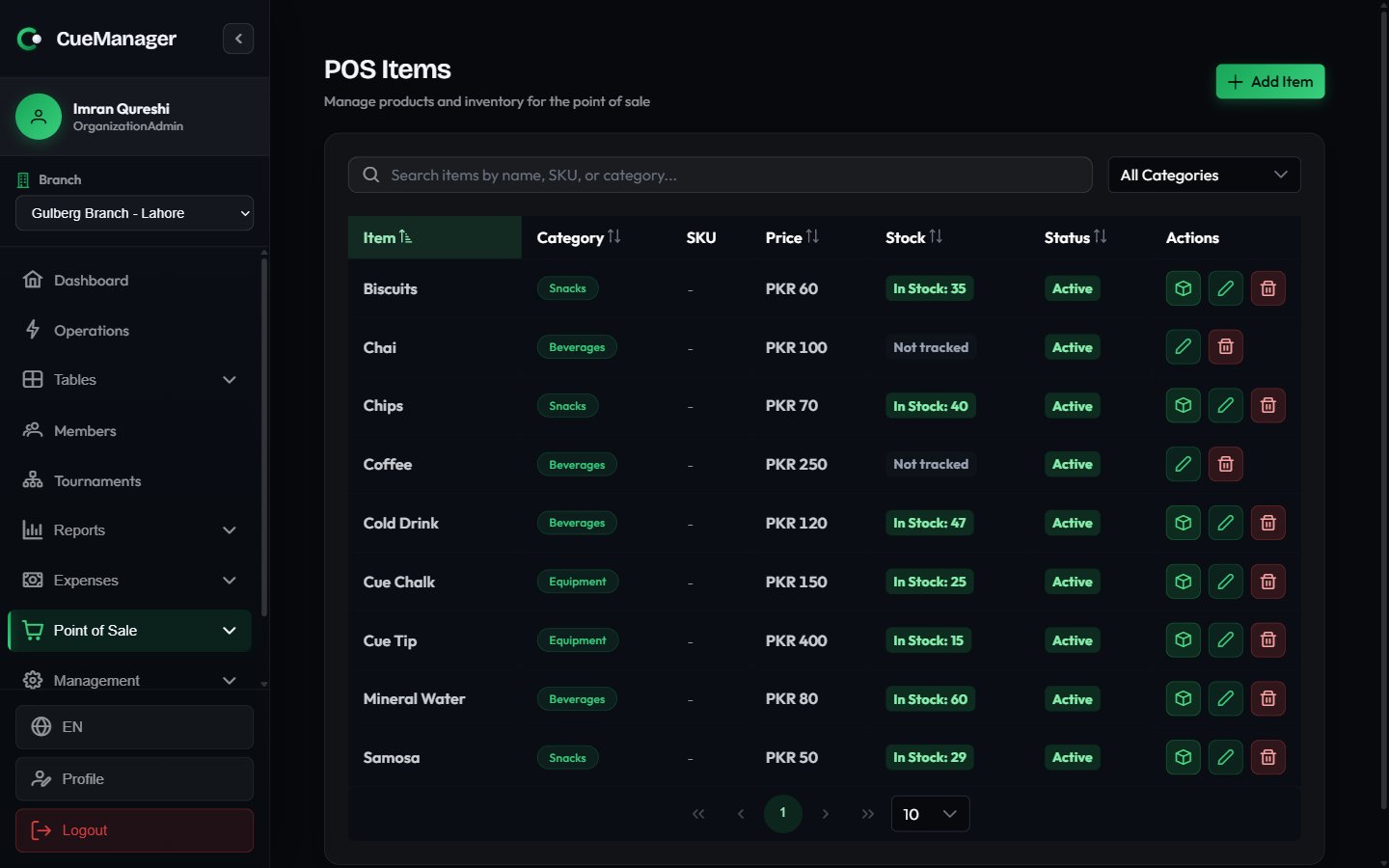
**POS Items** is the product list. Press **Add Item** to create one.
Enter the **Item Name**, pick a **Category**, and optionally add a description, a **Product Image** (JPEG, PNG, or WebP), and a **SKU** such as `DRINK-001`.
**Selling Price** is what the customer pays — Rs 100 for a cup of chai. **Cost Price** is optional and records what you paid your supplier, so the margin on each item is visible when you review the catalog.
Turn on **Enable stock tracking** for anything countable. Then set **Initial Stock**, a **Reorder Level** (the terminal warns below this), and optionally **Max Stock**. Leave tracking off for open-ended things like table time or a service.
Press **Create Item**. It appears on the terminal immediately.
The items table lists **Item**, category, SKU, **Price**, **Stock**, and status, with a search box and a **Filter by category** dropdown above it. Stock shows as **In Stock**, **Low**, **Out of Stock**, or **Not tracked**.
 ## Updating stock
Stock changes through the terminal automatically as items sell. For everything else — a delivery arriving, breakage, an end-of-month count — use the box icon on the item row, labelled **Update Stock**. The button only appears for items with tracking enabled.
| Movement type | Use it for | Effect |
| ----------------- | ------------------------- | ----------------------------------------------- |
| **Restock (Add)** | A delivery arriving | Adds the quantity to the current stock |
| **Adjustment** | A physical recount | Sets stock to the **New Stock Level** you enter |
| **Damage/Loss** | Breakage, spoilage, theft | Subtracts the quantity |
The dialog previews **Current Stock**, **Change**, and **New Stock** before you commit, and every movement takes an optional note. Record the reason — the note is what makes a stock ledger readable weeks later.
Each item keeps a ledger of its movements with **When**, **Type**, **Change**, and **Balance after**. If a sale rung up offline pushed stock below zero, the terminal marks the item oversold and the ledger flags the movements responsible, so you know exactly which shelf needs a recount.
## Sales history
**Point of Sale → Sales** lists every sale the branch has taken. Pick a date range at the top; the table shows **Sale #**, **Date/Time**, **Customer** (or **Walk-in**), item count, **Total**, status, and **Payment**.
| Status | Meaning |
| ------------- | ------------------------------------------------------------------------------------------- |
| **Completed** | Paid and closed |
| **Pending** | Rung up but not yet paid, so stock has not been deducted |
| **OnTab** | Goods handed over on an open tab: stock deducted, payment deferred until the tab is settled |
| **Cancelled** | The sale was cancelled and does not count toward revenue |
Payment shows as **Paid** or **Unpaid**; a sale added to a tab stays unpaid until the [tab is settled](/pos/customer-tabs).
Row actions:
* **View Details** opens the sale with its line items, quantities, unit prices, discount, totals, and — where the sale was attached to a session — **Charged to Table**.
* **Receipt** prints a receipt. It is available for sales that are **Completed** and paid.
* **Cancel Sale** appears only on **Pending** sales.
Cancelling a sale cannot be undone — the confirmation says **This action cannot be undone**. Check the details first, and cancel rather than delete so the record stays in the history.
## Related
Ring up the items you just created.
POS sales revenue, top items, and the profit and loss picture.
## Updating stock
Stock changes through the terminal automatically as items sell. For everything else — a delivery arriving, breakage, an end-of-month count — use the box icon on the item row, labelled **Update Stock**. The button only appears for items with tracking enabled.
| Movement type | Use it for | Effect |
| ----------------- | ------------------------- | ----------------------------------------------- |
| **Restock (Add)** | A delivery arriving | Adds the quantity to the current stock |
| **Adjustment** | A physical recount | Sets stock to the **New Stock Level** you enter |
| **Damage/Loss** | Breakage, spoilage, theft | Subtracts the quantity |
The dialog previews **Current Stock**, **Change**, and **New Stock** before you commit, and every movement takes an optional note. Record the reason — the note is what makes a stock ledger readable weeks later.
Each item keeps a ledger of its movements with **When**, **Type**, **Change**, and **Balance after**. If a sale rung up offline pushed stock below zero, the terminal marks the item oversold and the ledger flags the movements responsible, so you know exactly which shelf needs a recount.
## Sales history
**Point of Sale → Sales** lists every sale the branch has taken. Pick a date range at the top; the table shows **Sale #**, **Date/Time**, **Customer** (or **Walk-in**), item count, **Total**, status, and **Payment**.
| Status | Meaning |
| ------------- | ------------------------------------------------------------------------------------------- |
| **Completed** | Paid and closed |
| **Pending** | Rung up but not yet paid, so stock has not been deducted |
| **OnTab** | Goods handed over on an open tab: stock deducted, payment deferred until the tab is settled |
| **Cancelled** | The sale was cancelled and does not count toward revenue |
Payment shows as **Paid** or **Unpaid**; a sale added to a tab stays unpaid until the [tab is settled](/pos/customer-tabs).
Row actions:
* **View Details** opens the sale with its line items, quantities, unit prices, discount, totals, and — where the sale was attached to a session — **Charged to Table**.
* **Receipt** prints a receipt. It is available for sales that are **Completed** and paid.
* **Cancel Sale** appears only on **Pending** sales.
Cancelling a sale cannot be undone — the confirmation says **This action cannot be undone**. Check the details first, and cancel rather than delete so the record stays in the history.
## Related
Ring up the items you just created.
POS sales revenue, top items, and the profit and loss picture.