> ## Documentation Index
> Fetch the complete documentation index at: https://docs.getcuemanager.com/llms.txt
> Use this file to discover all available pages before exploring further.
# Customer tabs
> Run open tabs across sessions and sales, then settle in one go.
A tab is a running bill. Regulars play a few frames, order chai, play again, and pay once on the way out — instead of settling at the end of every session and every sale. This page covers opening a tab, putting charges on it, taking payment, and closing it.
Tabs live under **Point of Sale → Tabs** and need POS **View** permission. Before charges can be routed to a tab from a sale or a session, the branch must have **Enable open tabs (running bills) for this branch** switched on — see [Branches](/admin/branches).
## Statuses
| Status | Meaning |
| ----------- | --------------------------------------------------------------- |
| **Open** | The bill is running. Charges can be added and payments recorded |
| **Settled** | Paid off and closed. It moves to **Tab History** |
| **Void** | Cancelled without payment. Only possible while the tab is empty |
## Open a tab
The **Open Tabs** view lists every running bill for the branch with the customer, whether they are a **Member** or a **Walk-in**, the number of items on the tab, and the balance.
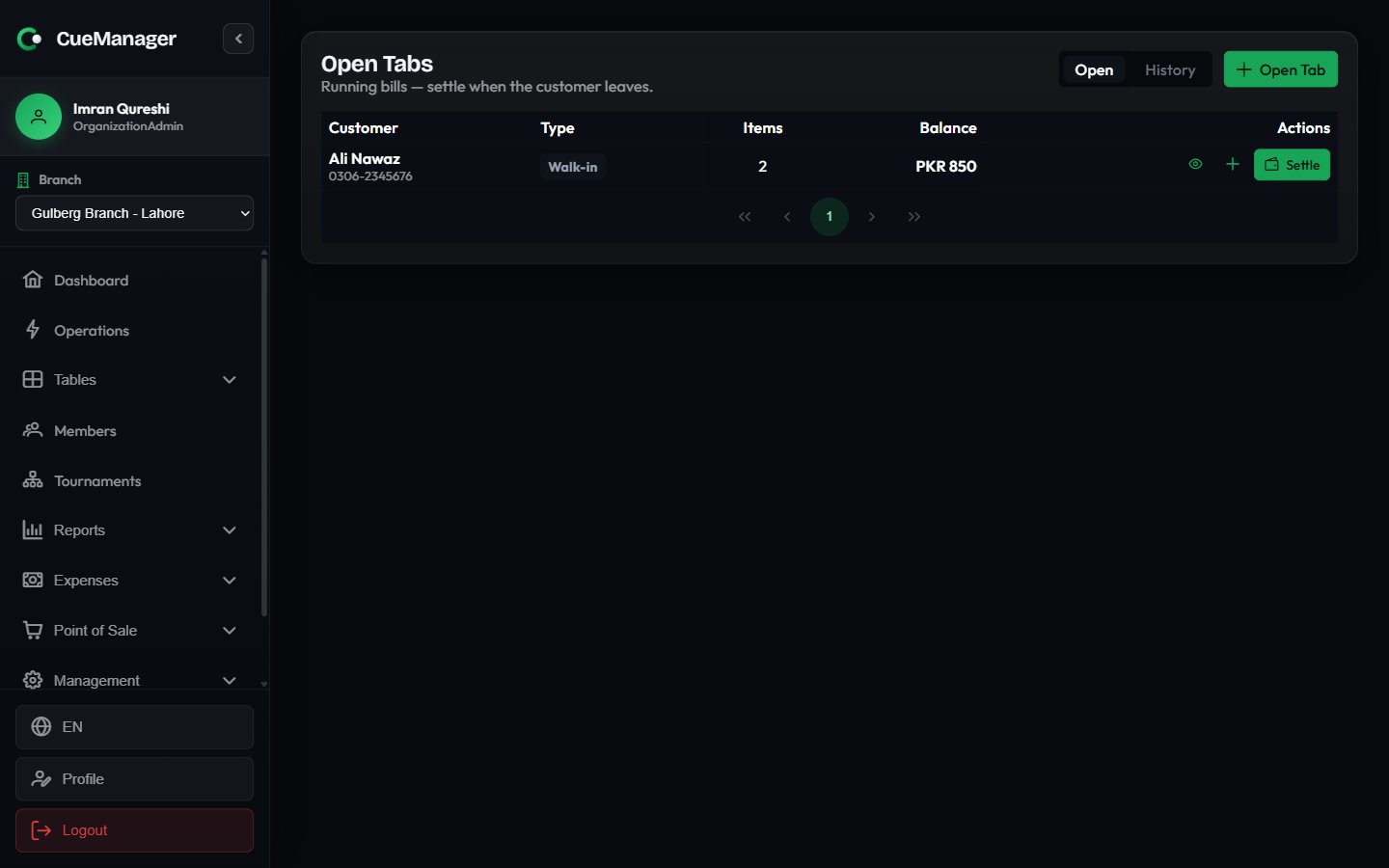 For a walk-in, press **Open Tab**, enter the **Customer name** and an optional **Phone**, then press **Open Tab** again. The tab starts at zero and waits for charges.
For a member, you do not need to open the tab by hand. Select the member at [POS checkout](/pos/pos-terminal) or at [session checkout](/sessions/checkout-and-payments) and choose the tab option — CueManager resolves the member's own tab, creating it if there is not one already. That keeps one running bill per member rather than several competing ones.
## Add charges
Three things put money on a tab.
In the terminal's checkout dialog, press **Add to Tab** instead of **Complete Sale**. Leave **Existing tab (optional)** on **Customer's own tab** to let CueManager resolve the right tab, or pick a specific open tab from the list. The sale lands on the tab as a canteen line with its items.
When you end a session, tick **Add to tab (pay later)**. **Charge to** then offers three modes: **Each player's own tab**, **One tab** for the whole session, or **Per player** so each player's share goes to the tab you choose for them. Frame charges follow the loser-pays rule described in [How billing works](/concepts/how-billing-works).
Press the plus button on the tab row to open **Add Charge**. Enter a **Description** — table time, cue rental — and an **Amount**. The dialog previews the **New balance** before you commit. Use this for anything that does not come through POS or a session.
Click any row to open the read-only detail view. It breaks the tab down into **Table Sessions** (with the frames, who won, who lost, and what each frame cost), **Canteen** (POS sales and their line items), **Adjustments**, and **Payments** — so you can read the bill back to a customer who queries it.
## Settle a tab
Press **Settle** on the tab row. The dialog lists every charge, then the totals: **Charges**, **Paid**, and **Balance due**.
For a walk-in, press **Open Tab**, enter the **Customer name** and an optional **Phone**, then press **Open Tab** again. The tab starts at zero and waits for charges.
For a member, you do not need to open the tab by hand. Select the member at [POS checkout](/pos/pos-terminal) or at [session checkout](/sessions/checkout-and-payments) and choose the tab option — CueManager resolves the member's own tab, creating it if there is not one already. That keeps one running bill per member rather than several competing ones.
## Add charges
Three things put money on a tab.
In the terminal's checkout dialog, press **Add to Tab** instead of **Complete Sale**. Leave **Existing tab (optional)** on **Customer's own tab** to let CueManager resolve the right tab, or pick a specific open tab from the list. The sale lands on the tab as a canteen line with its items.
When you end a session, tick **Add to tab (pay later)**. **Charge to** then offers three modes: **Each player's own tab**, **One tab** for the whole session, or **Per player** so each player's share goes to the tab you choose for them. Frame charges follow the loser-pays rule described in [How billing works](/concepts/how-billing-works).
Press the plus button on the tab row to open **Add Charge**. Enter a **Description** — table time, cue rental — and an **Amount**. The dialog previews the **New balance** before you commit. Use this for anything that does not come through POS or a session.
Click any row to open the read-only detail view. It breaks the tab down into **Table Sessions** (with the frames, who won, who lost, and what each frame cost), **Canteen** (POS sales and their line items), **Adjustments**, and **Payments** — so you can read the bill back to a customer who queries it.
## Settle a tab
Press **Settle** on the tab row. The dialog lists every charge, then the totals: **Charges**, **Paid**, and **Balance due**.
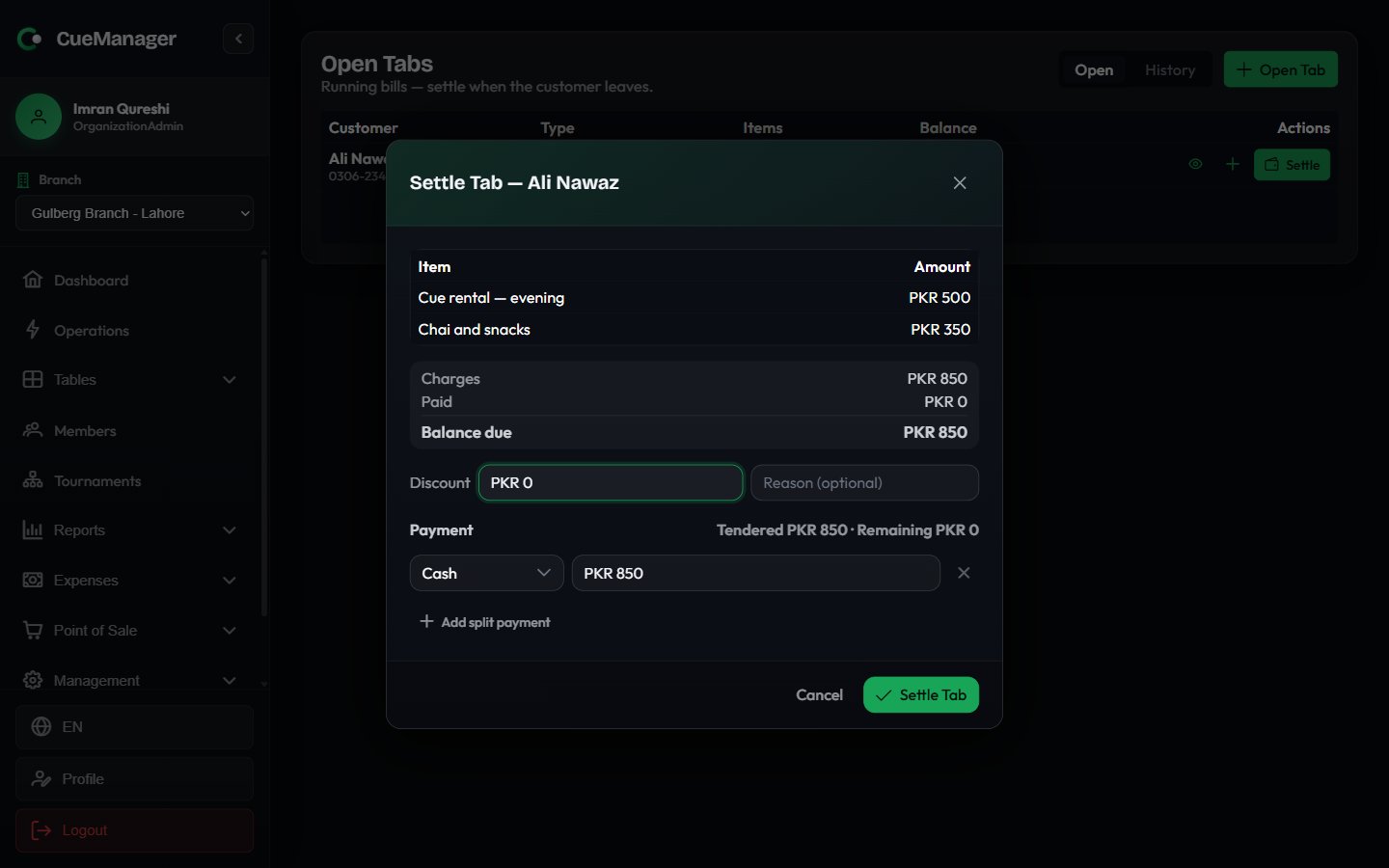 Enter an amount under **Discount** and, optionally, a **Reason**. The discount cannot exceed the balance, and **Balance due** updates immediately.
Each payment row is a method plus an amount. The first row is pre-filled with the full balance in **Cash**. Press **Add split payment** to add another row when the customer pays part in cash and part by another method — the header keeps a running **Tendered** and **Remaining**.
When the tenders cover the balance, the button reads **Settle Tab**. Press it, hand over any **Change due**, and the tab moves to **Tab History** as **Settled**.
### Partial payments
For a member's tab you can tick **Allow partial payment (leave balance on member account)**. The button then reads **Record Payment**: the amount is recorded against the tab, the remaining balance stays open, and the tab keeps running. That is how you take Rs 1,000 off a Rs 2,500 tab tonight and collect the rest next week.
Tenders accept **Cash**, **Card**, **JazzCash**, **Easypaisa**, **Raast**, and **Bank Transfer**. Member-owned tabs also offer **Member Credit**, which draws on the member's [wallet](/members/wallets-and-credit); a badge beside the tender shows whether the balance covers what you are charging.
Member credit is unavailable while the device is offline. A wallet balance is server state that another till could have spent, so CueManager will not promise it from a cached copy — take cash or another tender and the dialog says so.
## Void a tab
The bin icon appears only on tabs with no charges — an empty tab opened for a customer who left before playing. Voiding it closes the tab without payment and files it under **Tab History** as **Void**.
Voiding cannot be undone, and there is no void for a tab that already carries charges. If a bill needs writing off, settle it with a **Discount** and a reason instead, so the ledger records what happened and who decided it.
## Tab history
Switch the toggle from **Open** to **History** for settled and voided tabs. Pick a date range, and the table shows the customer, type, status, when the tab was **Opened** and **Closed**, the **Total**, and **Closed by** — the staff member who took the money. Click any row for the same full breakdown as an open tab.
## Tabs and offline work
Charges added without a connection are shown separately from the server's balance rather than folded into it. A tab row carries a note such as **incl. Rs 500 not yet synced**, and the detail view lists queued charges under **Recorded on this device (not yet synced)**, so staff always know which part of a number the server has confirmed.
Two safety locks apply:
* **Settle** is locked while a POS sale for the tab is waiting to sync, because the server prices sales — settling before it lands would take the customer short.
* Both **Settle** and **Add charge** are locked while a settlement for the tab is queued, so the same money cannot be taken twice.
Anything that cannot be applied cleanly shows up on the sync issues page for review. See [Offline and sync](/concepts/offline-and-sync).
## Related
Split a session bill across players, or push it to a tab.
The Member balances report lists unpaid tabs and sessions per member.
Enter an amount under **Discount** and, optionally, a **Reason**. The discount cannot exceed the balance, and **Balance due** updates immediately.
Each payment row is a method plus an amount. The first row is pre-filled with the full balance in **Cash**. Press **Add split payment** to add another row when the customer pays part in cash and part by another method — the header keeps a running **Tendered** and **Remaining**.
When the tenders cover the balance, the button reads **Settle Tab**. Press it, hand over any **Change due**, and the tab moves to **Tab History** as **Settled**.
### Partial payments
For a member's tab you can tick **Allow partial payment (leave balance on member account)**. The button then reads **Record Payment**: the amount is recorded against the tab, the remaining balance stays open, and the tab keeps running. That is how you take Rs 1,000 off a Rs 2,500 tab tonight and collect the rest next week.
Tenders accept **Cash**, **Card**, **JazzCash**, **Easypaisa**, **Raast**, and **Bank Transfer**. Member-owned tabs also offer **Member Credit**, which draws on the member's [wallet](/members/wallets-and-credit); a badge beside the tender shows whether the balance covers what you are charging.
Member credit is unavailable while the device is offline. A wallet balance is server state that another till could have spent, so CueManager will not promise it from a cached copy — take cash or another tender and the dialog says so.
## Void a tab
The bin icon appears only on tabs with no charges — an empty tab opened for a customer who left before playing. Voiding it closes the tab without payment and files it under **Tab History** as **Void**.
Voiding cannot be undone, and there is no void for a tab that already carries charges. If a bill needs writing off, settle it with a **Discount** and a reason instead, so the ledger records what happened and who decided it.
## Tab history
Switch the toggle from **Open** to **History** for settled and voided tabs. Pick a date range, and the table shows the customer, type, status, when the tab was **Opened** and **Closed**, the **Total**, and **Closed by** — the staff member who took the money. Click any row for the same full breakdown as an open tab.
## Tabs and offline work
Charges added without a connection are shown separately from the server's balance rather than folded into it. A tab row carries a note such as **incl. Rs 500 not yet synced**, and the detail view lists queued charges under **Recorded on this device (not yet synced)**, so staff always know which part of a number the server has confirmed.
Two safety locks apply:
* **Settle** is locked while a POS sale for the tab is waiting to sync, because the server prices sales — settling before it lands would take the customer short.
* Both **Settle** and **Add charge** are locked while a settlement for the tab is queued, so the same money cannot be taken twice.
Anything that cannot be applied cleanly shows up on the sync issues page for review. See [Offline and sync](/concepts/offline-and-sync).
## Related
Split a session bill across players, or push it to a tab.
The Member balances report lists unpaid tabs and sessions per member.