> ## Documentation Index
> Fetch the complete documentation index at: https://docs.getcuemanager.com/llms.txt
> Use this file to discover all available pages before exploring further.
# Checkout and payments
> Settle the bill — split it, take any payment method, or put it on a tab.
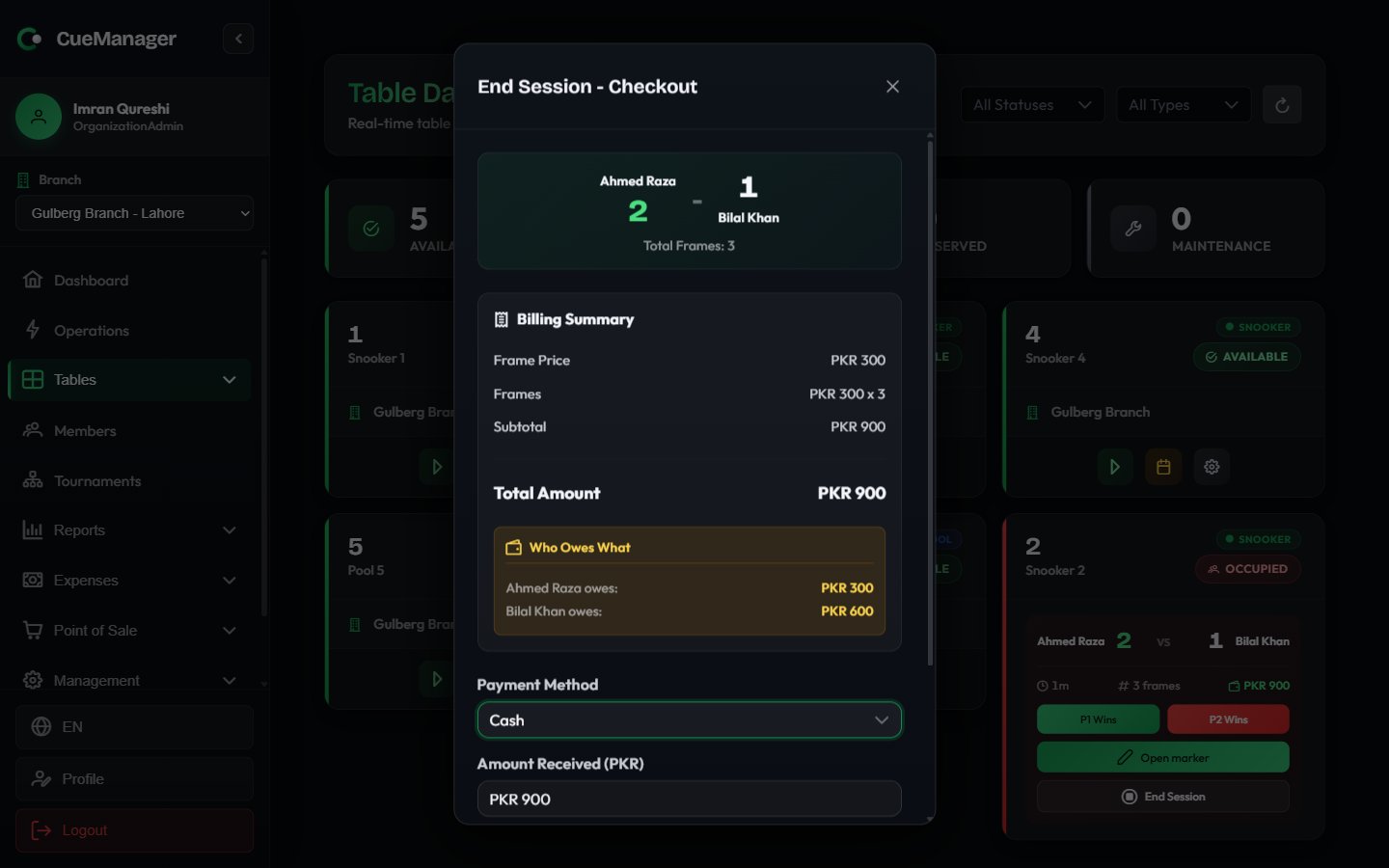
Choosing **End Session** on a running table opens **End Session - Checkout**. It shows the full bill, how it splits between players, and how you want to settle it — cash, a digital wallet, the member's own credit, or an open tab to be paid later.
 ## Reviewing the bill
The top of the dialog repeats the session: the players or teams, **Total Frames**, and **Duration**. Below that, the **Billing Summary** is itemised according to how the session was priced.
| Pricing model | What you see |
| ------------- | ------------------------------------------------------------------------------------------- |
| Per frame | **Frame Price** (with **Doubles Rate (2x)** where it applies) and the number of **Frames**. |
| Per hour | **Hourly Rate**, **Duration**, and the calculation, for example "2.5 hrs x Rs 400". |
| Per minute | **Per Minute Rate**, the minutes played, and the calculation. |
Then come **Subtotal**, any **Member Discount**, and **Total Amount**. Sales already paid at the POS for this table are listed under **POS Charges (already paid)** with a **Paid** tag — they are shown for context and are not added to what is due.
## Who owes what
For frame-priced sessions the dialog adds a split, because the loser of each frame pays for that frame.
* Singles shows **Who Owes What** — one line per player, for example "Ahmed Raza owes: Rs 1,500".
* Doubles shows **Team Split (Loser pays, split equally)** — each team's players listed with their half of what the team lost.
A player on a membership plan carries a small discount chip such as `-20%` next to their share, and their amount is already net of it. A player on a 100% free-play plan shows Rs 0 while everyone else at the table still pays.
The split tells you what each person owes. The payment you record below is a single settlement for the table — collect each player's share, then enter the total you took.
## Taking payment
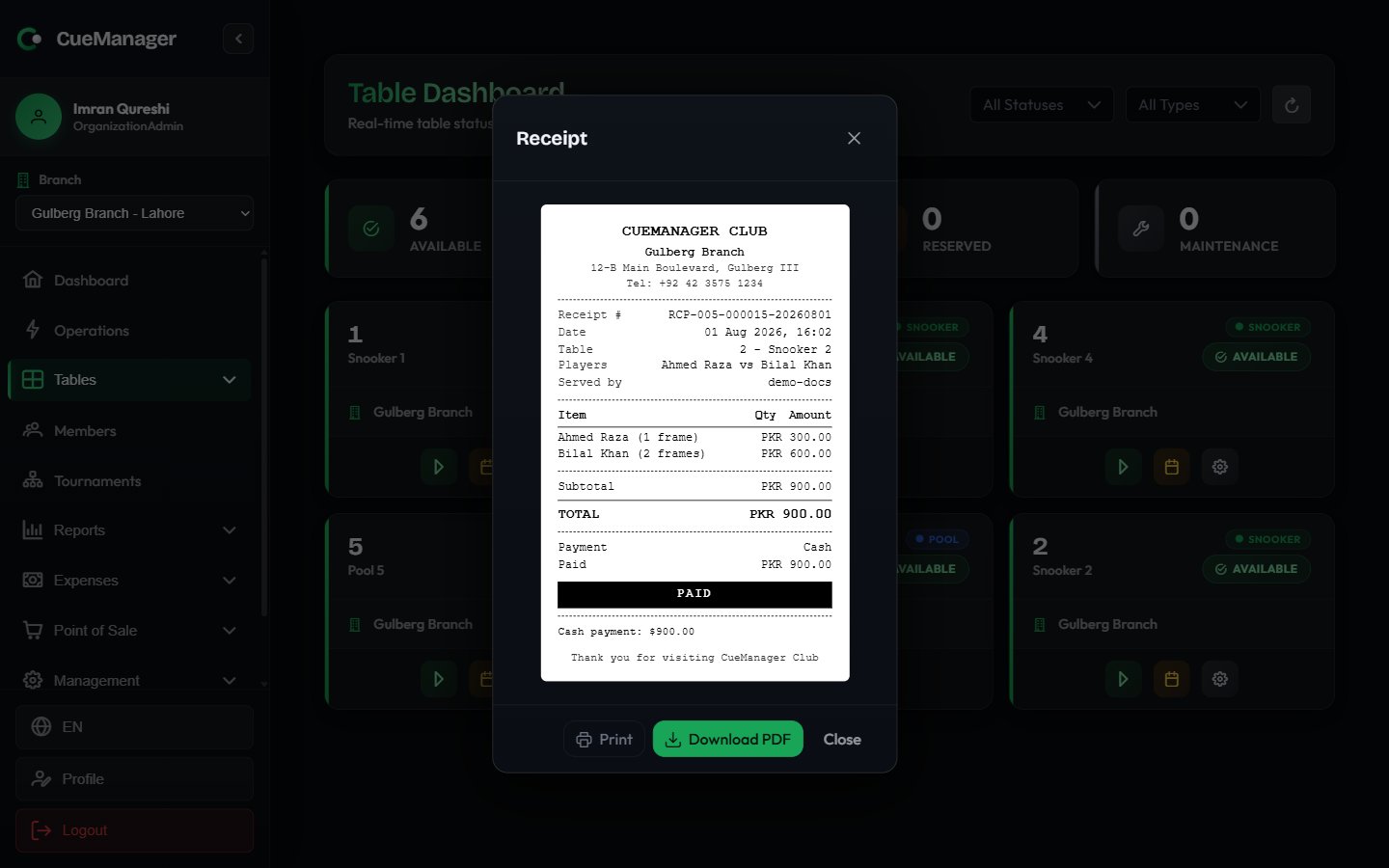
Pick a **Payment Method**, enter the **Amount Received**, add optional **Notes**, and choose **Complete Payment**. A printable receipt opens straight after.
## Reviewing the bill
The top of the dialog repeats the session: the players or teams, **Total Frames**, and **Duration**. Below that, the **Billing Summary** is itemised according to how the session was priced.
| Pricing model | What you see |
| ------------- | ------------------------------------------------------------------------------------------- |
| Per frame | **Frame Price** (with **Doubles Rate (2x)** where it applies) and the number of **Frames**. |
| Per hour | **Hourly Rate**, **Duration**, and the calculation, for example "2.5 hrs x Rs 400". |
| Per minute | **Per Minute Rate**, the minutes played, and the calculation. |
Then come **Subtotal**, any **Member Discount**, and **Total Amount**. Sales already paid at the POS for this table are listed under **POS Charges (already paid)** with a **Paid** tag — they are shown for context and are not added to what is due.
## Who owes what
For frame-priced sessions the dialog adds a split, because the loser of each frame pays for that frame.
* Singles shows **Who Owes What** — one line per player, for example "Ahmed Raza owes: Rs 1,500".
* Doubles shows **Team Split (Loser pays, split equally)** — each team's players listed with their half of what the team lost.
A player on a membership plan carries a small discount chip such as `-20%` next to their share, and their amount is already net of it. A player on a 100% free-play plan shows Rs 0 while everyone else at the table still pays.
The split tells you what each person owes. The payment you record below is a single settlement for the table — collect each player's share, then enter the total you took.
## Taking payment
Pick a **Payment Method**, enter the **Amount Received**, add optional **Notes**, and choose **Complete Payment**. A printable receipt opens straight after.
 | Method | Notes |
| -------------------------- | ------------------------------------------------------------------------------ |
| **Cash** | The default. Always available, including offline. |
| **Card** | Recorded manually — the terminal transaction happens on your own card machine. |
| **JazzCash** | Recorded manually after the transfer is confirmed. |
| **Easypaisa** | Recorded manually after the transfer is confirmed. |
| **Raast** | Recorded manually after the transfer is confirmed. |
| **Bank Transfer** | Recorded manually after the transfer is confirmed. |
| **Credit (Member Wallet)** | Debits the linked member's prepaid wallet balance. |
If you type more than the bill, a note appears telling you the amount to record and to hand back the difference as change.
### Paying from a member's wallet
**Credit (Member Wallet)** settles against the balance a member has topped up in advance. The amount is debited from their wallet when you complete the payment. Top-ups and balances are covered in [Wallets and credit](/members/wallets-and-credit).
The wallet cannot be used while the device is offline. The balance lives on the server and another till may have spent it, so the option is disabled and the method falls back to **Cash**. Take cash or send the charges to a tab instead.
## Putting the bill on a tab
If the branch runs open tabs, tick **Add to tab (pay later)**. The action button changes to **Add to Tab** and a **Charge to** selector appears:
| Option | What it does |
| ------------------------- | --------------------------------------------------------------------------------------- |
| **Each player's own tab** | The default. Every player's share goes to their own open tab. |
| **One tab** | The whole bill goes to a single tab you pick — useful when one person is hosting. |
| **Per player** | Choose a tab for each player individually; each row shows that player's name and share. |
Nothing is collected now. The charges sit on the tab until it is settled — see [Customer tabs](/pos/customer-tabs).
## Cancelling instead of charging
**Cancel Session** closes the session without charging anything.
Cancelling voids the whole session, including frames already recorded. Use it for a mis-started session, not for a discount — for that, adjust the amount or apply a membership plan. You are asked to confirm before it goes through.
## Offline checkouts
You can check out with no connection. The bill is worked out on the device and clearly labelled **Estimated — offline**, and the table stays on the board as **Ending — pending sync** until the server confirms it. If frames recorded on the device have not synced yet, the estimate is labelled **Estimated — waiting on earlier work**.
When the queue drains, the server recalculates the bill. If it disagrees with what you charged — for example because another till recorded a frame in the meantime — the checkout is held for review on the sync-issues page rather than being settled at a number nobody agreed. See [Offline and sync](/concepts/offline-and-sync).
## Related pages
* [How billing works](/concepts/how-billing-works) — how the totals are calculated
* [Customer tabs](/pos/customer-tabs) — running bills and settling them
* [Wallets and credit](/members/wallets-and-credit) — prepaid member balances
* [Membership plans](/members/membership-plans) — discounts and free play
| Method | Notes |
| -------------------------- | ------------------------------------------------------------------------------ |
| **Cash** | The default. Always available, including offline. |
| **Card** | Recorded manually — the terminal transaction happens on your own card machine. |
| **JazzCash** | Recorded manually after the transfer is confirmed. |
| **Easypaisa** | Recorded manually after the transfer is confirmed. |
| **Raast** | Recorded manually after the transfer is confirmed. |
| **Bank Transfer** | Recorded manually after the transfer is confirmed. |
| **Credit (Member Wallet)** | Debits the linked member's prepaid wallet balance. |
If you type more than the bill, a note appears telling you the amount to record and to hand back the difference as change.
### Paying from a member's wallet
**Credit (Member Wallet)** settles against the balance a member has topped up in advance. The amount is debited from their wallet when you complete the payment. Top-ups and balances are covered in [Wallets and credit](/members/wallets-and-credit).
The wallet cannot be used while the device is offline. The balance lives on the server and another till may have spent it, so the option is disabled and the method falls back to **Cash**. Take cash or send the charges to a tab instead.
## Putting the bill on a tab
If the branch runs open tabs, tick **Add to tab (pay later)**. The action button changes to **Add to Tab** and a **Charge to** selector appears:
| Option | What it does |
| ------------------------- | --------------------------------------------------------------------------------------- |
| **Each player's own tab** | The default. Every player's share goes to their own open tab. |
| **One tab** | The whole bill goes to a single tab you pick — useful when one person is hosting. |
| **Per player** | Choose a tab for each player individually; each row shows that player's name and share. |
Nothing is collected now. The charges sit on the tab until it is settled — see [Customer tabs](/pos/customer-tabs).
## Cancelling instead of charging
**Cancel Session** closes the session without charging anything.
Cancelling voids the whole session, including frames already recorded. Use it for a mis-started session, not for a discount — for that, adjust the amount or apply a membership plan. You are asked to confirm before it goes through.
## Offline checkouts
You can check out with no connection. The bill is worked out on the device and clearly labelled **Estimated — offline**, and the table stays on the board as **Ending — pending sync** until the server confirms it. If frames recorded on the device have not synced yet, the estimate is labelled **Estimated — waiting on earlier work**.
When the queue drains, the server recalculates the bill. If it disagrees with what you charged — for example because another till recorded a frame in the meantime — the checkout is held for review on the sync-issues page rather than being settled at a number nobody agreed. See [Offline and sync](/concepts/offline-and-sync).
## Related pages
* [How billing works](/concepts/how-billing-works) — how the totals are calculated
* [Customer tabs](/pos/customer-tabs) — running bills and settling them
* [Wallets and credit](/members/wallets-and-credit) — prepaid member balances
* [Membership plans](/members/membership-plans) — discounts and free play