> ## Documentation Index
> Fetch the complete documentation index at: https://docs.getcuemanager.com/llms.txt
> Use this file to discover all available pages before exploring further.
# The live floor
> Watch every table's status update in real time.
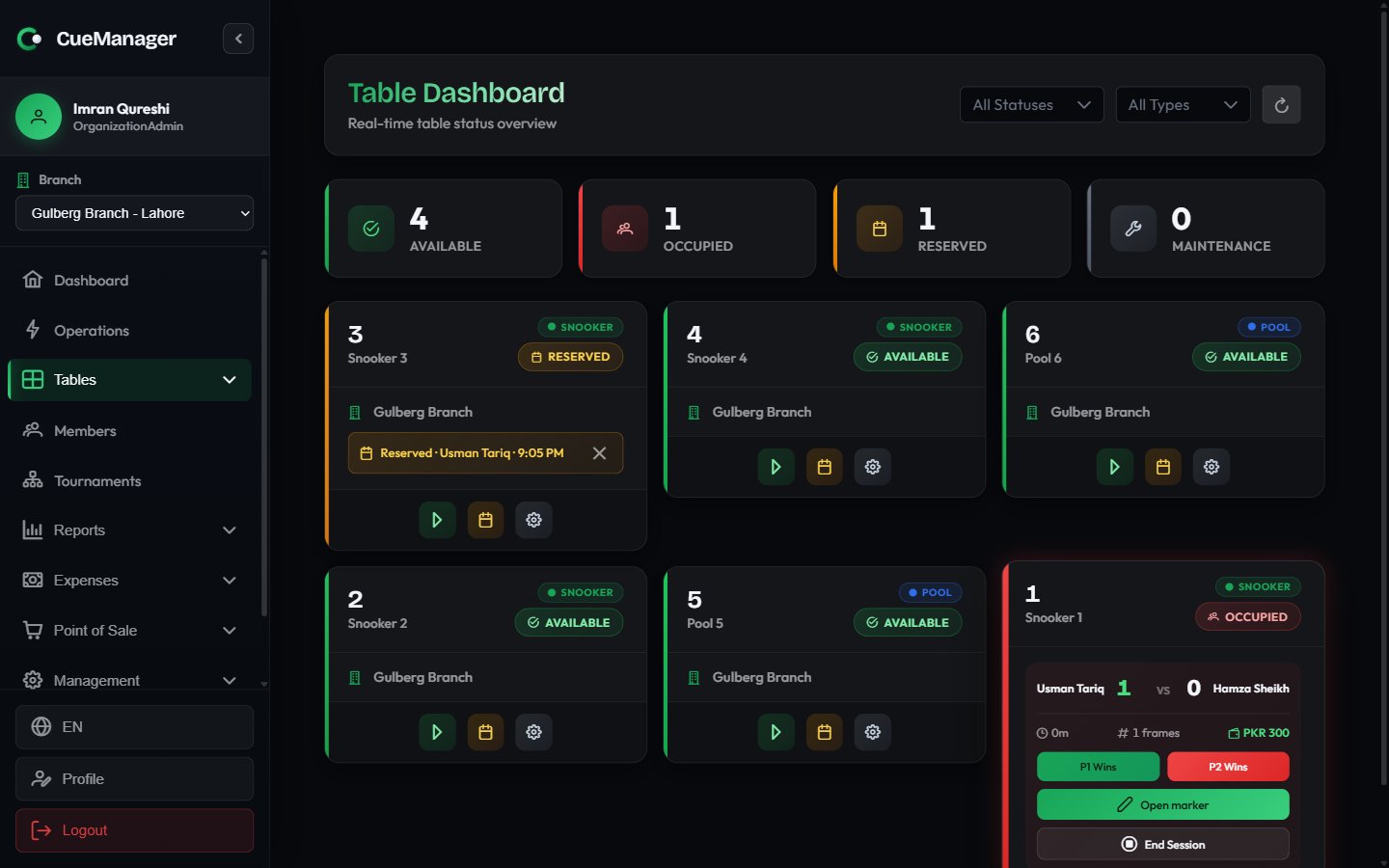
The **Tables** page is the board your front desk works from. It shows every table in the branch as a card, colour-coded by status, and it updates itself as staff start sessions, record frames, and take payments on other devices.
 ## Reading the board
Across the top, four counters show how the branch is doing right now: **Available**, **Occupied**, **Reserved**, and **Maintenance**. Below them is the card grid.
| Status | Colour | What it means |
| --------------- | ------ | -------------------------------------------------------- |
| **Available** | Green | Free to play. You can start a session or take a booking. |
| **Occupied** | Red | A session is running on the table. |
| **Reserved** | Amber | A booking is held for this table today. |
| **Maintenance** | Grey | Out of play — re-clothing, repairs, anything else. |
The status on a card is worked out live, not just read from the table record: a table with an active session always reads **Occupied**, and an otherwise-available table with a booking today reads **Reserved**. The counters and the status filter use the same rule, so they always agree with the cards.
Each card carries the table number, its optional name, a type badge (**Snooker** or **Pool**), the status badge, and — on tables paired with a camera — a small camera chip. The chip reads **Camera offline** when automatic frame-end detection is not working for that table.
## Filtering the grid
The header has a status filter (**All Statuses**), a type filter (**All Types**), and a refresh button. If you are a SuperAdmin, an extra **All Branches** filter appears so you can narrow the board to one branch. Every filter clears back to "all" with the small x.
Filters change what the grid shows, but the four counters always describe the whole branch you are looking at.
## What clicking a table does
An idle card has three buttons.
Opens the start dialog for that table. Enabled only while the table is **Available**. See [Starting a session](/sessions/starting-a-session).
Opens **Reserve Table** to hold the table for a customer. See [Managing tables](/tables/managing-tables).
Opens **Change Table Status** — pick a new status and choose **Update**. Use it to put a table into **Maintenance** and back.
When a booking exists, the card shows a **Reserved · name · time** row with an x to cancel it. Cancelling asks you to confirm first.
Once a session starts, the buttons are replaced by the live session panel — score, timer, running total, frame buttons and **End Session**. That panel is covered in [Running a session](/sessions/running-a-session).
## Real-time behaviour
The board is connected to the server over a live channel, so you do not need to refresh it:
* A card pulses briefly whenever its table changes on another device.
* Session timers, frame scores, and running totals move on every screen showing the branch.
* Camera chips flip between online and offline as the camera service reports in.
If the connection drops, the board keeps working from what the device already knows and shows an offline indicator. Writes you make are queued and sent when the connection returns — see [Offline and sync](/concepts/offline-and-sync).
Leave the table dashboard open on a screen behind the counter. It is the fastest way to see what is free, what has been running a long time, and which tables have a booking coming up.
## Related pages
* [Managing tables](/tables/managing-tables) — add tables, set types, take bookings
* [Starting a session](/sessions/starting-a-session) — the start dialog, step by step
* [How billing works](/concepts/how-billing-works) — frame, hourly, and per-minute pricing
* [Roles and permissions](/concepts/roles-and-permissions) — who can change table status
## Reading the board
Across the top, four counters show how the branch is doing right now: **Available**, **Occupied**, **Reserved**, and **Maintenance**. Below them is the card grid.
| Status | Colour | What it means |
| --------------- | ------ | -------------------------------------------------------- |
| **Available** | Green | Free to play. You can start a session or take a booking. |
| **Occupied** | Red | A session is running on the table. |
| **Reserved** | Amber | A booking is held for this table today. |
| **Maintenance** | Grey | Out of play — re-clothing, repairs, anything else. |
The status on a card is worked out live, not just read from the table record: a table with an active session always reads **Occupied**, and an otherwise-available table with a booking today reads **Reserved**. The counters and the status filter use the same rule, so they always agree with the cards.
Each card carries the table number, its optional name, a type badge (**Snooker** or **Pool**), the status badge, and — on tables paired with a camera — a small camera chip. The chip reads **Camera offline** when automatic frame-end detection is not working for that table.
## Filtering the grid
The header has a status filter (**All Statuses**), a type filter (**All Types**), and a refresh button. If you are a SuperAdmin, an extra **All Branches** filter appears so you can narrow the board to one branch. Every filter clears back to "all" with the small x.
Filters change what the grid shows, but the four counters always describe the whole branch you are looking at.
## What clicking a table does
An idle card has three buttons.
Opens the start dialog for that table. Enabled only while the table is **Available**. See [Starting a session](/sessions/starting-a-session).
Opens **Reserve Table** to hold the table for a customer. See [Managing tables](/tables/managing-tables).
Opens **Change Table Status** — pick a new status and choose **Update**. Use it to put a table into **Maintenance** and back.
When a booking exists, the card shows a **Reserved · name · time** row with an x to cancel it. Cancelling asks you to confirm first.
Once a session starts, the buttons are replaced by the live session panel — score, timer, running total, frame buttons and **End Session**. That panel is covered in [Running a session](/sessions/running-a-session).
## Real-time behaviour
The board is connected to the server over a live channel, so you do not need to refresh it:
* A card pulses briefly whenever its table changes on another device.
* Session timers, frame scores, and running totals move on every screen showing the branch.
* Camera chips flip between online and offline as the camera service reports in.
If the connection drops, the board keeps working from what the device already knows and shows an offline indicator. Writes you make are queued and sent when the connection returns — see [Offline and sync](/concepts/offline-and-sync).
Leave the table dashboard open on a screen behind the counter. It is the fastest way to see what is free, what has been running a long time, and which tables have a booking coming up.
## Related pages
* [Managing tables](/tables/managing-tables) — add tables, set types, take bookings
* [Starting a session](/sessions/starting-a-session) — the start dialog, step by step
* [How billing works](/concepts/how-billing-works) — frame, hourly, and per-minute pricing
* [Roles and permissions](/concepts/roles-and-permissions) — who can change table status