> ## Documentation Index
> Fetch the complete documentation index at: https://docs.getcuemanager.com/llms.txt
> Use this file to discover all available pages before exploring further.
# Managing tables
> Add snooker and pool tables, set rates, and take reservations.
**Manage Tables** is where the table records themselves live — adding a table, naming it, setting whether it is a snooker or a pool table, and retiring it. Day-to-day status changes happen on [the live floor](/tables/live-floor); this page is the setup behind it.
 ## The table list
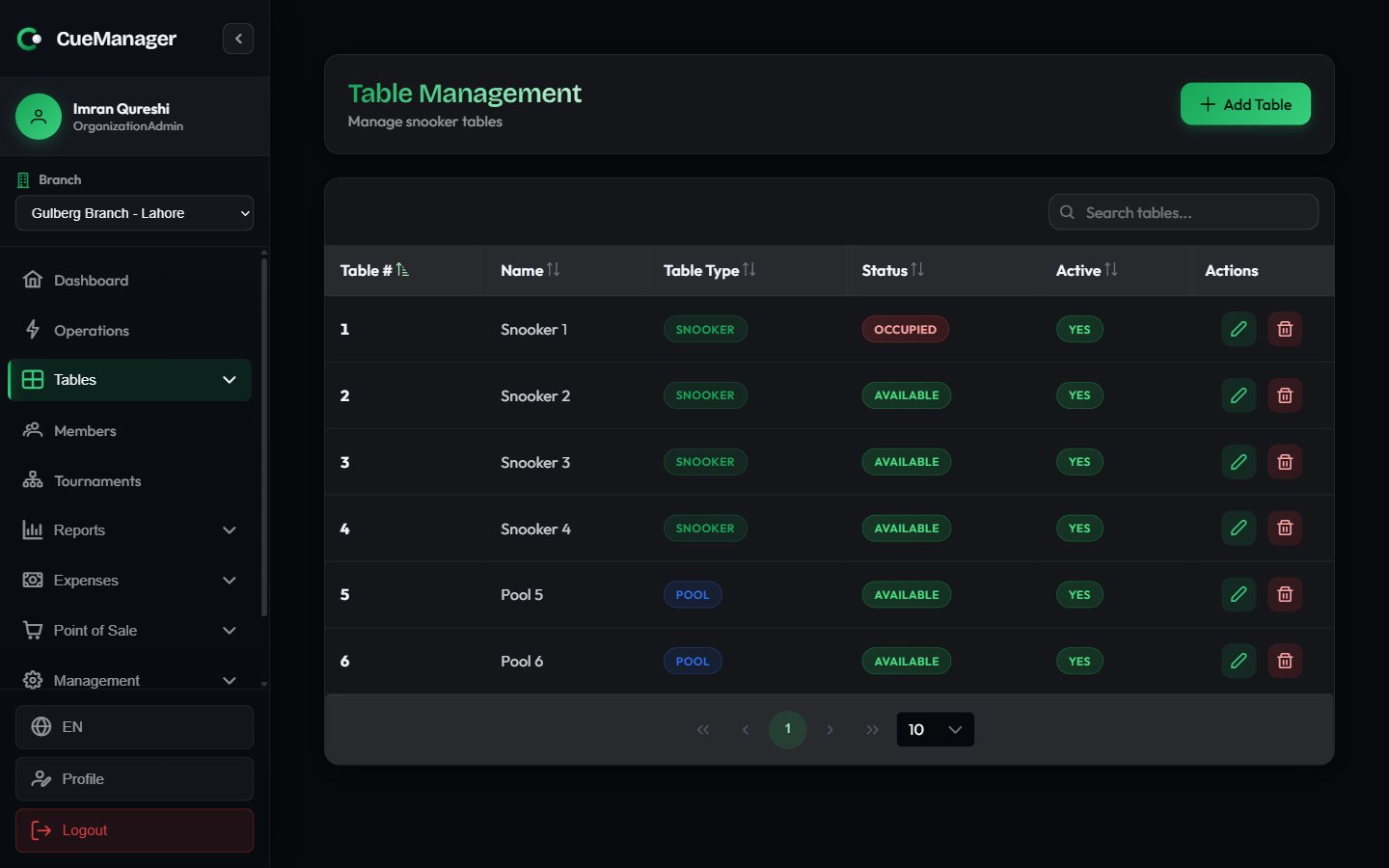
Open **Manage Tables** from the Tables section of the sidebar. The list is searchable and sortable, with one row per table: **Table #**, **Name**, **Type**, **Status**, **Active**, and row actions. SuperAdmins also see a **Branch** column.
Use the search box to filter by number, name, branch, status, or type.
## Adding a table
The dialog opens with the create form. SuperAdmins pick the **Branch** first; everyone else creates in their own branch.
Required, up to 20 characters. This is the label staff see everywhere else in the app, so keep it short and physical: `Snooker 1`, `Pool 2`.
A friendlier label, for example `VIP Table`. It appears under the number on the floor card.
**Snooker** or **Pool**. This drives which games can be played on it and which rate a session defaults to.
New tables usually start **Available** and active. Clear **Active** to take a table off the floor without deleting its history.
The table appears on the live floor immediately, on every device.
Editing works the same way — the row's pencil opens the same form with **Update** at the bottom.
Deleting a table is permanent and asks you to confirm by number. If a table is only temporarily out of use, set its status to **Maintenance** or clear **Active** instead — deleting removes it from the floor entirely.
## Snooker tables and pool tables
The type is more than a label:
* A **Snooker** table can host every game — the start dialog offers **Snooker**, **8-Ball**, and **9-Ball**, and defaults to Snooker.
* A **Pool** table offers only **8-Ball** and **9-Ball**, and defaults to 8-Ball. Snooker is not selectable.
* Only snooker games can be scored with the [snooker marker](/sessions/snooker-marker).
## Rates
Rates are set per branch and per table type, not on the individual table. A branch carries a per-frame, per-hour, and per-minute rate for snooker, plus optional pool rates that override them; where a pool rate is left empty, the snooker rate applies.
When you start a session, the frame price defaults from the branch rate for that table's type — so a session on `Pool 1` picks up the branch's pool frame rate, and one on `Snooker 3` picks up the snooker rate. Staff can still override the price for a single session in the start dialog.
Set and change these rates in [Branches](/admin/branches); the initial values are captured during the [onboarding wizard](/getting-started/onboarding-wizard).
## Reservations
Bookings are taken from the live floor, not from this list. On an available table's card, choose **Reserve**.
## The table list
Open **Manage Tables** from the Tables section of the sidebar. The list is searchable and sortable, with one row per table: **Table #**, **Name**, **Type**, **Status**, **Active**, and row actions. SuperAdmins also see a **Branch** column.
Use the search box to filter by number, name, branch, status, or type.
## Adding a table
The dialog opens with the create form. SuperAdmins pick the **Branch** first; everyone else creates in their own branch.
Required, up to 20 characters. This is the label staff see everywhere else in the app, so keep it short and physical: `Snooker 1`, `Pool 2`.
A friendlier label, for example `VIP Table`. It appears under the number on the floor card.
**Snooker** or **Pool**. This drives which games can be played on it and which rate a session defaults to.
New tables usually start **Available** and active. Clear **Active** to take a table off the floor without deleting its history.
The table appears on the live floor immediately, on every device.
Editing works the same way — the row's pencil opens the same form with **Update** at the bottom.
Deleting a table is permanent and asks you to confirm by number. If a table is only temporarily out of use, set its status to **Maintenance** or clear **Active** instead — deleting removes it from the floor entirely.
## Snooker tables and pool tables
The type is more than a label:
* A **Snooker** table can host every game — the start dialog offers **Snooker**, **8-Ball**, and **9-Ball**, and defaults to Snooker.
* A **Pool** table offers only **8-Ball** and **9-Ball**, and defaults to 8-Ball. Snooker is not selectable.
* Only snooker games can be scored with the [snooker marker](/sessions/snooker-marker).
## Rates
Rates are set per branch and per table type, not on the individual table. A branch carries a per-frame, per-hour, and per-minute rate for snooker, plus optional pool rates that override them; where a pool rate is left empty, the snooker rate applies.
When you start a session, the frame price defaults from the branch rate for that table's type — so a session on `Pool 1` picks up the branch's pool frame rate, and one on `Snooker 3` picks up the snooker rate. Staff can still override the price for a single session in the start dialog.
Set and change these rates in [Branches](/admin/branches); the initial values are captured during the [onboarding wizard](/getting-started/onboarding-wizard).
## Reservations
Bookings are taken from the live floor, not from this list. On an available table's card, choose **Reserve**.
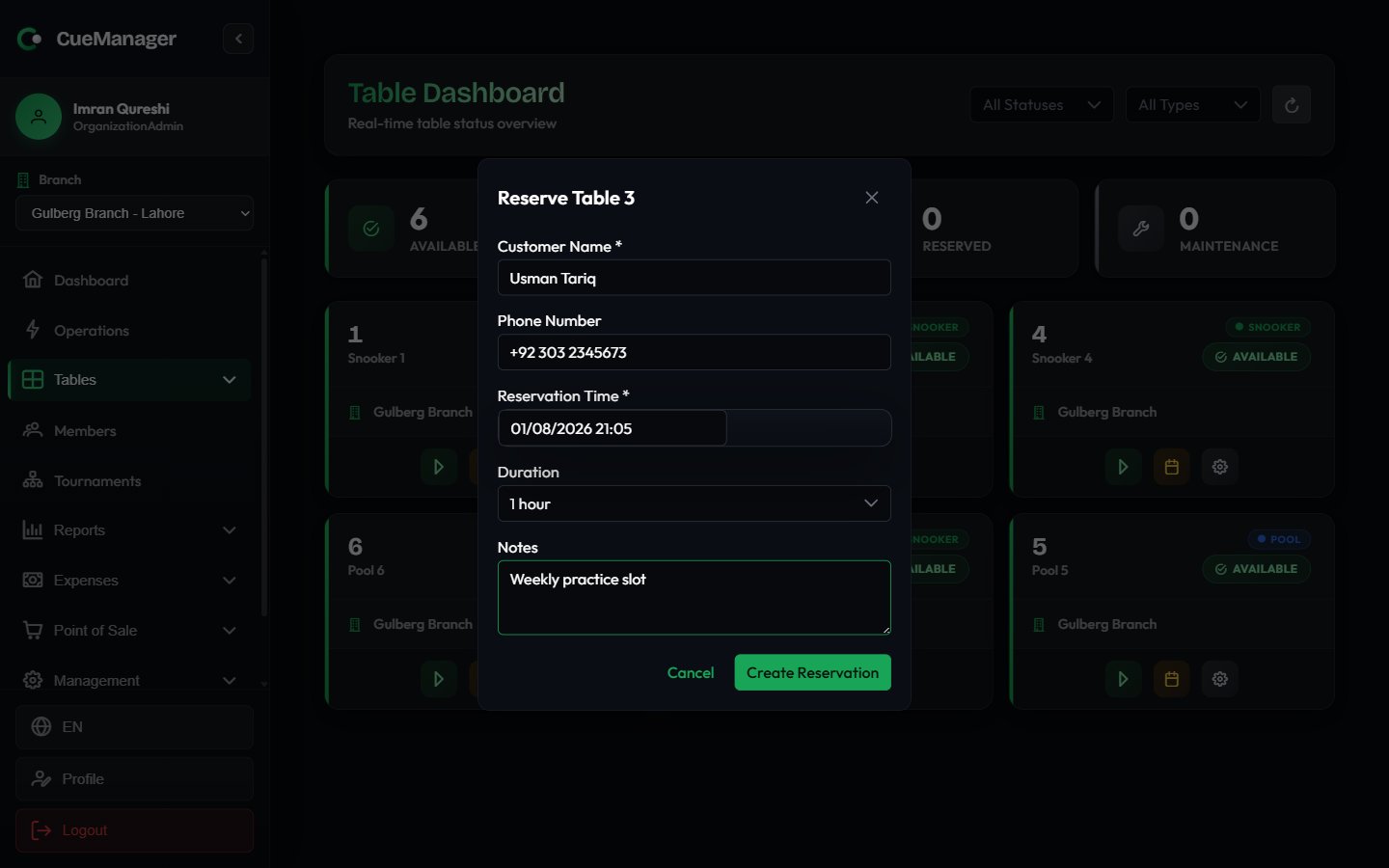 Required. Add a **Phone Number** if you want to be able to call and confirm.
Date and time, in 15-minute steps. Past times cannot be selected.
**30 minutes**, **1 hour** (the default), **1.5 hours**, **2 hours**, or **3 hours**.
For example, which game the group wants or how many players are expected.
The table's card immediately shows a **Reserved · name · time** row and the board counts it under **Reserved**.
A reservation moves through **Pending**, **Confirmed**, **Completed**, or **Cancelled**. Only pending and confirmed bookings for today appear on the floor cards.
Cancelling a booking from the card removes it. The confirmation names the customer, so read it before accepting — there is no undo.
A booking does not block the table: staff can still start a session on it if the group arrives early or the booking is a no-show.
## Cameras
Tables can be paired with a camera for automatic frame-end detection. Once paired, the floor card shows a camera chip, and a table whose camera is down warns you when you start a session on it. Pairing, RTSP credentials, and camera health live in [Settings](/admin/settings).
## Related pages
* [The live floor](/tables/live-floor) — status colours and real-time updates
* [Branches](/admin/branches) — per-branch snooker and pool rates
* [Starting a session](/sessions/starting-a-session) — how the rate reaches the bill
* [How billing works](/concepts/how-billing-works) — the pricing models explained
Required. Add a **Phone Number** if you want to be able to call and confirm.
Date and time, in 15-minute steps. Past times cannot be selected.
**30 minutes**, **1 hour** (the default), **1.5 hours**, **2 hours**, or **3 hours**.
For example, which game the group wants or how many players are expected.
The table's card immediately shows a **Reserved · name · time** row and the board counts it under **Reserved**.
A reservation moves through **Pending**, **Confirmed**, **Completed**, or **Cancelled**. Only pending and confirmed bookings for today appear on the floor cards.
Cancelling a booking from the card removes it. The confirmation names the customer, so read it before accepting — there is no undo.
A booking does not block the table: staff can still start a session on it if the group arrives early or the booking is a no-show.
## Cameras
Tables can be paired with a camera for automatic frame-end detection. Once paired, the floor card shows a camera chip, and a table whose camera is down warns you when you start a session on it. Pairing, RTSP credentials, and camera health live in [Settings](/admin/settings).
## Related pages
* [The live floor](/tables/live-floor) — status colours and real-time updates
* [Branches](/admin/branches) — per-branch snooker and pool rates
* [Starting a session](/sessions/starting-a-session) — how the rate reaches the bill
* [How billing works](/concepts/how-billing-works) — the pricing models explained