

Cameras
Management → Cameras opens Camera Management — Pair an IP camera with each table for automatic frame-end alerts. One camera per table; once paired, the table cannot be changed, only the connection details.1
Add the camera
Select Add Camera and pick the Table. The dropdown lists only tables that do not already have a camera, so Snooker 1 disappears from it once it is paired.
2
Enter the stream URL
Put the camera’s stream in RTSP URL, for example
rtsp://192.168.1.50:554/stream1. It must start with rtsp:// or rtsps://.3
Add credentials if the camera needs them
Username and Password are optional. When you edit a camera later, leaving the password blank keeps the stored one.
4
Fence off the detection region (optional)
Under Detection region, box off the part of the picture that actually holds the table so a walkway or the tea counter behind it stops counting as table activity. Leave all four boxes blank to watch the whole frame — see Detection region and baseline.
5
Mark the rack zone (snooker tables, optional)
Still under Detection region, box off the Rack zone — the triangle of reds between the pink and black spots, with a little margin around it. With one marked, the watchdog stops inferring a re-rack from movement and waits until it can actually see the reds racked again. The zone has to sit inside the detection region; leave all four boxes blank to skip it — see The rack zone.
6
Save
Leave Active ticked and select Save.
Health updates live, so a camera that drops off the network flips to Offline without a page refresh. Hovering the tag shows Last seen: and the time.
A row carries a small Rack detection tag when four things are true together: the re-rack watchdog is switched on for your deployment (
Cameras:SnookerWatchdogEnabled, below — it is off until someone turns it on), this branch has opted in (the Camera re-rack watchdog box on the branch form — see Branches), the camera is enabled, and it has a rack zone marked. That is exactly what the monitor checks before it reads a rack zone, so the tag never promises detection that is not happening: with either switch off, drawing a zone stores it for later and nothing else. When you are viewing one branch that has not opted in, the page says so under its heading (the all-branches view relies on the tag alone).
Each row also has a bell icon, Send a test alert, which pushes a simulated frame-end to that table so you can confirm the alert reaches the front desk. The table needs an active session, and what arrives depends on the game:
On a snooker table with no frame open in the marker, the test refuses with No open snooker frame on this table — start a frame in the marker first. If that session already has a nudge nobody has answered — from an earlier test or from the watchdog itself — it says so too; dismiss that one or end the frame first. On a branch that has not opted into the watchdog it refuses with The re-rack watchdog is off for this branch — turn it on in the branch settings first, because that club will never receive a nudge and the bell must not show it one. The test works whether or not the watchdog is switched on for your deployment, because it stands in for the camera rather than using it.
See Running a session for the alerts staff answer, and The snooker marker for what a nudge looks like during scoring.
Detection region and baseline
Three things decide how well a camera reads its table: what part of the picture it looks at, where on that picture the reds get racked, and what it compares the picture against.The detection region
A camera aimed at Snooker 3 almost always catches more than Snooker 3 — a walkway down one side, the bench along the wall, the door to the tea counter. Everyone who crosses that strip counts as movement on the table, and that is how a camera ends up raising alerts nobody asked for. The Detection region section of the camera dialog fences off the part of the frame that is actually cloth. Four boxes take percentages of the picture, measured from its top-left corner:
So Left 10 · Top 15 · Width 75 · Height 70 ignores the leftmost tenth, the top fifteen percent, and the right and bottom fifteen percent of the shot — roughly what you want when the table sits in the middle and the walkway runs down the right.
The little preview beside the boxes shades out everything being ignored and redraws as you type, so you can line the region up against what the camera really sees. Fill in all four boxes or leave all four blank: a half-filled region is refused with The detection region must be fully specified or left empty, and one that runs off the edge with The detection region must lie within the frame. Use whole frame clears all four at once and the preview goes back to Whole frame.
The region applies to everything the camera decides, not just snooker — on a pool table it is the same crop that decides when the Record Frame Result dialog appears.
The rack zone
The detection region tells the camera where the table is. The rack zone tells it where the reds live, and that is what turns the watchdog from a guess into something it has actually seen. Box off the triangle of reds as they stand racked — between the pink and the black spots — with a little margin around it, so a rack that sits slightly proud or gets nudged an inch still falls inside. The four boxes are percentages of the whole picture, exactly like the region’s: Left, Top, Width, Height. The preview draws the zone on top of the shaded region in its own colour, with Rack in the key beneath it. What the watchdog does with it, in plain words: every few seconds it looks at that little box and asks whether the reds are sitting in it as a rack. A rack on its own means nothing — the reds are racked at the start of every frame, before the break. What it waits for is the full round trip, within one frame: a rack in the zone, that rack scattered out during play, and the reds back in a triangle again. Balls only make that round trip when the frame they were broken for has finished. So when it sees that while the frame is still open in the marker, it nudges after about a minute instead of the two and a half minutes a movement-only camera waits. That is also why it does not matter whether staff open the next frame in the marker before or after they rack up. A frame opened while the balls are still scattered simply gets racked up under its own number, and the round trip has not happened yet — so nobody is nudged a minute into a frame they started correctly. The trade is that the very first cycle after the server restarts, or after you save a change to that camera, is skipped; movement and the empty-table snapshot still cover it. The zone must lie inside the detection region — a zone outside the crop would be watching pixels the rest of the pipeline throws away. Fill in all four boxes or leave all four blank:
Clear rack zone empties all four at once and the key goes back to No rack zone; that camera then falls back to the movement trigger and the baseline, exactly as before. Changing the zone leaves the baseline alone — it only makes the watchdog start reading the new box from scratch.
Nothing has to be told what colour your cloth is. Every picture is measured on its own: the commonest colour across the detection region is the cloth, and anything far enough away from it inside the zone is counted as a ball, a hand, or the triangle. Green baize or blue, bright club lights or dim ones, all read the same way.
That is also where the quarter-of-the-region limit comes from: the reading only works while the cloth is most of what the detection region holds. A region drawn tight around the zone would make a full rack the commonest thing in it, the “cloth” would come back red, and the camera would stop being able to read that zone at all — silently. So the dialog refuses the rectangle instead.
Rack detection settings
These live in the server’sCameras configuration section like the rest, not in the app. The defaults suit a normally lit table shot from above; change them only with a real problem to point at. All of them are read only when Cameras:SnookerWatchdogEnabled is on and the camera’s branch has opted in — with either switch off no camera reads its rack zone, whatever these say.
Rack detection only ever runs on cameras that have a zone. Everything else is unchanged: a camera with no zone works from movement and the empty-table snapshot as it always has, and a rack zone never turns a pool table into a nudging table — nudges stay snooker-only, and nothing here ever records a frame.
The baseline
The baseline is the monitor’s own picture of the table with nothing on it. It is not a photo you upload or can look at: it is a tiny, blurred, grey snapshot the monitor stores so it can answer one question later — does this table look empty right now? Nobody captures it. While a table has no session running and the picture has been still for a moment, the monitor quietly saves what it is looking at as that table’s empty state, and refreshes it every half hour the table stays free. On a snooker table that snapshot is what lets the re-rack watchdog tell a table with nobody over it from one someone is working on. The snapshot is far too small to make out individual balls, so it cannot tell a cleared table from one in the middle of a frame — only whether anyone is leaning over the cloth. The Baseline column in the camera list shows where each camera stands:
A snapshot only stays trusted for three days. Past that the monitor throws it away by itself and the row goes back to No baseline yet until the table is next free and calm, on the reasoning that a three-day-old picture of the room is as likely to be wrong as right.
Clearing the baseline
The eraser icon on a camera row, Clear baseline, discards the stored snapshot after a confirmation. Use it whenever the empty table no longer looks the way it did:- the camera was knocked, re-aimed, or remounted
- furniture moved into or out of the shot — a bench pushed back, a new stand beside the pocket
- the table was re-clothed, or the lighting over it was changed
Server settings
Like the watchdog’s own settings below, these live in the server’sCameras configuration section, not in the app.
A table that looks empty only ever shortens the wait before a nudge. On its own it never raises a nudge, and it never raises a Record Frame Result alert — the watchdog still needs re-rack activity first, the frame still has to be open in the marker, and a snooker frame is still only ever ended by the marker.
The snooker re-rack watchdog
On a snooker table the camera never records a result — the marker is the only thing that ends a frame and bills it. What the camera watches for instead is the aftermath: the balls gathered and the reds racked up again. A rack has one meaning, that the last frame is over. So if Snooker 1 gets racked while frame 3 is still open in the marker, someone forgot to press End frame, the next frame’s pots start landing on the old one, and the loser-pays total quietly drifts. When the watchdog is on, that situation raises a nudge on every signed-in device — this table looks racked up, but the frame below is still open — with a link to the marker and a Dismiss button. It never picks a winner, never records a frame, and never touches the bill. Two switches have to be on, and they belong to different people:Everything below the branch tick-box — grace periods, cooldowns, thresholds — lives in the server’s
Cameras configuration section alongside the rest of the camera pipeline. They are not toggles inside the app, so ask whoever hosts CueManager for your club to change them.
The grace period starts at the first sign of re-rack activity and is not pushed back by later movement, so a slow rack-up still gets nudged. The watchdog already ignores a frame opened on the way to the table — movement within
Cameras:SnookerNudgeMinFrameAgeSeconds (two minutes) of a frame being opened is taken as that frame’s own rack-up. Raise that setting if your markers open the next frame, then take a long time racking; lower the grace period only once dismissals are rare.
Where a camera has a rack zone marked, it does not have to guess. On top of movement, the watchdog waits until it has watched the reds scatter and come back into a triangle in the same frame, then nudges Cameras:SnookerNudgeRackGraceSeconds — a minute — later. Movement keeps running alongside it on every camera as the fallback: it is all a camera without a zone has, and on a zoned camera it still catches the re-racks the zone could not read (a player standing over the spot, the lights down, a camera in black-and-white night mode).
Reading the Nudges · 30d column
Each camera row carries three counters for the last 30 days, which is how you judge whether those numbers fit your club:
A camera on Snooker 1 reading 9 raised / 7 auto-resolved / 2 dismissed is earning its keep. One reading 20 / 1 / 19 is mostly noise: lengthen the grace period, or check that the camera is pointed at the table rather than at the walkway behind it — and fence the walkway out with a detection region. Whatever the two outcomes do not account for is a nudge nobody has answered yet. Marking a rack zone adds a sharper, earlier trigger that only fires on a re-rack it actually watched — but movement stays on as the fallback, so a zone does not silence a camera that keeps crying wolf; fix the aim and the region for that.
A newly paired camera starts at 0 / 0 / 0.
To see why a table did or did not nudge — each time movement armed it, and each nudge skipped because the frame was already closed, the branch had opted out, or the table was in its cooldown — ask your host to set
Logging__LogLevel__CueManager.API.Services.CameraMonitorService=Debug on the server for a tuning session. It is quiet at the normal log level.
WhatsApp messaging
Management → WhatsApp connects your club’s own WhatsApp Business Cloud API number. Settings apply to the whole club, not per branch.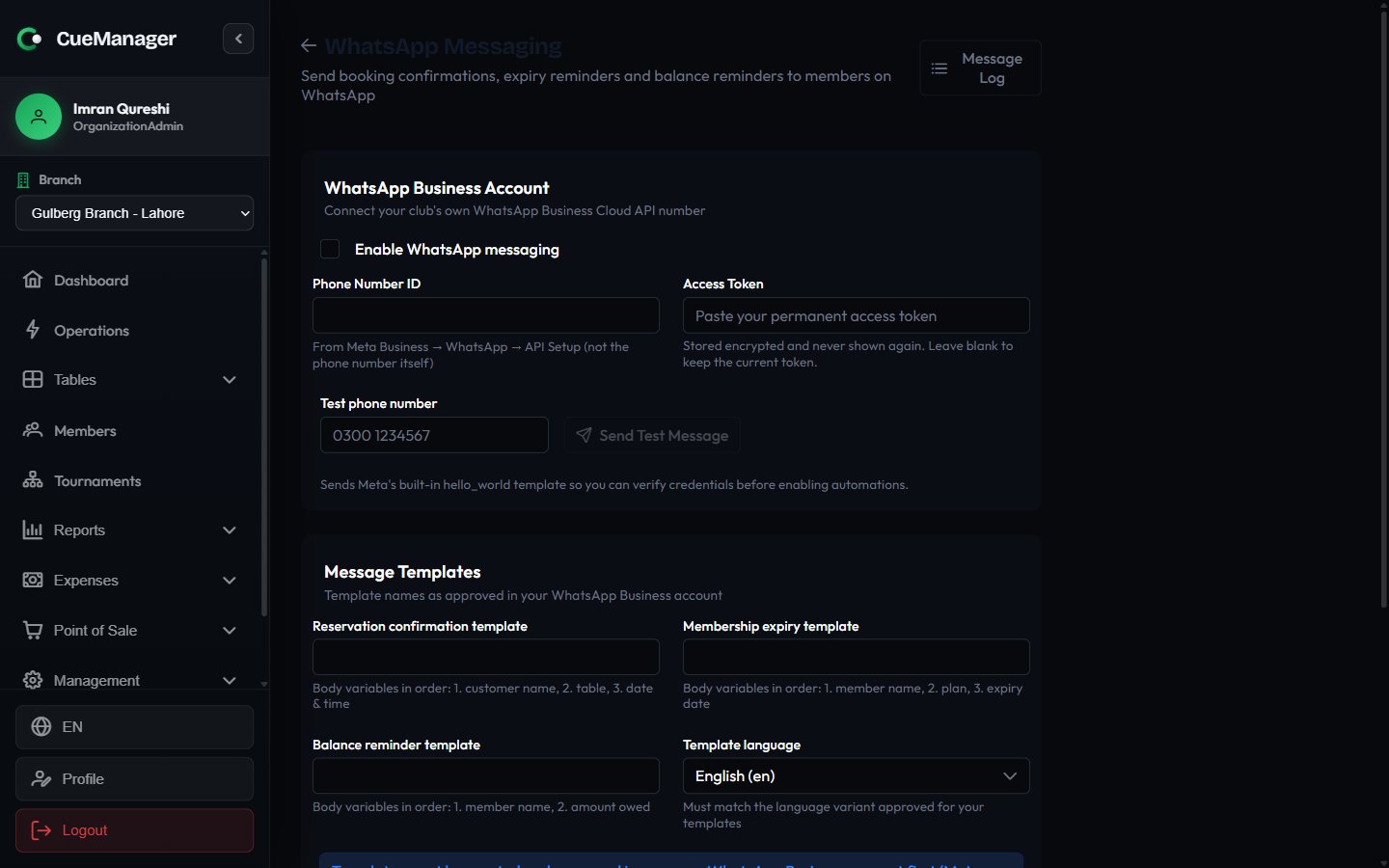
WhatsApp settings: credentials, template names, and the automations that use them
1
Connect the account
Tick Enable WhatsApp messaging, then enter the Phone Number ID from Meta Business → WhatsApp → API Setup (the ID, not the phone number) and paste your permanent token into Access Token. The token is stored encrypted and never shown again; leave it blank later to keep the current one.
2
Send a test
Put a number in Test phone number and select Send Test Message. This sends Meta’s built-in
hello_world template so you can verify the credentials before enabling any automation.3
Name your templates
Under Message Templates, enter the names exactly as approved in your WhatsApp Business account: Reservation confirmation template, Membership expiry template, and Balance reminder template, plus the Template language variant they were approved in.
4
Turn on automations and save
Choose which messages go out automatically, then select Save Settings.
Automations
- Send a confirmation when a reservation is created with a phone number — fires from the reservation flow on the live floor.
- Remind members before their membership expires — set Days before expiry between 1 and 30. Applies to membership plans.
Message log
Management → Message Log lists every message sent or attempted, with Date, Type, Recipient, Template, Status, and Error, and a Refresh button.
Start here whenever a member says a message never arrived: a Failed row carries the reason returned by Meta, which is usually a template name or variable mismatch.
Related
- Branches — rates, time zone, and open-tab settings per location
- Users and roles — grant Settings Edit to reach these screens
- The snooker marker — where camera frame-end alerts and re-rack nudges show up
- Running a session — the three kinds of frame alert staff answer