

Recharging a wallet
You can open the recharge dialog two ways: click the Top up credit action on a row in the member list, or click Recharge Credit on the member profile.1
Check the current balance
The dialog header repeats the member’s name, phone, and Current Balance so you are topping up the right person.
2
Choose an amount
Quick Select offers Rs 500, Rs 1,000, Rs 2,000, and Rs 5,000. For anything else, type into Recharge Amount. The minimum recharge is Rs 100.
3
Set the validity
Valid For controls when the credit expires: 6, 12, 18, or 24 months from today. It defaults to 12 months.
4
Confirm and save
The balance preview shows Current Balance, Adding, and New Balance. Add an optional Description — for example “Cash top-up at counter” — then click Recharge Credit.
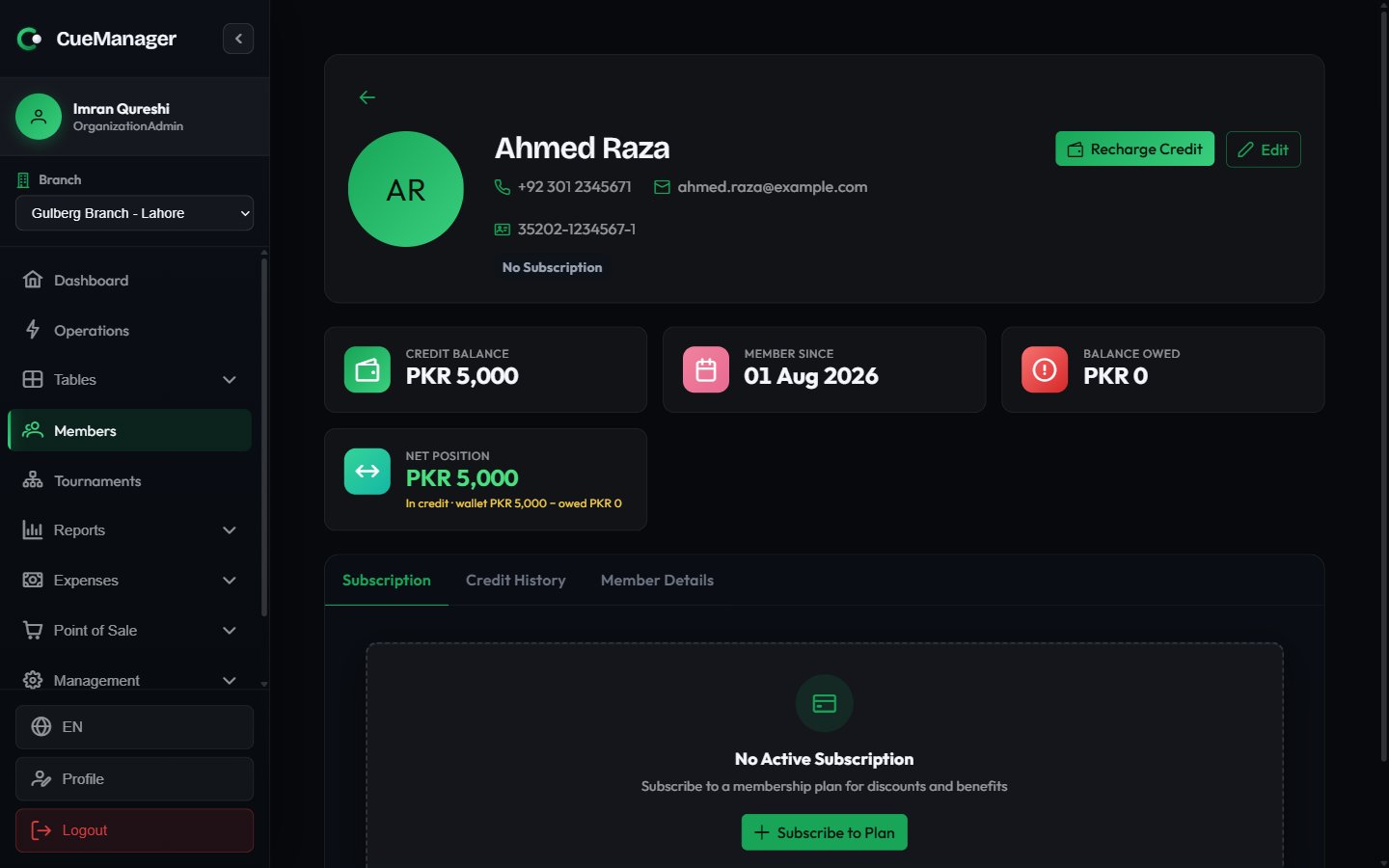
Wallet balance and credit history on the member profile
Credit expires. Each top-up carries its own expiry date, and only unexpired credit counts towards the available balance. The Credit Balance card warns you when an amount is due to lapse within 30 days.
Spending credit
At the point of payment, Credit appears alongside Cash, Card, JazzCash, Easypaisa, Raast, and Bank transfer wherever a member is attached to the transaction:- Session checkout — pick Credit as the payment method when ending a session for a member. See Checkout and payments.
- POS checkout — select the member on the sale, then choose Credit. See POS terminal.
- Settling a tab — tender part or all of a member-linked tab against their wallet. See Customer tabs.
Wallet: Rs 2,400 available, plus any amount expiring soon. The chip turns red when the balance will not cover the amount you are tendering, so you can switch to cash before you commit.
The server checks the balance again when the payment is submitted. If another till spent the credit in the meantime, the payment is rejected with an insufficient-balance message rather than pushing the wallet negative.