From signup to your first billed frame in about ten minutes.
This walkthrough takes you from an empty account to a paid session: register, run the setup wizard, open the floor, start a session on a table, record a frame, and check out. Each step links to the full guide if you want more detail.
1
Create your account
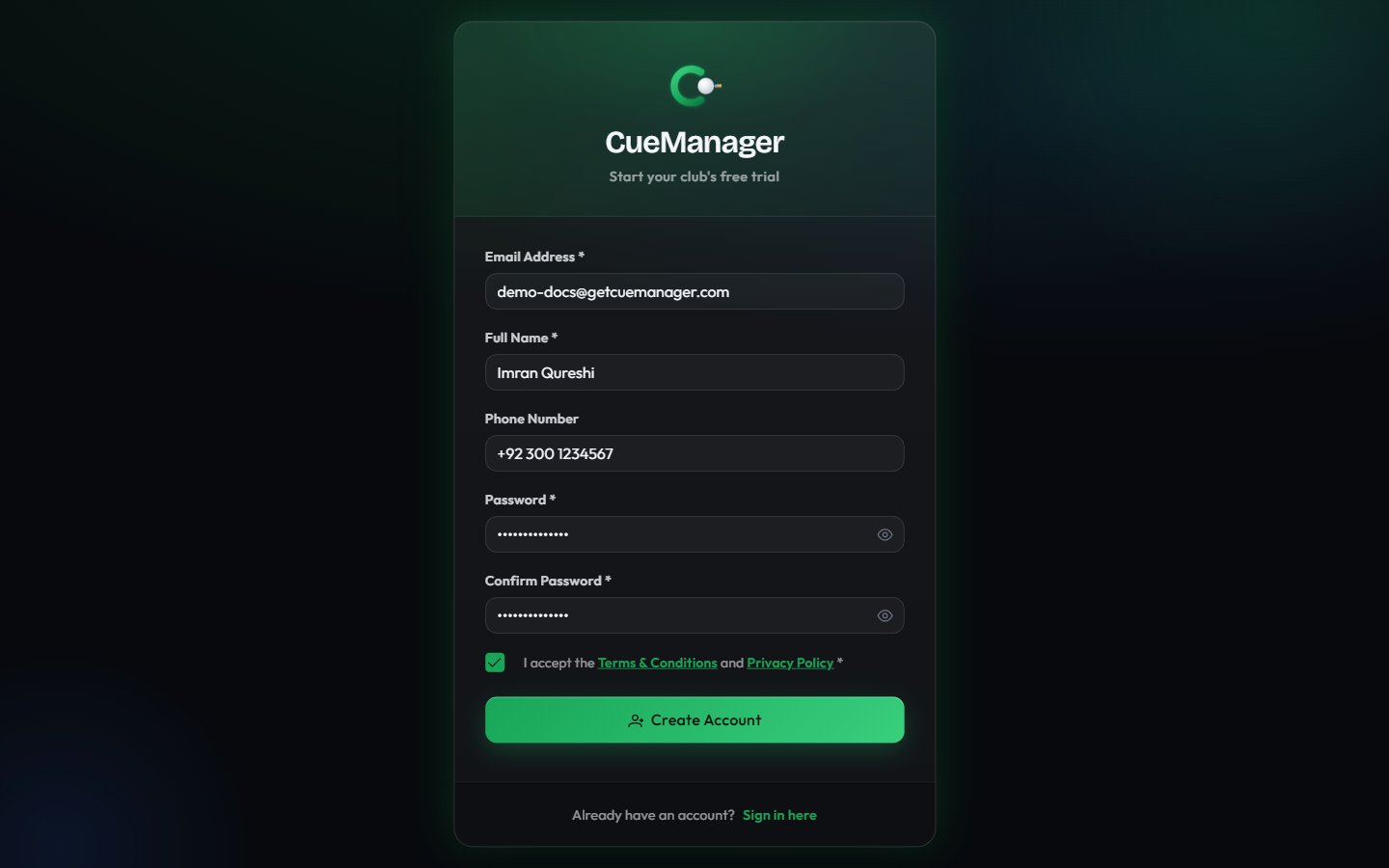
Go to the registration page and fill in Email Address, Full Name, Password (at least 6 characters), and Confirm Password. Phone Number is optional. Tick I accept the Terms & Conditions and Privacy Policy, then choose Create Account.CueManager emails you a verification link that is valid for 24 hours. Click it, enter the password you just chose, and you land straight in the setup wizard.
Registration creates the owner account for your club
Full details, including resending the email and resetting a password: create your club.
2
Complete the setup wizard
The wizard runs six steps: Organization (club name, contact details, currency), Subscription (start a 14-day trial), Branch (name, code, and your table rates), Tables (how many snooker and pool tables to create), Team (optional staff accounts), and Complete.For a club like Crown Snooker Club in Lahore, choose Pakistani Rupee as the currency, name the branch “Gulberg Branch”, set Rate per Frame to 500, and create four snooker and two pool tables. That gives you Snooker 1-4 and Pool 1-2 on the floor.Step-by-step: set up your club.
3
Open the live floor
Choose Go to Dashboard at the end of the wizard, then View Tables (or Tables in the sidebar). Every table appears as a card with its status: Available, Occupied, Reserved, or Maintenance.The floor is live. When another device starts or ends a session, the cards update without a refresh. See the live floor.
4
Start a session
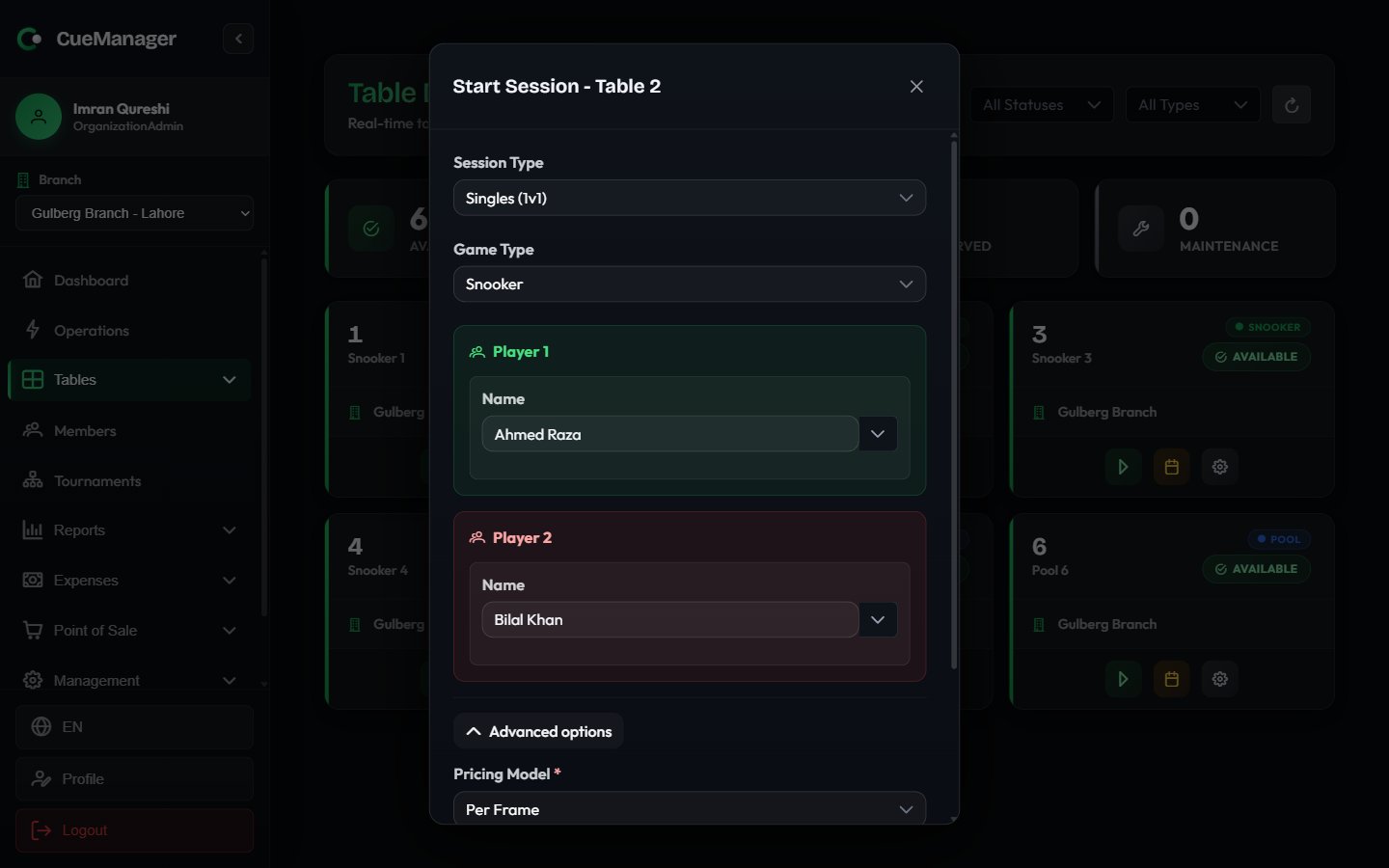
On the Snooker 1 card, choose Start Session. In the Start Session - Table Snooker 1 dialog set:
Game Type — Snooker, 8-Ball, or 9-Ball (snooker is not offered on pool tables)
Session Type — Singles, Doubles, or Practice
Player names — type a walk-in name, or search for a registered member such as Ahmed Raza
Pricing Model — Frame, Hourly, or Per minute
Billing Type — open-ended or pre-paid
Base Frame Price — pre-filled from the branch rate, for example Rs 500
For doubles, the dialog shows Doubles: Frame price will be 2x. Choose Start Session and the table flips to Occupied.
Starting a singles snooker session with frame pricing
When a frame ends, use the session panel on the table card and choose P1 Wins or P2 Wins (Team 1 Wins / Team 2 Wins in doubles). The frame count and the running total update immediately on every device.In frame pricing, the loser of the frame is charged for it, so recording the winner is what drives the bill. For ball-by-ball scoring with pots, fouls, and a public spectator scoreboard, choose Open marker instead — see the snooker marker.
6
Check out
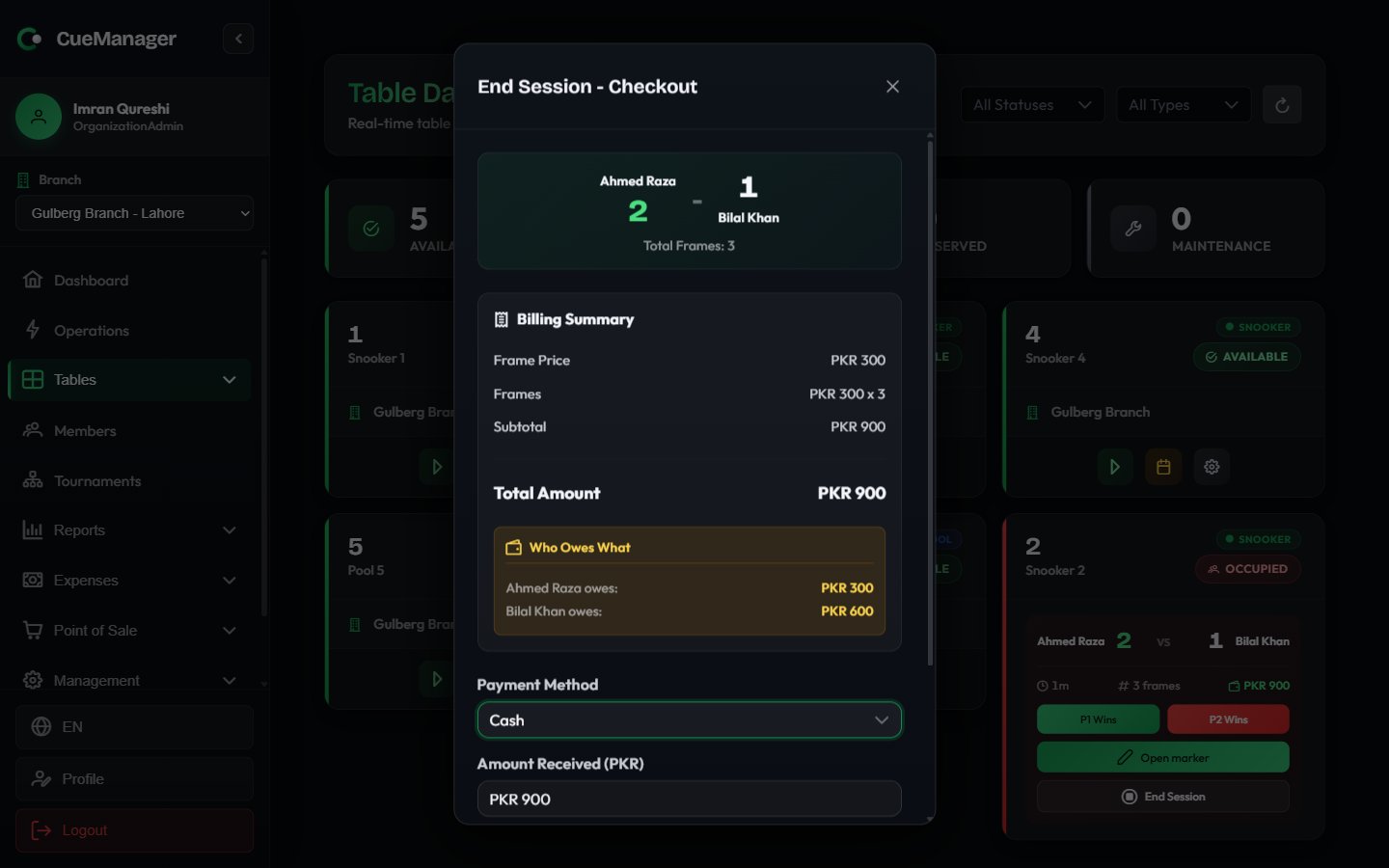
Choose End Session to open End Session - Checkout. The dialog itemizes frames or table time, applies any member discount, adds POS charges, and shows Who Owes What per player.Pick a Payment Method — Cash, Card, JazzCash, Easypaisa, Raast, bank transfer, or a member’s wallet credit — enter Amount Received, and choose Complete Payment. If the players want to pay later, choose Add to Tab instead and settle the tab at the end of the night.
Checkout splits the bill per player and accepts multiple payment methods
Pricing modes, doubles pricing, member discounts, and what the loser pays.
Add your members
Profiles, playing history, and prepaid wallet credit.
Set up the POS
Categories, items, and stock levels before your first sale.
Invite your staff
Roles and the per-user permission matrix.
{"docsConfig":{"theme":"mint","$schema":"https://mintlify.com/docs.json","name":"CueManager Docs","colors":{"primary":"#0b6b3a","light":"#38cf7d","dark":"#18a558"},"logo":{"light":"https://mintcdn.com/cuemanager/Yd0RubnGW7xOwfjj/logo/light.svg?fit=max\u0026auto=format\u0026n=Yd0RubnGW7xOwfjj\u0026q=85\u0026s=f4ea508280c5fdf15d7175f9c0df6453","dark":"https://mintcdn.com/cuemanager/Yd0RubnGW7xOwfjj/logo/dark.svg?fit=max\u0026auto=format\u0026n=Yd0RubnGW7xOwfjj\u0026q=85\u0026s=4090a775cbe3654702ca7beb38733289","href":"https://cue-manager-rho.vercel.app"},"favicon":"https://mintcdn.com/cuemanager/Yd0RubnGW7xOwfjj/favicon.svg?fit=max\u0026auto=format\u0026n=Yd0RubnGW7xOwfjj\u0026q=85\u0026s=36eecfbe4a1a8a141badcb2d26560b0b","appearance":{"default":"dark"},"background":{"color":{"dark":"#07090d"}},"navbar":{"primary":{"type":"button","label":"Open CueManager","href":"https://cue-manager-rho.vercel.app/login"}},"footer":{"links":[{"header":"Product","items":[{"label":"Pricing","href":"https://cue-manager-rho.vercel.app/pricing"},{"label":"Sign in","href":"https://cue-manager-rho.vercel.app/login"},{"label":"Start free trial","href":"https://cue-manager-rho.vercel.app/register"}]},{"header":"Legal","items":[{"label":"Terms","href":"https://cue-manager-rho.vercel.app/terms"},{"label":"Privacy","href":"https://cue-manager-rho.vercel.app/privacy"}]}]},"fonts":{"family":"Outfit"},"icons":{"library":"lucide"},"styling":{"latex":false},"navigation":{"pages":[]}},"deployment":{"deploymentMetadataValue":{"subdomain":"cuemanager","hasAudioNarration":false,"actualSubdomain":"cuemanager","customDomains":["docs.getcuemanager.com"],"gitSource":{"type":"github","owner":"mehroz377","repo":"cue-manager","deployBranch":"master","contentDirectory":"docs-site","isPrivate":true,"mountPath":"","label":""},"chroma":{"latestBuiltDeploymentHistoryId":"6add0f42b50163d7fcc4f9d8","collectionId":"426a49eb-a4c3-472d-860b-f8c60c5a2d0d","liveDeploymentHistoryId":"6add0f42b50163d7fcc4f9d8","schemaVersion":"v3"},"entitlements":{"AI_CHAT":{"status":"DISABLED"}},"buildId":"6add0f42b50163d7fcc4f9d8","clientVersion":"0.0.4044","searchFilterCounts":[{"language":"default","tag":"Getting started","count":6},{"language":"default","tag":"Tables \u0026 sessions","count":6},{"language":"default","tag":"Administration","count":4},{"language":"default","tag":"Running the club","count":3},{"language":"default","tag":"Core concepts","count":3},{"language":"default","tag":"Members","count":3},{"language":"default","tag":"Player app","count":3},{"language":"default","tag":"Point of sale","count":3}]},"assistantConfig":{"enableAskAiButton":false,"enableStarterQuestions":false,"enableContextualStarterQuestions":false,"enableAskAiSearchBar":true},"basePath":"","hasChatPermissions":false,"hasWebMcpPermissions":false,"toggles":[{"name":"kill-isr","enabled":true,"variant":{"name":"disabled","enabled":false,"feature_enabled":true},"impressionData":false},{"name":"agent-mintlify-slack","enabled":true,"variant":{"name":"disabled","enabled":false,"feature_enabled":true},"impressionData":false},{"name":"agent-integrations-settings","enabled":true,"variant":{"name":"disabled","enabled":false,"feature_enabled":true},"impressionData":false},{"name":"automations-pr-grouping","enabled":true,"variant":{"name":"disabled","enabled":false,"feature_enabled":true},"impressionData":false},{"name":"custom-prefix","enabled":true,"variant":{"name":"disabled","enabled":false,"feature_enabled":true},"impressionData":false},{"name":"analytics-v7","enabled":true,"variant":{"name":"disabled","enabled":false,"feature_enabled":true},"impressionData":false},{"name":"user-flows-analytics","enabled":true,"variant":{"name":"disabled","enabled":false,"feature_enabled":true},"impressionData":false},{"name":"no-publish-flow","enabled":true,"variant":{"name":"disabled","enabled":false,"feature_enabled":true},"impressionData":false},{"name":"workos-onboarding","enabled":true,"variant":{"name":"disabled","enabled":false,"feature_enabled":true},"impressionData":false},{"name":"llms-txt-v2","enabled":true,"variant":{"name":"disabled","enabled":false,"feature_enabled":true},"impressionData":false},{"name":"snapshot-serving-live","enabled":true,"variant":{"name":"disabled","enabled":false,"feature_enabled":true},"impressionData":false},{"name":"stripTemperatureMiddleware","enabled":true,"variant":{"name":"disabled","enabled":false,"feature_enabled":true},"impressionData":false},{"name":"support-platform-pylon-zendesk","enabled":true,"variant":{"name":"disabled","enabled":false,"feature_enabled":true},"impressionData":false},{"name":"snapshot-serving","enabled":true,"variant":{"name":"disabled","enabled":false,"feature_enabled":true},"impressionData":false},{"name":"instant-rollback","enabled":true,"variant":{"name":"disabled","enabled":false,"feature_enabled":true},"impressionData":false},{"name":"granular-notifications-server","enabled":true,"variant":{"name":"disabled","enabled":false,"feature_enabled":true},"impressionData":false},{"name":"granular-notifications","enabled":true,"variant":{"name":"disabled","enabled":false,"feature_enabled":true},"impressionData":false},{"name":"automations-fable","enabled":true,"variant":{"name":"disabled","enabled":false,"feature_enabled":true},"impressionData":false},{"name":"fixed-ai-action-pricing","enabled":true,"variant":{"name":"disabled","enabled":false,"feature_enabled":true},"impressionData":false},{"name":"automation-resolve-merge-conflict","enabled":true,"variant":{"name":"disabled","enabled":false,"feature_enabled":true},"impressionData":false},{"name":"scoped-publishing","enabled":true,"variant":{"name":"disabled","enabled":false,"feature_enabled":true},"impressionData":false},{"name":"mintql","enabled":true,"variant":{"name":"disabled","enabled":false,"feature_enabled":true},"impressionData":false},{"name":"page-level-analytics","enabled":true,"variant":{"name":"disabled","enabled":false,"feature_enabled":true},"impressionData":false},{"name":"editor-version-history-v2","enabled":true,"variant":{"name":"disabled","enabled":false,"feature_enabled":true},"impressionData":false},{"name":"billing-page-v2","enabled":true,"variant":{"name":"disabled","enabled":false,"feature_enabled":true},"impressionData":false},{"name":"full-page-search","enabled":true,"variant":{"name":"disabled","enabled":false,"feature_enabled":true},"impressionData":false},{"name":"workspace-projects","enabled":true,"variant":{"name":"disabled","enabled":false,"feature_enabled":true},"impressionData":false},{"name":"assistant-v5","enabled":true,"variant":{"name":"disabled","enabled":false,"feature_enabled":true},"impressionData":false},{"name":"byok-sep-25","enabled":true,"variant":{"name":"disabled","enabled":false,"feature_enabled":true},"impressionData":false},{"name":"fork-pr-previews","enabled":true,"variant":{"name":"disabled","enabled":false,"feature_enabled":true},"impressionData":false},{"name":"revalidation-jwt","enabled":true,"variant":{"name":"disabled","enabled":false,"feature_enabled":true},"impressionData":false},{"name":"vite-origin","enabled":true,"variant":{"name":"disabled","enabled":false,"feature_enabled":true},"impressionData":false},{"name":"billing-updated-9-15","enabled":true,"variant":{"name":"disabled","enabled":false,"feature_enabled":true},"impressionData":false},{"name":"workos-sso-scim","enabled":true,"variant":{"name":"disabled","enabled":false,"feature_enabled":true},"impressionData":false},{"name":"hobby-abuse-scan","enabled":true,"variant":{"name":"disabled","enabled":false,"feature_enabled":true},"impressionData":false},{"name":"dashboard-inbox","enabled":true,"variant":{"name":"disabled","enabled":false,"feature_enabled":true},"impressionData":false},{"name":"workos-signup","enabled":true,"variant":{"name":"disabled","enabled":false,"feature_enabled":true},"impressionData":false},{"name":"turbopuffer-dual-write","enabled":true,"variant":{"name":"disabled","enabled":false,"feature_enabled":true},"impressionData":false},{"name":"workos-enabled","enabled":true,"variant":{"name":"disabled","enabled":false,"feature_enabled":true},"impressionData":false},{"name":"approve-review-flow","enabled":true,"variant":{"name":"disabled","enabled":false,"feature_enabled":true},"impressionData":false},{"name":"sso-setup-deadline-banner","enabled":true,"variant":{"name":"disabled","enabled":false,"feature_enabled":true},"impressionData":false}],"googleFontsInlined":true},"customCss":[],"page":{"pagePath":"getting-started/quickstart","slug":"/getting-started/quickstart","pageMetadata":{"title":"Quickstart","description":"From signup to your first billed frame in about ten minutes.","icon":"rocket","href":"/getting-started/quickstart"},"description":{"compiledSource":"\"use strict\";\nconst {jsx: _jsx} = arguments[0];\nconst {useMDXComponents: _provideComponents} = arguments[0];\nfunction _createMdxContent(props) {\n const _components = {\n p: \"p\",\n ..._provideComponents(),\n ...props.components\n };\n return _jsx(_components.p, {\n children: \"From signup to your first billed frame in about ten minutes.\"\n });\n}\nfunction MDXContent(props = {}) {\n const {wrapper: MDXLayout} = {\n ..._provideComponents(),\n ...props.components\n };\n return MDXLayout ? _jsx(MDXLayout, {\n ...props,\n children: _jsx(_createMdxContent, {\n ...props\n })\n }) : _createMdxContent(props);\n}\nreturn {\n default: MDXContent\n};\n","frontmatter":{},"scope":{}},"pageType":"default","mdx":{"mdxSource":{"compiledSource":"\"use strict\";const{Fragment:_Fragment,jsx:_jsx,jsxs:_jsxs}=arguments[0];const{useMDXComponents:_provideComponents}=arguments[0];function _createMdxContent(props){const _components={a:`a`,li:`li`,p:`p`,strong:`strong`,ul:`ul`,..._provideComponents(),...props.components},{Card,Columns,Frame,Heading,OptimizedImage,Step,Steps}=_components;if(!Card)_missingMdxReference(`Card`,true);if(!Columns)_missingMdxReference(`Columns`,true);if(!Frame)_missingMdxReference(`Frame`,true);if(!Heading)_missingMdxReference(`Heading`,true);if(!OptimizedImage)_missingMdxReference(`OptimizedImage`,true);if(!Step)_missingMdxReference(`Step`,true);if(!Steps)_missingMdxReference(`Steps`,true);return _jsxs(_Fragment,{children:[_jsx(_components.p,{children:`This walkthrough takes you from an empty account to a paid session: register, run the setup wizard, open the floor, start a session on a table, record a frame, and check out. Each step links to the full guide if you want more detail.`}),`\n`,_jsxs(Steps,{children:[_jsxs(Step,{title:`Create your account`,children:[_jsxs(_components.p,{children:[`Go to the registration page and fill in `,_jsx(_components.strong,{children:`Email Address`}),`, `,_jsx(_components.strong,{children:`Full Name`}),`, `,_jsx(_components.strong,{children:`Password`}),` (at least 6 characters), and `,_jsx(_components.strong,{children:`Confirm Password`}),`. `,_jsx(_components.strong,{children:`Phone Number`}),` is optional. Tick `,_jsx(_components.strong,{children:`I accept the Terms \u0026 Conditions and Privacy Policy`}),`, then choose `,_jsx(_components.strong,{children:`Create Account`}),`.`]}),_jsx(_components.p,{children:`CueManager emails you a verification link that is valid for 24 hours. Click it, enter the password you just chose, and you land straight in the setup wizard.`}),_jsx(Frame,{caption:`Registration creates the owner account for your club`,children:_jsx(OptimizedImage,{src:`https://mintcdn.com/cuemanager/Yd0RubnGW7xOwfjj/images/auth-register.png?fit=max\u0026auto=format\u0026n=Yd0RubnGW7xOwfjj\u0026q=85\u0026s=5100bc693a685fcdcf58a23e0fd9e18d`,alt:`CueManager registration form with email, full name, phone, password, and terms checkbox`,\"data-og-width\":`1440`,width:`1440`,\"data-og-height\":`900`,height:`900`,\"data-path\":`images/auth-register.png`,\"data-optimize\":`true`,\"data-opv\":`3`,srcset:`https://mintcdn.com/cuemanager/Yd0RubnGW7xOwfjj/images/auth-register.png?w=280\u0026fit=max\u0026auto=format\u0026n=Yd0RubnGW7xOwfjj\u0026q=85\u0026s=6c3ca1755ca75fbfed2109911cf6432a 280w, https://mintcdn.com/cuemanager/Yd0RubnGW7xOwfjj/images/auth-register.png?w=560\u0026fit=max\u0026auto=format\u0026n=Yd0RubnGW7xOwfjj\u0026q=85\u0026s=182dfdf5cec7b02aaa0807995baf7832 560w, https://mintcdn.com/cuemanager/Yd0RubnGW7xOwfjj/images/auth-register.png?w=840\u0026fit=max\u0026auto=format\u0026n=Yd0RubnGW7xOwfjj\u0026q=85\u0026s=09f5d96774a394693b764f414fd39f19 840w, https://mintcdn.com/cuemanager/Yd0RubnGW7xOwfjj/images/auth-register.png?w=1100\u0026fit=max\u0026auto=format\u0026n=Yd0RubnGW7xOwfjj\u0026q=85\u0026s=5d6dd0ed1428ca15559e5cbd561f77b7 1100w, https://mintcdn.com/cuemanager/Yd0RubnGW7xOwfjj/images/auth-register.png?w=1650\u0026fit=max\u0026auto=format\u0026n=Yd0RubnGW7xOwfjj\u0026q=85\u0026s=f3c379793aea83bfd207d58d6bed007e 1650w, https://mintcdn.com/cuemanager/Yd0RubnGW7xOwfjj/images/auth-register.png?w=2500\u0026fit=max\u0026auto=format\u0026n=Yd0RubnGW7xOwfjj\u0026q=85\u0026s=467f50eac1360cf739dc4580439e58ae 2500w`})}),_jsxs(_components.p,{children:[`Full details, including resending the email and resetting a password: `,_jsx(_components.a,{href:`/getting-started/create-your-club`,children:`create your club`}),`.`]})]}),_jsxs(Step,{title:`Complete the setup wizard`,children:[_jsxs(_components.p,{children:[`The wizard runs six steps: `,_jsx(_components.strong,{children:`Organization`}),` (club name, contact details, currency), `,_jsx(_components.strong,{children:`Subscription`}),` (start a 14-day trial), `,_jsx(_components.strong,{children:`Branch`}),` (name, code, and your table rates), `,_jsx(_components.strong,{children:`Tables`}),` (how many snooker and pool tables to create), `,_jsx(_components.strong,{children:`Team`}),` (optional staff accounts), and `,_jsx(_components.strong,{children:`Complete`}),`.`]}),_jsxs(_components.p,{children:[`For a club like Crown Snooker Club in Lahore, choose Pakistani Rupee as the currency, name the branch “Gulberg Branch”, set `,_jsx(_components.strong,{children:`Rate per Frame`}),` to 500, and create four snooker and two pool tables. That gives you Snooker 1-4 and Pool 1-2 on the floor.`]}),_jsxs(_components.p,{children:[`Step-by-step: `,_jsx(_components.a,{href:`/getting-started/onboarding-wizard`,children:`set up your club`}),`.`]})]}),_jsxs(Step,{title:`Open the live floor`,children:[_jsxs(_components.p,{children:[`Choose `,_jsx(_components.strong,{children:`Go to Dashboard`}),` at the end of the wizard, then `,_jsx(_components.strong,{children:`View Tables`}),` (or `,_jsx(_components.strong,{children:`Tables`}),` in the sidebar). Every table appears as a card with its status: `,_jsx(_components.strong,{children:`Available`}),`, `,_jsx(_components.strong,{children:`Occupied`}),`, `,_jsx(_components.strong,{children:`Reserved`}),`, or `,_jsx(_components.strong,{children:`Maintenance`}),`.`]}),_jsxs(_components.p,{children:[`The floor is live. When another device starts or ends a session, the cards update without a refresh. See `,_jsx(_components.a,{href:`/tables/live-floor`,children:`the live floor`}),`.`]})]}),_jsxs(Step,{title:`Start a session`,children:[_jsxs(_components.p,{children:[`On the Snooker 1 card, choose `,_jsx(_components.strong,{children:`Start Session`}),`. In the `,_jsx(_components.strong,{children:`Start Session - Table Snooker 1`}),` dialog set:`]}),_jsxs(_components.ul,{children:[`\n`,_jsxs(_components.li,{children:[_jsx(_components.strong,{children:`Game Type`}),` — Snooker, 8-Ball, or 9-Ball (snooker is not offered on pool tables)`]}),`\n`,_jsxs(_components.li,{children:[_jsx(_components.strong,{children:`Session Type`}),` — Singles, Doubles, or Practice`]}),`\n`,_jsx(_components.li,{children:`Player names — type a walk-in name, or search for a registered member such as Ahmed Raza`}),`\n`,_jsxs(_components.li,{children:[_jsx(_components.strong,{children:`Pricing Model`}),` — Frame, Hourly, or Per minute`]}),`\n`,_jsxs(_components.li,{children:[_jsx(_components.strong,{children:`Billing Type`}),` — open-ended or pre-paid`]}),`\n`,_jsxs(_components.li,{children:[_jsx(_components.strong,{children:`Base Frame Price`}),` — pre-filled from the branch rate, for example Rs 500`]}),`\n`]}),_jsxs(_components.p,{children:[`For doubles, the dialog shows `,_jsx(_components.strong,{children:`Doubles: Frame price will be 2x`}),`. Choose `,_jsx(_components.strong,{children:`Start Session`}),` and the table flips to `,_jsx(_components.strong,{children:`Occupied`}),`.`]}),_jsx(Frame,{caption:`Starting a singles snooker session with frame pricing`,children:_jsx(OptimizedImage,{src:`https://mintcdn.com/cuemanager/Yd0RubnGW7xOwfjj/images/sessions-start-dialog.png?fit=max\u0026auto=format\u0026n=Yd0RubnGW7xOwfjj\u0026q=85\u0026s=93b5a8c5204c7c94a2ed523d502c7a86`,alt:`Start session dialog with game type, session type, player names, pricing model, and frame price`,\"data-og-width\":`1440`,width:`1440`,\"data-og-height\":`900`,height:`900`,\"data-path\":`images/sessions-start-dialog.png`,\"data-optimize\":`true`,\"data-opv\":`3`,srcset:`https://mintcdn.com/cuemanager/Yd0RubnGW7xOwfjj/images/sessions-start-dialog.png?w=280\u0026fit=max\u0026auto=format\u0026n=Yd0RubnGW7xOwfjj\u0026q=85\u0026s=ee30b0558b0b3a9fdd45be246ab0441e 280w, https://mintcdn.com/cuemanager/Yd0RubnGW7xOwfjj/images/sessions-start-dialog.png?w=560\u0026fit=max\u0026auto=format\u0026n=Yd0RubnGW7xOwfjj\u0026q=85\u0026s=ffef94c0f123bef445e6b6cf66393de8 560w, https://mintcdn.com/cuemanager/Yd0RubnGW7xOwfjj/images/sessions-start-dialog.png?w=840\u0026fit=max\u0026auto=format\u0026n=Yd0RubnGW7xOwfjj\u0026q=85\u0026s=afc19612cdc00738821a919b1d43f174 840w, https://mintcdn.com/cuemanager/Yd0RubnGW7xOwfjj/images/sessions-start-dialog.png?w=1100\u0026fit=max\u0026auto=format\u0026n=Yd0RubnGW7xOwfjj\u0026q=85\u0026s=cf0e7b90b8bcc6b45e0f0033c06d4a2c 1100w, https://mintcdn.com/cuemanager/Yd0RubnGW7xOwfjj/images/sessions-start-dialog.png?w=1650\u0026fit=max\u0026auto=format\u0026n=Yd0RubnGW7xOwfjj\u0026q=85\u0026s=bcc3ba8b285c8552e7ab1c920c37d976 1650w, https://mintcdn.com/cuemanager/Yd0RubnGW7xOwfjj/images/sessions-start-dialog.png?w=2500\u0026fit=max\u0026auto=format\u0026n=Yd0RubnGW7xOwfjj\u0026q=85\u0026s=72dd06135428895be56de11b9432449e 2500w`})}),_jsxs(_components.p,{children:[`More on the options: `,_jsx(_components.a,{href:`/sessions/starting-a-session`,children:`starting a session`}),`.`]})]}),_jsxs(Step,{title:`Record a frame result`,children:[_jsxs(_components.p,{children:[`When a frame ends, use the session panel on the table card and choose `,_jsx(_components.strong,{children:`P1 Wins`}),` or `,_jsx(_components.strong,{children:`P2 Wins`}),` (`,_jsx(_components.strong,{children:`Team 1 Wins`}),` / `,_jsx(_components.strong,{children:`Team 2 Wins`}),` in doubles). The frame count and the running total update immediately on every device.`]}),_jsxs(_components.p,{children:[`In frame pricing, the loser of the frame is charged for it, so recording the winner is what drives the bill. For ball-by-ball scoring with pots, fouls, and a public spectator scoreboard, choose `,_jsx(_components.strong,{children:`Open marker`}),` instead — see `,_jsx(_components.a,{href:`/sessions/snooker-marker`,children:`the snooker marker`}),`.`]})]}),_jsxs(Step,{title:`Check out`,children:[_jsxs(_components.p,{children:[`Choose `,_jsx(_components.strong,{children:`End Session`}),` to open `,_jsx(_components.strong,{children:`End Session - Checkout`}),`. The dialog itemizes frames or table time, applies any member discount, adds POS charges, and shows `,_jsx(_components.strong,{children:`Who Owes What`}),` per player.`]}),_jsxs(_components.p,{children:[`Pick a `,_jsx(_components.strong,{children:`Payment Method`}),` — Cash, Card, JazzCash, Easypaisa, Raast, bank transfer, or a member’s wallet credit — enter `,_jsx(_components.strong,{children:`Amount Received`}),`, and choose `,_jsx(_components.strong,{children:`Complete Payment`}),`. If the players want to pay later, choose `,_jsx(_components.strong,{children:`Add to Tab`}),` instead and settle the tab at the end of the night.`]}),_jsx(Frame,{caption:`Checkout splits the bill per player and accepts multiple payment methods`,children:_jsx(OptimizedImage,{src:`https://mintcdn.com/cuemanager/Yd0RubnGW7xOwfjj/images/sessions-checkout-split.png?fit=max\u0026auto=format\u0026n=Yd0RubnGW7xOwfjj\u0026q=85\u0026s=5a1b1e92ad927fec697105ae752701ed`,alt:`Checkout dialog showing the itemized bill, who owes what, and split payment methods`,\"data-og-width\":`1440`,width:`1440`,\"data-og-height\":`900`,height:`900`,\"data-path\":`images/sessions-checkout-split.png`,\"data-optimize\":`true`,\"data-opv\":`3`,srcset:`https://mintcdn.com/cuemanager/Yd0RubnGW7xOwfjj/images/sessions-checkout-split.png?w=280\u0026fit=max\u0026auto=format\u0026n=Yd0RubnGW7xOwfjj\u0026q=85\u0026s=a7d2f443a633685735b963a917ce591a 280w, https://mintcdn.com/cuemanager/Yd0RubnGW7xOwfjj/images/sessions-checkout-split.png?w=560\u0026fit=max\u0026auto=format\u0026n=Yd0RubnGW7xOwfjj\u0026q=85\u0026s=ba860274409493c15bb49d1a8c682a2d 560w, https://mintcdn.com/cuemanager/Yd0RubnGW7xOwfjj/images/sessions-checkout-split.png?w=840\u0026fit=max\u0026auto=format\u0026n=Yd0RubnGW7xOwfjj\u0026q=85\u0026s=a193a58db01e33b3491cdcedcce2b70f 840w, https://mintcdn.com/cuemanager/Yd0RubnGW7xOwfjj/images/sessions-checkout-split.png?w=1100\u0026fit=max\u0026auto=format\u0026n=Yd0RubnGW7xOwfjj\u0026q=85\u0026s=1fa53f6ee8523265d1788a2c1cd78571 1100w, https://mintcdn.com/cuemanager/Yd0RubnGW7xOwfjj/images/sessions-checkout-split.png?w=1650\u0026fit=max\u0026auto=format\u0026n=Yd0RubnGW7xOwfjj\u0026q=85\u0026s=8128a66b916e74e31e4cd5fe8c320ec3 1650w, https://mintcdn.com/cuemanager/Yd0RubnGW7xOwfjj/images/sessions-checkout-split.png?w=2500\u0026fit=max\u0026auto=format\u0026n=Yd0RubnGW7xOwfjj\u0026q=85\u0026s=7c5796054c2fd41da31468e8ab60d493 2500w`})}),_jsxs(_components.p,{children:[`Full detail: `,_jsx(_components.a,{href:`/sessions/checkout-and-payments`,children:`checkout and payments`}),`.`]})]})]}),`\n`,_jsx(Heading,{level:`2`,id:`where-to-go-next`,children:`Where to go next`}),`\n`,_jsxs(Columns,{cols:2,children:[_jsx(Card,{title:`How billing works`,icon:`calculator`,href:`/concepts/how-billing-works`,children:_jsx(_components.p,{children:`Pricing modes, doubles pricing, member discounts, and what the loser pays.`})}),_jsx(Card,{title:`Add your members`,icon:`users`,href:`/members/managing-members`,children:_jsx(_components.p,{children:`Profiles, playing history, and prepaid wallet credit.`})}),_jsx(Card,{title:`Set up the POS`,icon:`shopping-cart`,href:`/pos/catalog-and-stock`,children:_jsx(_components.p,{children:`Categories, items, and stock levels before your first sale.`})}),_jsx(Card,{title:`Invite your staff`,icon:`user-plus`,href:`/admin/users-and-roles`,children:_jsx(_components.p,{children:`Roles and the per-user permission matrix.`})})]})]})}function MDXContent(props={}){const{wrapper:MDXLayout}={..._provideComponents(),...props.components};return MDXLayout?_jsx(MDXLayout,{...props,children:_jsx(_createMdxContent,{...props})}):_createMdxContent(props)}return{default:MDXContent};function _missingMdxReference(id,component){throw new Error(`Expected `+(component?`component`:`object`)+\" `\"+id+\"` to be defined: you likely forgot to import, pass, or provide it.\")}","frontmatter":{},"scope":{"config":{},"pageMetadata":{"title":"Quickstart","description":"From signup to your first billed frame in about ten minutes.","icon":"rocket","href":"/getting-started/quickstart"}}},"mdxSourceWithNoJs":null},"mdxExtracts":{"tableOfContents":[{"title":"Where to go next","slug":"where-to-go-next","depth":2,"children":[]}],"codeExamples":{}},"jsLinks":[],"subdomain":"cuemanager","siteName":"CueManager Docs","title":"Quickstart - CueManager Docs","navMaps":{"firstHrefInVersion":{},"firstHrefInLanguage":{}},"lastModified":"2026-10-24T20:04:23.922Z","originalFileLocation":"getting-started/quickstart.mdx"},"headHtml":"\u003cscript data-mint-head>(function(){var d=document.documentElement,p=null;if(!p){try{p=localStorage.getItem(\"isDarkMode\")}catch(e){}if(p==='true')p='dark';else if(p==='false')p='light';if(p!=='light'\u0026\u0026p!=='dark'\u0026\u0026p!=='system')p=\"dark\"}var r=p==='system'?(matchMedia(\"(prefers-color-scheme: dark)\").matches?'dark':'light'):p;d.classList.remove(r==='dark'?'light':'dark');d.classList.add(r);d.setAttribute(\"data-theme-preference\",p)})();\u003c/script>\u003cmeta data-mint-head name=\"description\" content=\"From signup to your first billed frame in about ten minutes.\">\u003cmeta data-mint-head name=\"application-name\" content=\"CueManager Docs\">\u003cmeta data-mint-head name=\"generator\" content=\"Mintlify\">\u003clink data-mint-head rel=\"icon\" type=\"image/png\" sizes=\"192x192\" href=\"/mintlify-assets/_mintlify/favicons/cuemanager/Rf3e2C3Q8BiyFvdB/_generated/favicon/android-chrome-192x192.png\" media=\"(prefers-color-scheme: light)\">\u003clink data-mint-head rel=\"apple-touch-icon\" type=\"image/png\" sizes=\"180x180\" href=\"/mintlify-assets/_mintlify/favicons/cuemanager/Rf3e2C3Q8BiyFvdB/_generated/favicon/apple-touch-icon.png\">\u003clink data-mint-head rel=\"icon\" type=\"image/png\" sizes=\"16x16\" href=\"/mintlify-assets/_mintlify/favicons/cuemanager/Rf3e2C3Q8BiyFvdB/_generated/favicon/favicon-16x16.png\" media=\"(prefers-color-scheme: light)\">\u003clink data-mint-head rel=\"icon\" type=\"image/png\" sizes=\"32x32\" href=\"/mintlify-assets/_mintlify/favicons/cuemanager/Rf3e2C3Q8BiyFvdB/_generated/favicon/favicon-32x32.png\" media=\"(prefers-color-scheme: light)\">\u003clink data-mint-head rel=\"shortcut icon\" type=\"image/x-icon\" href=\"/mintlify-assets/_mintlify/favicons/cuemanager/Rf3e2C3Q8BiyFvdB/_generated/favicon/favicon.ico\" media=\"(prefers-color-scheme: light)\">\u003clink data-mint-head rel=\"icon\" type=\"image/png\" sizes=\"192x192\" href=\"/mintlify-assets/_mintlify/favicons/cuemanager/Rf3e2C3Q8BiyFvdB/_generated/favicon-dark/android-chrome-192x192.png\" media=\"(prefers-color-scheme: dark)\">\u003clink data-mint-head rel=\"icon\" type=\"image/png\" sizes=\"16x16\" href=\"/mintlify-assets/_mintlify/favicons/cuemanager/Rf3e2C3Q8BiyFvdB/_generated/favicon-dark/favicon-16x16.png\" media=\"(prefers-color-scheme: dark)\">\u003clink data-mint-head rel=\"icon\" type=\"image/png\" sizes=\"32x32\" href=\"/mintlify-assets/_mintlify/favicons/cuemanager/Rf3e2C3Q8BiyFvdB/_generated/favicon-dark/favicon-32x32.png\" media=\"(prefers-color-scheme: dark)\">\u003clink data-mint-head rel=\"shortcut icon\" type=\"image/x-icon\" href=\"/mintlify-assets/_mintlify/favicons/cuemanager/Rf3e2C3Q8BiyFvdB/_generated/favicon-dark/favicon.ico\" media=\"(prefers-color-scheme: dark)\">\u003cmeta data-mint-head property=\"og:title\" content=\"Quickstart - CueManager Docs\">\u003cmeta data-mint-head property=\"og:description\" content=\"From signup to your first billed frame in about ten minutes.\">\u003cmeta data-mint-head property=\"og:site_name\" content=\"CueManager Docs\">\u003cmeta data-mint-head property=\"og:url\" content=\"https://docs.getcuemanager.com/getting-started/quickstart\">\u003cmeta data-mint-head property=\"og:type\" content=\"website\">\u003cmeta data-mint-head property=\"og:image\" content=\"https://cuemanager.mintlify.app/_mintlify/api/og/v2?division=Getting+started\u0026amp;title=Quickstart\u0026amp;description=From+signup+to+your+first+billed+frame+in+about+ten+minutes.\u0026amp;theme=7085800dc075eb90edd3b51e\u0026amp;signature=87d36cb85ed83cef3e1a6be8402c181d601084fdb621dad03cc08419d8a61057\">\u003cmeta data-mint-head property=\"og:image:width\" content=\"1200\">\u003cmeta data-mint-head property=\"og:image:height\" content=\"630\">\u003cmeta data-mint-head name=\"twitter:card\" content=\"summary_large_image\">\u003cmeta data-mint-head name=\"twitter:title\" content=\"Quickstart - CueManager Docs\">\u003cmeta data-mint-head name=\"twitter:description\" content=\"From signup to your first billed frame in about ten minutes.\">\u003cmeta data-mint-head name=\"twitter:image\" content=\"https://cuemanager.mintlify.app/_mintlify/api/og/v2?division=Getting+started\u0026amp;title=Quickstart\u0026amp;description=From+signup+to+your+first+billed+frame+in+about+ten+minutes.\u0026amp;theme=7085800dc075eb90edd3b51e\u0026amp;signature=87d36cb85ed83cef3e1a6be8402c181d601084fdb621dad03cc08419d8a61057\">\u003cmeta data-mint-head name=\"twitter:image:width\" content=\"1200\">\u003cmeta data-mint-head name=\"twitter:image:height\" content=\"630\">\u003cmeta data-mint-head name=\"msapplication-config\" content=\"/mintlify-assets/_mintlify/favicons/cuemanager/Rf3e2C3Q8BiyFvdB/_generated/favicon/browserconfig.xml\">\u003cmeta data-mint-head name=\"apple-mobile-web-app-title\" content=\"CueManager Docs\">\u003cmeta data-mint-head name=\"msapplication-TileColor\" content=\"#0b6b3a\">\u003clink data-mint-head rel=\"canonical\" href=\"https://docs.getcuemanager.com/getting-started/quickstart\">\u003clink data-mint-head rel=\"alternate\" type=\"application/xml\" href=\"/sitemap.xml\">\u003clink data-mint-head rel=\"alternate\" type=\"text/markdown\" href=\"/getting-started/quickstart.md\">\u003cscript data-mint-head type=\"application/ld+json\">{\"@context\":\"https://schema.org\",\"@graph\":[{\"@type\":\"Organization\",\"@id\":\"https://docs.getcuemanager.com/#organization\",\"name\":\"CueManager Docs\",\"url\":\"https://docs.getcuemanager.com\",\"logo\":{\"@type\":\"ImageObject\",\"url\":\"https://mintcdn.com/cuemanager/Yd0RubnGW7xOwfjj/logo/light.svg?fit=max\u0026auto=format\u0026n=Yd0RubnGW7xOwfjj\u0026q=85\u0026s=f4ea508280c5fdf15d7175f9c0df6453\"}},{\"@type\":\"WebSite\",\"@id\":\"https://docs.getcuemanager.com#website\",\"name\":\"CueManager Docs\",\"url\":\"https://docs.getcuemanager.com\",\"publisher\":{\"@id\":\"https://docs.getcuemanager.com/#organization\"}},{\"@type\":\"WebPage\",\"@id\":\"https://docs.getcuemanager.com/getting-started/quickstart#webpage\",\"url\":\"https://docs.getcuemanager.com/getting-started/quickstart\",\"name\":\"Quickstart\",\"description\":\"From signup to your first billed frame in about ten minutes.\",\"dateModified\":\"2026-10-24T20:04:23.922Z\",\"isPartOf\":{\"@id\":\"https://docs.getcuemanager.com#website\"},\"breadcrumb\":{\"@id\":\"https://docs.getcuemanager.com/getting-started/quickstart#breadcrumb\"}},{\"@type\":\"BreadcrumbList\",\"@id\":\"https://docs.getcuemanager.com/getting-started/quickstart#breadcrumb\",\"itemListElement\":[{\"@type\":\"ListItem\",\"position\":1,\"name\":\"Getting started\",\"item\":\"https://docs.getcuemanager.com/index\"},{\"@type\":\"ListItem\",\"position\":2,\"name\":\"Quickstart\",\"item\":\"https://docs.getcuemanager.com/getting-started/quickstart\"}]},{\"@type\":[\"Article\",\"TechArticle\"],\"@id\":\"https://docs.getcuemanager.com/getting-started/quickstart#article\",\"headline\":\"Quickstart\",\"name\":\"Quickstart\",\"description\":\"From signup to your first billed frame in about ten minutes.\",\"url\":\"https://docs.getcuemanager.com/getting-started/quickstart\",\"mainEntityOfPage\":{\"@id\":\"https://docs.getcuemanager.com/getting-started/quickstart#webpage\"},\"dateModified\":\"2026-10-24T20:04:23.922Z\",\"publisher\":{\"@id\":\"https://docs.getcuemanager.com/#organization\"},\"isPartOf\":{\"@id\":\"https://docs.getcuemanager.com#website\"}}]}\u003c/script>\u003cscript data-mint-head type=\"application/ld+json\">{\"@context\":\"https://schema.org\",\"@type\":\"WebSite\",\"name\":\"CueManager Docs\",\"creator\":{\"@type\":\"Organization\",\"name\":\"Mintlify\",\"url\":\"https://mintlify.com\"}}\u003c/script>","siteName":"CueManager Docs","nav":{"global":null,"groups":[{"group":"Getting started","pages":[{"title":"Welcome to CueManager","description":"Run your snooker club from one place — tables, billing, members, POS, and reports.","icon":"house","href":"/index"},{"title":"Quickstart","icon":"rocket","href":"/getting-started/quickstart"},{"title":"Create your club","description":"Register your account, verify your email, and sign in.","icon":"user-plus","href":"/getting-started/create-your-club"},{"title":"Set up your club","icon":"list-checks","href":"/getting-started/onboarding-wizard"},{"title":"The dashboard","icon":"layout-dashboard","href":"/getting-started/dashboard"},{"title":"Help \u0026 Support chat","icon":"message-circle","href":"/getting-started/help-chat"}]},{"group":"Core concepts","pages":[{"title":"How billing works","icon":"calculator","href":"/concepts/how-billing-works"},{"title":"Roles and permissions","icon":"shield","href":"/concepts/roles-and-permissions"},{"title":"Offline and real-time","icon":"wifi-off","href":"/concepts/offline-and-sync"}]},{"group":"Tables \u0026 sessions","pages":[{"title":"The live floor","icon":"monitor","href":"/tables/live-floor"},{"title":"Managing tables","icon":"table","href":"/tables/managing-tables"},{"title":"Starting a session","icon":"play","href":"/sessions/starting-a-session"},{"title":"Running a session","icon":"timer","href":"/sessions/running-a-session"},{"title":"Checkout and payments","icon":"credit-card","href":"/sessions/checkout-and-payments"},{"title":"Snooker scoring","icon":"target","href":"/sessions/snooker-marker"}]},{"group":"Members","pages":[{"title":"Managing members","icon":"users","href":"/members/managing-members"},{"title":"Wallets and credit","icon":"wallet","href":"/members/wallets-and-credit"},{"title":"Membership plans","icon":"badge-check","href":"/members/membership-plans"}]},{"group":"Player app","pages":[{"title":"The player app","icon":"smartphone","href":"/player-app/player-app"},{"title":"Player self-scoring","icon":"hand-metal","href":"/player-app/self-scoring"},{"title":"Club leaderboard \u0026 player stats","icon":"trophy","href":"/player-app/leaderboard"}]},{"group":"Point of sale","pages":[{"title":"The POS terminal","icon":"shopping-cart","href":"/pos/pos-terminal"},{"title":"Catalog and stock","icon":"package","href":"/pos/catalog-and-stock"},{"title":"Customer tabs","icon":"receipt","href":"/pos/customer-tabs"}]},{"group":"Running the club","pages":[{"title":"Tournaments","icon":"trophy","href":"/club/tournaments"},{"title":"Expenses","icon":"banknote","href":"/club/expenses"},{"title":"Reports","icon":"chart-column","href":"/club/reports"}]},{"group":"Administration","pages":[{"title":"Users and roles","icon":"user-cog","href":"/admin/users-and-roles"},{"title":"Branches","icon":"building-2","href":"/admin/branches"},{"title":"Settings","icon":"settings","href":"/admin/settings"},{"title":"Your subscription","icon":"crown","href":"/admin/subscription-billing"}]}]},"basePath":"","title":"Quickstart - CueManager Docs","buildId":"dpl_DeHjVRGfFnhYQwHnfC2pjeXXv8h9","deploymentId":"dpl_DeHjVRGfFnhYQwHnfC2pjeXXv8h9","dynamics":["07c022d89b","a74be98ba7"],"chunks":["Frame-DXXFP6nH.js","DynamicMarkdown-B54_zNBF.js","zoom-image-lightbox-BG6oD64b.js","lightbox-handle-r17bVUz3.js"]}