

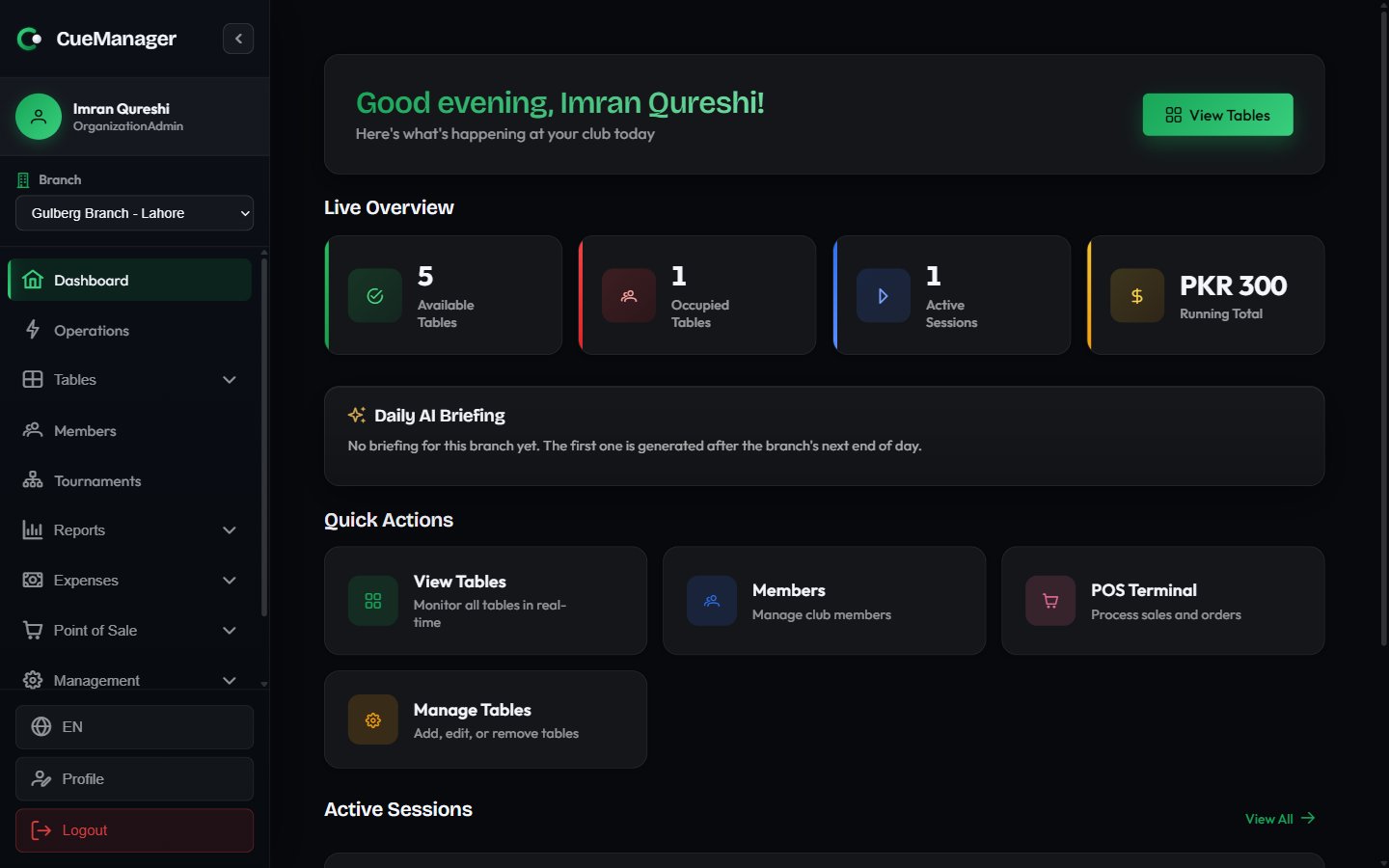
The dashboard for Gulberg Branch during an evening shift
Live overview
The header greets you by name (“Good evening, Ahmed”) with the subtitle “Here’s what’s happening at your club today” and a View Tables button. Below it, Live Overview shows four counters for the branch you currently have selected.
The first three cards are clickable and take you to the live floor. The numbers are pushed live — when a colleague starts or ends a session on another device, these counters change without a refresh. See offline and sync for how this behaves when the connection drops.
Running Total is money still on the tables, not takings. It is the sum of the bills currently accruing, and it drops to zero as those sessions are checked out. For settled revenue, use Reports.
Daily AI briefing
Daily AI Briefing is a short written summary of a completed trading day for the selected branch, with the numbers underneath it:- Revenue, alongside the 7-day avg for comparison
- Sessions completed, and Frames played
- POS Sales value and transaction count
- New Members registered
- Open Tabs total and count
Quick actions
Four tiles jump to the screens used most often:Active sessions preview
When play is under way, an Active Sessions section lists up to four session cards: the table badge (for example Snooker 1), the session type, the two players or teams, the frame score, and the running total for that table. Choose View All to open the full floor.The operations console
Operations in the sidebar (/operations) is the single-screen way to run a busy shift — “Everything live on the floor: sessions, tabs and members in one place.” Instead of moving between Tables, Tabs, and Members, you work from one page.
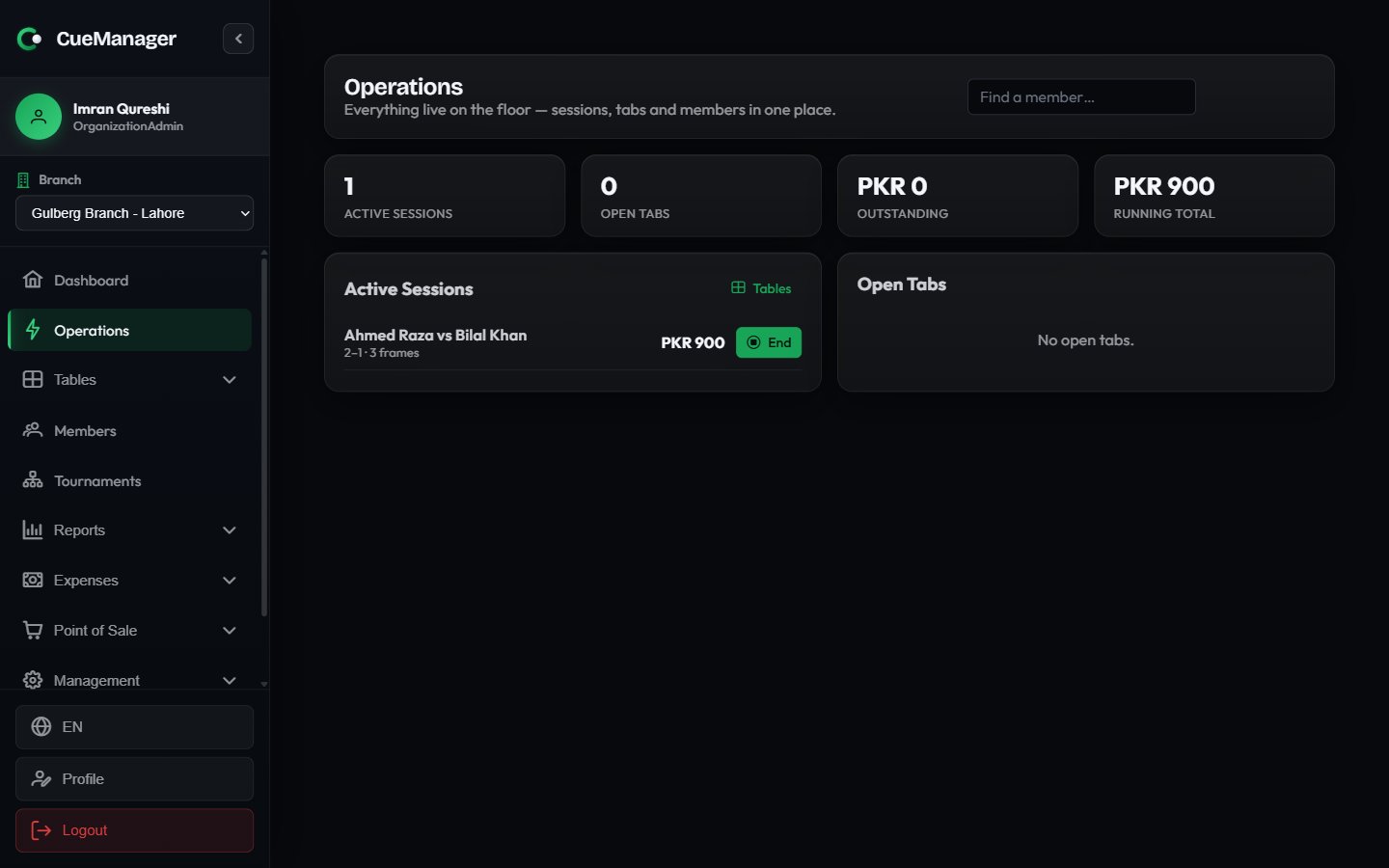
The operations console: live sessions on the left, open tabs on the right