

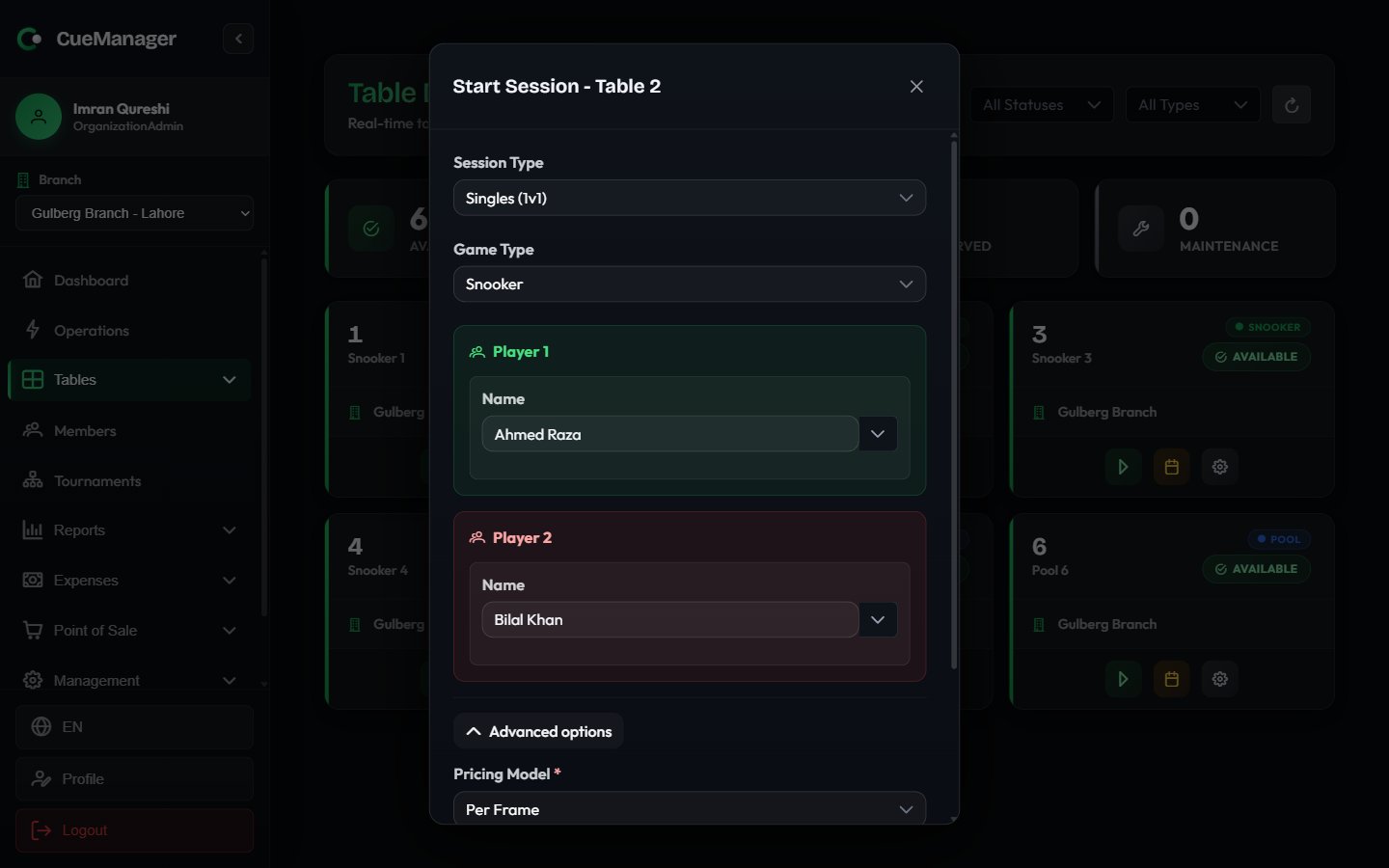
Starting a snooker session on Snooker 1
1
Pick the table
On the live floor, choose Start Session on an available table’s card. The dialog header names the table, for example Start Session - Table Snooker 1.If the table’s camera is offline, a note appears at the top of the dialog warning that automatic frame-end detection will not work for this session. It never blocks you from starting.
2
Choose the Session Type
Choosing Doubles widens the dialog into two team panels and shows a banner confirming the doubled frame price, for example “Doubles: Frame price will be 2x (Rs 1,000 per frame)”.
3
Choose the Game Type
Snooker, 8-Ball, or 9-Ball. Snooker tables offer all three and default to Snooker; pool tables offer only 8-Ball and 9-Ball and default to 8-Ball.Only a Snooker session gets the Open marker button later, so pick the game correctly here if you intend to score ball by ball. See Snooker scoring.
4
Enter the players
Each player has one field that does two jobs. Type a walk-in’s name straight into it, or start typing and pick a registered member from the suggestions — the list shows the member’s name and phone, and choosing one links the session to that member’s record.
- Singles: Player 1 and Player 2. Leave them blank and they default to “Player 1” and “Player 2”.
- Doubles: Team 1 is Player 1 Name plus Player 3 Name (Partner); Team 2 is Player 2 Name plus Player 4 Name (Partner). All four are required.
5
Check the pricing (Advanced options)
Pricing is collapsed by default, with a one-line summary next to it such as “Per frame · Rs 500/frame”. Expand Advanced options to change it.
- Pricing Model — Per Frame, Per Hour, or Per Minute.
- Billing Type — shown for hourly and per-minute only: Open-ended (the clock runs until you end the session) or Pre-paid.
- Pre-paid Minutes — shown for pre-paid billing. The minutes the customer has paid for, which becomes the floor on billed time.
- Base Frame Price — shown for frame pricing, pre-filled from the branch rate for this table’s type. In doubles the label reminds you that the charge will be 2x.
The default frame price comes from the branch’s snooker or pool rate depending on the table. Change it here to override the rate for this one session only; permanent changes belong in Branches.
6
Read the badges, then start
Before you commit, the dialog may show:
- Member Session - Unlimited Play — a linked player is on a 100% free-play plan. Only that player’s share is free; anyone else at the table still pays, so the pricing fields stay live.
- Member discount: 20% will be applied — a linked player’s membership plan discount, applied to their share at checkout.
After it starts
The session panel takes over the table’s card with the score, a running timer, and the current total. From there you record frame results, open the marker, add POS items, and finally check out. Continue with Running a session.Related pages
- How billing works — frame, hourly and per-minute pricing in detail
- Running a session — frames, POS items, live alerts
- Checkout and payments — settling the bill
- Managing members — registering the players you link