

Manage Tables for Crown Snooker Club
The table list
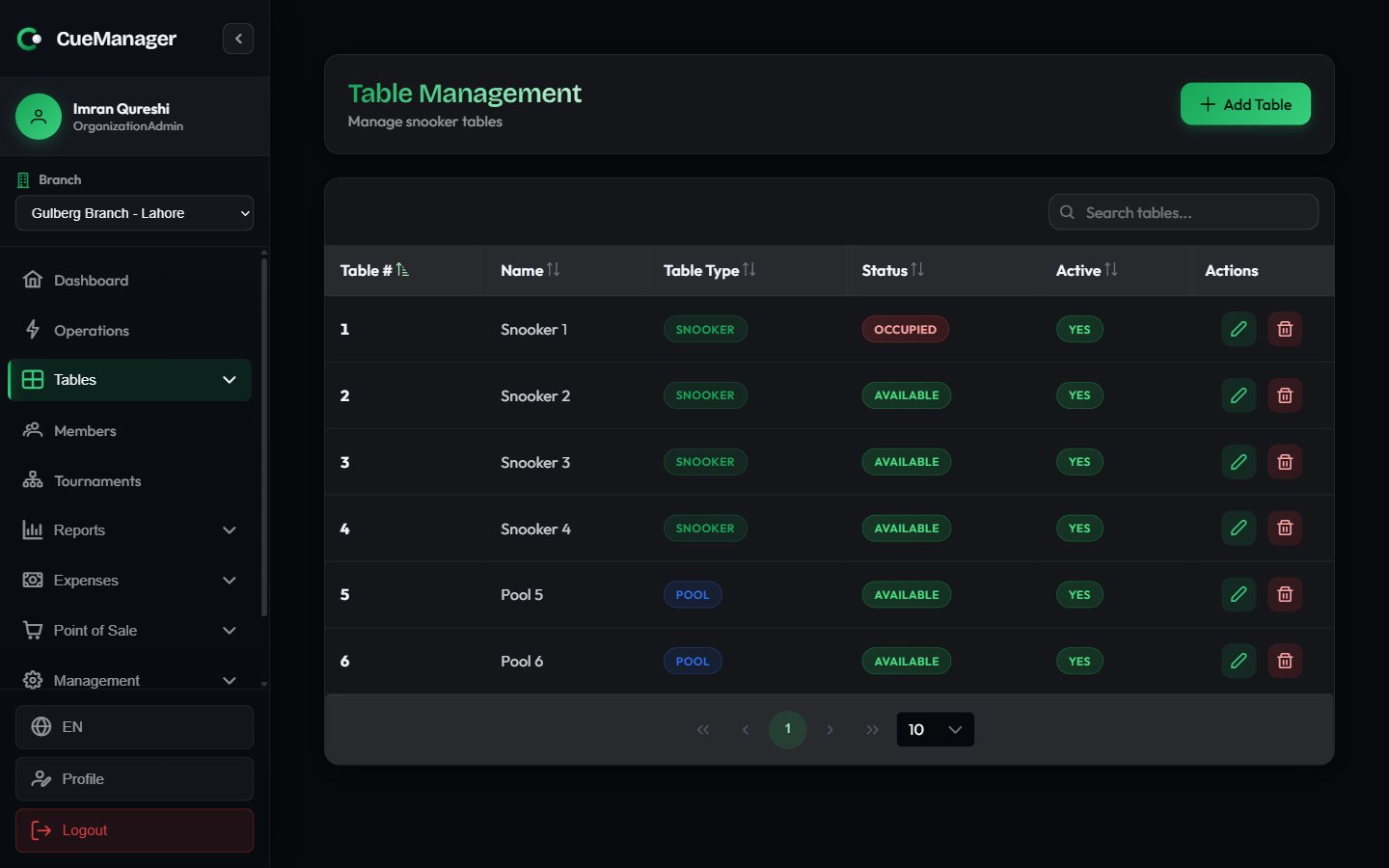
Open Manage Tables from the Tables section of the sidebar. The list is searchable and sortable, with one row per table: Table #, Name, Type, Status, Active, and row actions. SuperAdmins also see a Branch column. Use the search box to filter by number, name, branch, status, or type.Adding a table
1
Choose Add Table
The dialog opens with the create form. SuperAdmins pick the Branch first; everyone else creates in their own branch.
2
Enter the Table Number
Required, up to 20 characters. This is the label staff see everywhere else in the app, so keep it short and physical:
Snooker 1, Pool 2.3
Add a Table Name (optional)
A friendlier label, for example
VIP Table. It appears under the number on the floor card.4
Pick the Table Type
Snooker or Pool. This drives which games can be played on it and which rate a session defaults to.
5
Set the Initial Status and Active flag
New tables usually start Available and active. Clear Active to take a table off the floor without deleting its history.
6
Choose Create
The table appears on the live floor immediately, on every device.
Snooker tables and pool tables
The type is more than a label:- A Snooker table can host every game — the start dialog offers Snooker, 8-Ball, and 9-Ball, and defaults to Snooker.
- A Pool table offers only 8-Ball and 9-Ball, and defaults to 8-Ball. Snooker is not selectable.
- Only snooker games can be scored with the snooker marker.
Rates
Rates are set per branch and per table type, not on the individual table. A branch carries a per-frame, per-hour, and per-minute rate for snooker, plus optional pool rates that override them; where a pool rate is left empty, the snooker rate applies. When you start a session, the frame price defaults from the branch rate for that table’s type — so a session onPool 1 picks up the branch’s pool frame rate, and one on Snooker 3 picks up the snooker rate. Staff can still override the price for a single session in the start dialog.
Set and change these rates in Branches; the initial values are captured during the onboarding wizard.
Reservations
Bookings are taken from the live floor, not from this list. On an available table’s card, choose Reserve.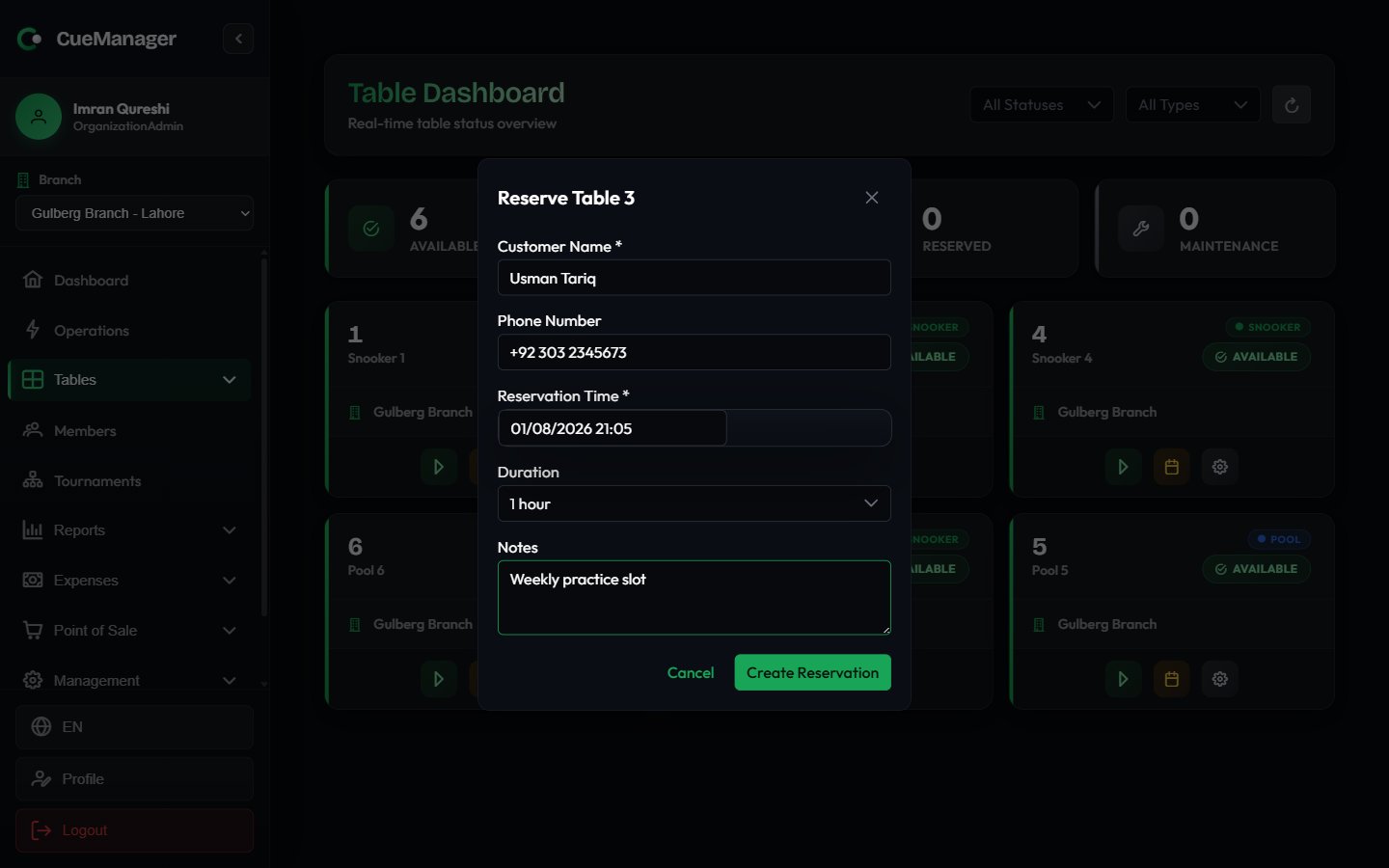
Booking Snooker 2 for a customer
1
Enter the Customer Name
Required. Add a Phone Number if you want to be able to call and confirm.
2
Pick the Reservation Time
Date and time, in 15-minute steps. Past times cannot be selected.
3
Choose a Duration
30 minutes, 1 hour (the default), 1.5 hours, 2 hours, or 3 hours.
4
Add Notes if useful
For example, which game the group wants or how many players are expected.
5
Choose Create Reservation
The table’s card immediately shows a Reserved · name · time row and the board counts it under Reserved.
QR stickers
QR sticker on a table’s row opens a printable sticker for that table. Players scan it with their phone camera to follow the live score, and — where the branch allows it — to record frame winners themselves. Print it once and fix it to the rail or the light hood; the code belongs to the table, not to a session, so it keeps working for every game played on it. See The player app for what a player gets after scanning, and Player self-scoring for letting them record frames.Cameras
Tables can be paired with a camera for automatic frame-end detection. Once paired, the floor card shows a camera chip, and a table whose camera is down warns you when you start a session on it. Pairing, RTSP credentials, and camera health live in Settings. What the camera does depends on the game. On a pool table it raises the Record Frame Result dialog when it thinks a frame has ended, and staff pick the winner. On a snooker table it never records anything — the marker owns the result — so instead it nudges staff when the table looks racked up while a frame is still open in the marker. That watchdog is off until your deployment turns it on and the branch opts in on its branch form — see Branches.Related pages
- The live floor — status colours and real-time updates
- Branches — per-branch snooker and pool rates
- Starting a session — how the rate reaches the bill
- How billing works — the pricing models explained