Register your account, verify your email, and sign in.
Registering creates the owner account for your club. That account becomes the organization administrator: it runs the setup wizard, owns the subscription, and can create every other user. This page covers registration, email verification, signing in, and password resets.
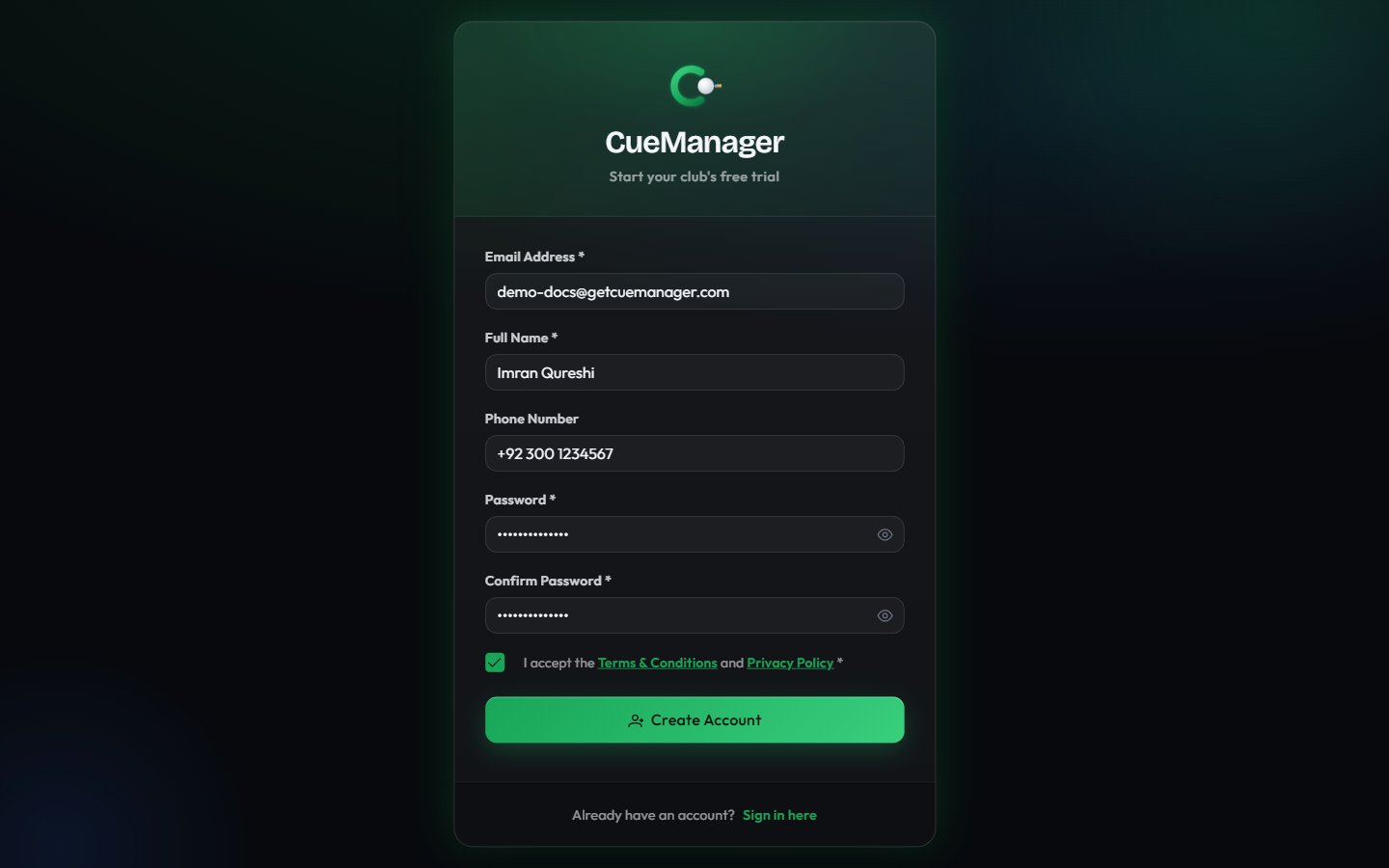
The registration form — this account becomes your club's owner
1
Open the registration page
From the sign-in page, choose Sign up here under Don’t have an account?. The page is headed Start your club’s free trial.
2
Fill in your details
Field
Required
Notes
Email Address
Yes
Must be a valid address — the verification link is sent here, and you can sign in with it
Full Name
Yes
At least 2 characters
Phone Number
No
Optional contact number
Password
Yes
Minimum 6 characters (maximum 100)
Confirm Password
Yes
Must match Password exactly
3
Accept the terms
Tick I accept the Terms & Conditions and Privacy Policy. Both links open in a new tab. Registration is blocked until this is ticked.
4
Choose Create Account
CueManager creates the account and sends a verification email, then shows the Check Your Email page.
Only the club owner registers this way. Staff accounts are created for them — either in step 5 of the setup wizard or later under Users — and they sign in with a username rather than registering themselves.
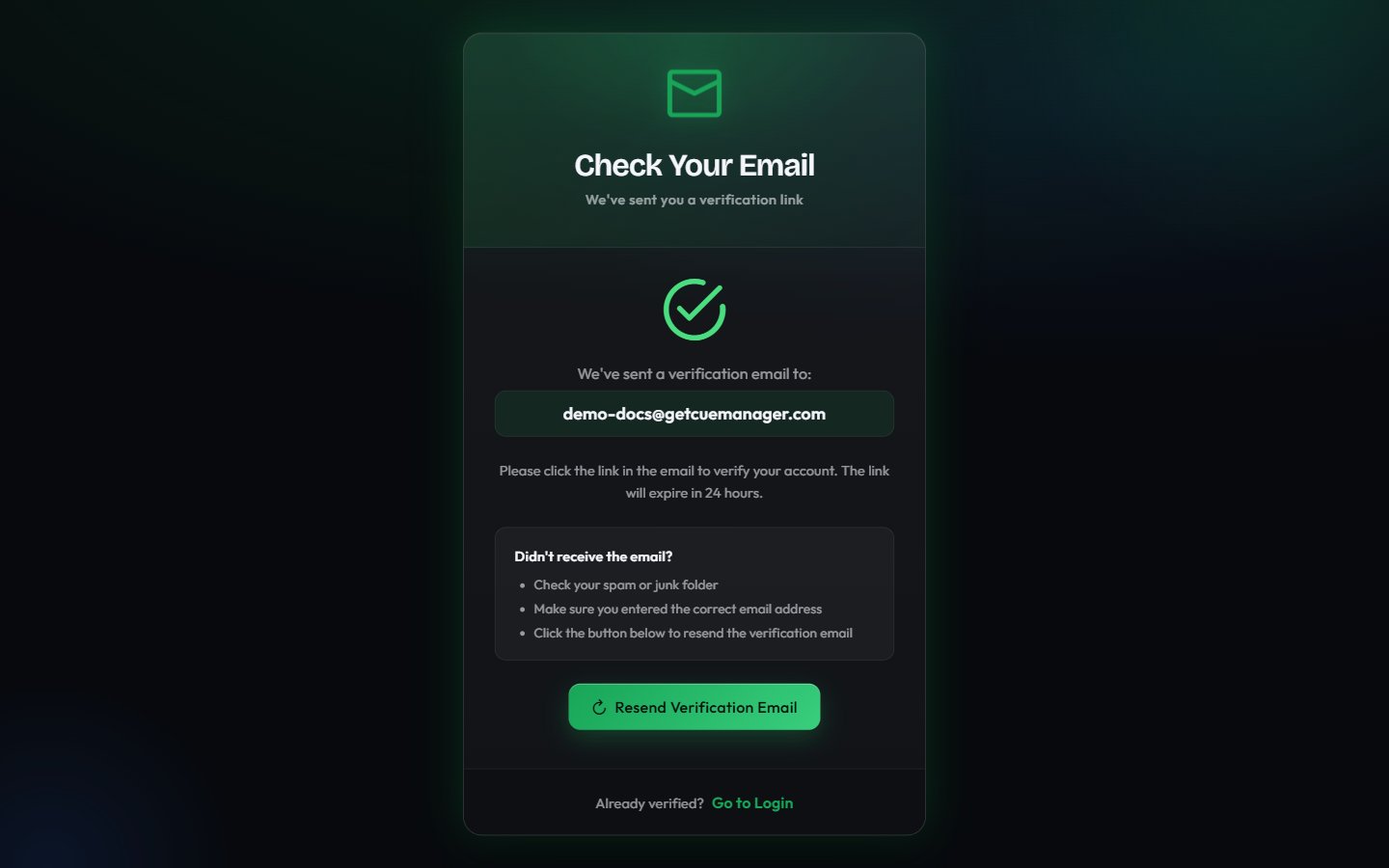
The verification screen confirms your account is active
The Check Your Email page shows the address the link went to. Verification links expire after 24 hours.
1
Open the link
Open the email and click the link. The Confirm It’s You page opens.
2
Enter your password
Type the password you chose when you registered, then choose Verify Email. The link on its own is not enough — this stops someone else who registered your address from having their password activated when you click.
When the password matches you see Email Verified! and Your account is now active, and CueManager takes you straight to the setup wizard — no second sign-in needed.If the page says That password doesn’t match this registration, someone may have registered your address after you did. Choose Register Again, register with your own details, then use the newest verification email and your new password. Too many wrong passwords pause verification and sign-in for 15 minutes.If the email has not arrived:
Check your spam or junk folder.
Confirm the address shown on the page is the one you meant to use.
Choose Resend Verification Email. Only one verification email is sent per minute, so wait a minute before you ask again. While your link is still valid, the resent email carries the same link, so any earlier copy keeps working.
If you register again with an address that is not verified yet, the newest registration’s name, phone, and password replace the earlier ones. To finish verifying, the person with the inbox must also know the password from that latest registration.If the link itself fails, the page shows why — for example the link expired or was already used. Choose Register Again to start over with a fresh link.
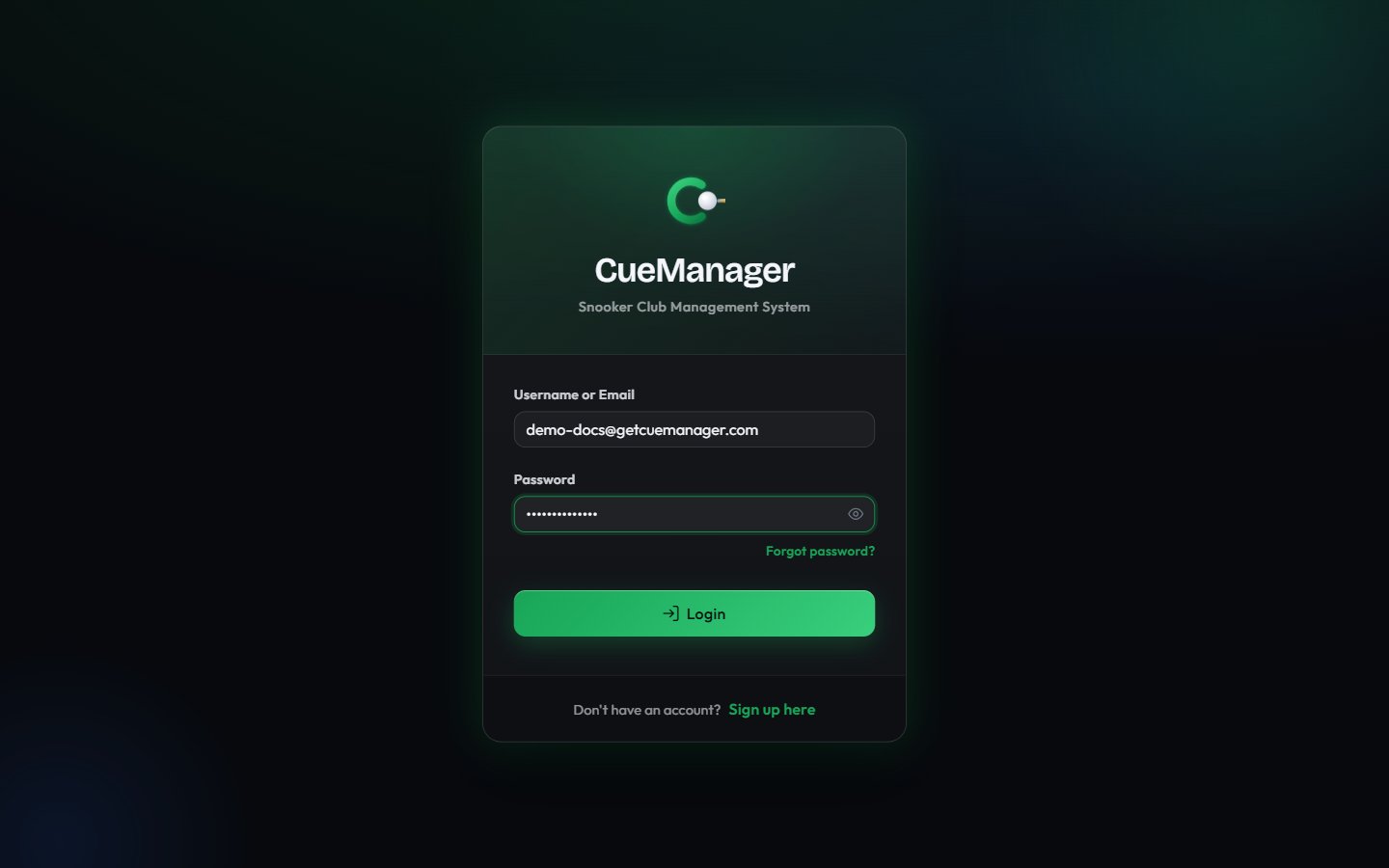
Enter Username or Email and Password, then choose Login.
Owners sign in with the email address they registered with.
Staff sign in with the username their manager created for them.
After 5 wrong passwords from the same connection, sign-in to that account is locked on that connection for 15 minutes. Other connections are not affected, so someone guessing at your email from elsewhere cannot lock you out of the club’s own computer. If wrong passwords keep arriving from many places at once — 50 in total — the account is locked everywhere for 15 minutes. While a lock is in place, even the correct password is refused with the same Invalid username or password. message, so nobody can tell that the account exists or that it is locked. Wrong current passwords on the Change password page count toward the same limits. To get back in sooner, reset the password by email. Staff can also ask the club owner to use Reset Password under Users. Both lift the lock straight away.Where you land depends on your setup and role: if the setup wizard is not finished you are returned to it, otherwise you go to the dashboard. What you can see once inside is governed by your role and permissions.
If your club runs more than one location, the branch selector in the sidebar switches which branch you are working in. See branches.
On the sign-in page choose Forgot password?. Enter the account’s Email Address and choose Send Reset Link.The confirmation is deliberately neutral — it tells you that if an account exists for that address, a reset link has been sent — so the page cannot be used to discover which addresses are registered. The reset link expires in 1 hour. Only one reset email is sent per account per minute. If you ask again while your link is still valid, CueManager re-sends that same link and gives it a fresh hour, so a link in your inbox keeps working even if someone else requests a reset for your address.
2
Choose a new password
Open the link and set New Password and Confirm Password on the Reset Password page. The same rules apply as at registration: at least 6 characters, and both fields must match.
3
Sign in again
On success you see a confirmation and are redirected to the sign-in page. Use the new password from then on.
A reset link that was already used, or one older than an hour, shows This password reset link is invalid or incomplete. Request a new link from the sign-in page rather than reusing the old email.
With the account verified you are in the six-step setup wizard: organization, plan, first branch, tables, and team.
{"docsConfig":{"theme":"mint","$schema":"https://mintlify.com/docs.json","name":"CueManager Docs","colors":{"primary":"#0b6b3a","light":"#38cf7d","dark":"#18a558"},"logo":{"light":"https://mintcdn.com/cuemanager/Yd0RubnGW7xOwfjj/logo/light.svg?fit=max\u0026auto=format\u0026n=Yd0RubnGW7xOwfjj\u0026q=85\u0026s=f4ea508280c5fdf15d7175f9c0df6453","dark":"https://mintcdn.com/cuemanager/Yd0RubnGW7xOwfjj/logo/dark.svg?fit=max\u0026auto=format\u0026n=Yd0RubnGW7xOwfjj\u0026q=85\u0026s=4090a775cbe3654702ca7beb38733289","href":"https://cue-manager-rho.vercel.app"},"favicon":"https://mintcdn.com/cuemanager/Yd0RubnGW7xOwfjj/favicon.svg?fit=max\u0026auto=format\u0026n=Yd0RubnGW7xOwfjj\u0026q=85\u0026s=36eecfbe4a1a8a141badcb2d26560b0b","appearance":{"default":"dark"},"background":{"color":{"dark":"#07090d"}},"navbar":{"primary":{"type":"button","label":"Open CueManager","href":"https://cue-manager-rho.vercel.app/login"}},"footer":{"links":[{"header":"Product","items":[{"label":"Pricing","href":"https://cue-manager-rho.vercel.app/pricing"},{"label":"Sign in","href":"https://cue-manager-rho.vercel.app/login"},{"label":"Start free trial","href":"https://cue-manager-rho.vercel.app/register"}]},{"header":"Legal","items":[{"label":"Terms","href":"https://cue-manager-rho.vercel.app/terms"},{"label":"Privacy","href":"https://cue-manager-rho.vercel.app/privacy"}]}]},"fonts":{"family":"Outfit"},"icons":{"library":"lucide"},"styling":{"latex":false},"navigation":{"pages":[]}},"deployment":{"deploymentMetadataValue":{"subdomain":"cuemanager","hasAudioNarration":false,"actualSubdomain":"cuemanager","customDomains":["docs.getcuemanager.com"],"gitSource":{"type":"github","owner":"mehroz377","repo":"cue-manager","deployBranch":"master","contentDirectory":"docs-site","isPrivate":true,"mountPath":"","label":""},"chroma":{"latestBuiltDeploymentHistoryId":"6add0f42b50163d7fcc4f9d8","collectionId":"426a49eb-a4c3-472d-860b-f8c60c5a2d0d","liveDeploymentHistoryId":"6add0f42b50163d7fcc4f9d8","schemaVersion":"v3"},"entitlements":{"AI_CHAT":{"status":"DISABLED"}},"buildId":"6add0f42b50163d7fcc4f9d8","clientVersion":"0.0.4044","searchFilterCounts":[{"language":"default","tag":"Getting started","count":6},{"language":"default","tag":"Tables \u0026 sessions","count":6},{"language":"default","tag":"Administration","count":4},{"language":"default","tag":"Running the club","count":3},{"language":"default","tag":"Core concepts","count":3},{"language":"default","tag":"Members","count":3},{"language":"default","tag":"Player app","count":3},{"language":"default","tag":"Point of sale","count":3}]},"assistantConfig":{"enableAskAiButton":false,"enableStarterQuestions":false,"enableContextualStarterQuestions":false,"enableAskAiSearchBar":true},"basePath":"","hasChatPermissions":false,"hasWebMcpPermissions":false,"toggles":[{"name":"kill-isr","enabled":true,"variant":{"name":"disabled","enabled":false,"feature_enabled":true},"impressionData":false},{"name":"agent-mintlify-slack","enabled":true,"variant":{"name":"disabled","enabled":false,"feature_enabled":true},"impressionData":false},{"name":"agent-integrations-settings","enabled":true,"variant":{"name":"disabled","enabled":false,"feature_enabled":true},"impressionData":false},{"name":"automations-pr-grouping","enabled":true,"variant":{"name":"disabled","enabled":false,"feature_enabled":true},"impressionData":false},{"name":"custom-prefix","enabled":true,"variant":{"name":"disabled","enabled":false,"feature_enabled":true},"impressionData":false},{"name":"analytics-v7","enabled":true,"variant":{"name":"disabled","enabled":false,"feature_enabled":true},"impressionData":false},{"name":"user-flows-analytics","enabled":true,"variant":{"name":"disabled","enabled":false,"feature_enabled":true},"impressionData":false},{"name":"no-publish-flow","enabled":true,"variant":{"name":"disabled","enabled":false,"feature_enabled":true},"impressionData":false},{"name":"workos-onboarding","enabled":true,"variant":{"name":"disabled","enabled":false,"feature_enabled":true},"impressionData":false},{"name":"llms-txt-v2","enabled":true,"variant":{"name":"disabled","enabled":false,"feature_enabled":true},"impressionData":false},{"name":"snapshot-serving-live","enabled":true,"variant":{"name":"disabled","enabled":false,"feature_enabled":true},"impressionData":false},{"name":"stripTemperatureMiddleware","enabled":true,"variant":{"name":"disabled","enabled":false,"feature_enabled":true},"impressionData":false},{"name":"support-platform-pylon-zendesk","enabled":true,"variant":{"name":"disabled","enabled":false,"feature_enabled":true},"impressionData":false},{"name":"snapshot-serving","enabled":true,"variant":{"name":"disabled","enabled":false,"feature_enabled":true},"impressionData":false},{"name":"instant-rollback","enabled":true,"variant":{"name":"disabled","enabled":false,"feature_enabled":true},"impressionData":false},{"name":"granular-notifications-server","enabled":true,"variant":{"name":"disabled","enabled":false,"feature_enabled":true},"impressionData":false},{"name":"granular-notifications","enabled":true,"variant":{"name":"disabled","enabled":false,"feature_enabled":true},"impressionData":false},{"name":"automations-fable","enabled":true,"variant":{"name":"disabled","enabled":false,"feature_enabled":true},"impressionData":false},{"name":"fixed-ai-action-pricing","enabled":true,"variant":{"name":"disabled","enabled":false,"feature_enabled":true},"impressionData":false},{"name":"automation-resolve-merge-conflict","enabled":true,"variant":{"name":"disabled","enabled":false,"feature_enabled":true},"impressionData":false},{"name":"scoped-publishing","enabled":true,"variant":{"name":"disabled","enabled":false,"feature_enabled":true},"impressionData":false},{"name":"mintql","enabled":true,"variant":{"name":"disabled","enabled":false,"feature_enabled":true},"impressionData":false},{"name":"page-level-analytics","enabled":true,"variant":{"name":"disabled","enabled":false,"feature_enabled":true},"impressionData":false},{"name":"editor-version-history-v2","enabled":true,"variant":{"name":"disabled","enabled":false,"feature_enabled":true},"impressionData":false},{"name":"billing-page-v2","enabled":true,"variant":{"name":"disabled","enabled":false,"feature_enabled":true},"impressionData":false},{"name":"full-page-search","enabled":true,"variant":{"name":"disabled","enabled":false,"feature_enabled":true},"impressionData":false},{"name":"workspace-projects","enabled":true,"variant":{"name":"disabled","enabled":false,"feature_enabled":true},"impressionData":false},{"name":"assistant-v5","enabled":true,"variant":{"name":"disabled","enabled":false,"feature_enabled":true},"impressionData":false},{"name":"byok-sep-25","enabled":true,"variant":{"name":"disabled","enabled":false,"feature_enabled":true},"impressionData":false},{"name":"fork-pr-previews","enabled":true,"variant":{"name":"disabled","enabled":false,"feature_enabled":true},"impressionData":false},{"name":"revalidation-jwt","enabled":true,"variant":{"name":"disabled","enabled":false,"feature_enabled":true},"impressionData":false},{"name":"vite-origin","enabled":true,"variant":{"name":"disabled","enabled":false,"feature_enabled":true},"impressionData":false},{"name":"billing-updated-9-15","enabled":true,"variant":{"name":"disabled","enabled":false,"feature_enabled":true},"impressionData":false},{"name":"workos-sso-scim","enabled":true,"variant":{"name":"disabled","enabled":false,"feature_enabled":true},"impressionData":false},{"name":"hobby-abuse-scan","enabled":true,"variant":{"name":"disabled","enabled":false,"feature_enabled":true},"impressionData":false},{"name":"dashboard-inbox","enabled":true,"variant":{"name":"disabled","enabled":false,"feature_enabled":true},"impressionData":false},{"name":"workos-signup","enabled":true,"variant":{"name":"disabled","enabled":false,"feature_enabled":true},"impressionData":false},{"name":"turbopuffer-dual-write","enabled":true,"variant":{"name":"disabled","enabled":false,"feature_enabled":true},"impressionData":false},{"name":"workos-enabled","enabled":true,"variant":{"name":"disabled","enabled":false,"feature_enabled":true},"impressionData":false},{"name":"approve-review-flow","enabled":true,"variant":{"name":"disabled","enabled":false,"feature_enabled":true},"impressionData":false},{"name":"sso-setup-deadline-banner","enabled":true,"variant":{"name":"disabled","enabled":false,"feature_enabled":true},"impressionData":false}],"googleFontsInlined":true},"customCss":[],"page":{"pagePath":"getting-started/create-your-club","slug":"/getting-started/create-your-club","pageMetadata":{"title":"Create your club","description":"Register your account, verify your email, and sign in.","icon":"user-plus","href":"/getting-started/create-your-club"},"description":{"compiledSource":"\"use strict\";\nconst {jsx: _jsx} = arguments[0];\nconst {useMDXComponents: _provideComponents} = arguments[0];\nfunction _createMdxContent(props) {\n const _components = {\n p: \"p\",\n ..._provideComponents(),\n ...props.components\n };\n return _jsx(_components.p, {\n children: \"Register your account, verify your email, and sign in.\"\n });\n}\nfunction MDXContent(props = {}) {\n const {wrapper: MDXLayout} = {\n ..._provideComponents(),\n ...props.components\n };\n return MDXLayout ? _jsx(MDXLayout, {\n ...props,\n children: _jsx(_createMdxContent, {\n ...props\n })\n }) : _createMdxContent(props);\n}\nreturn {\n default: MDXContent\n};\n","frontmatter":{},"scope":{}},"pageType":"default","mdx":{"mdxSource":{"compiledSource":"\"use strict\";const{Fragment:_Fragment,jsx:_jsx,jsxs:_jsxs}=arguments[0];const{useMDXComponents:_provideComponents}=arguments[0];function _createMdxContent(props){const _components={a:`a`,em:`em`,li:`li`,p:`p`,strong:`strong`,tbody:`tbody`,td:`td`,th:`th`,thead:`thead`,tr:`tr`,ul:`ul`,..._provideComponents(),...props.components},{Frame,Heading,Note,OptimizedImage,Step,Steps,Table,Tip,Warning}=_components;if(!Frame)_missingMdxReference(`Frame`,true);if(!Heading)_missingMdxReference(`Heading`,true);if(!Note)_missingMdxReference(`Note`,true);if(!OptimizedImage)_missingMdxReference(`OptimizedImage`,true);if(!Step)_missingMdxReference(`Step`,true);if(!Steps)_missingMdxReference(`Steps`,true);if(!Table)_missingMdxReference(`Table`,true);if(!Tip)_missingMdxReference(`Tip`,true);if(!Warning)_missingMdxReference(`Warning`,true);return _jsxs(_Fragment,{children:[_jsx(_components.p,{children:`Registering creates the owner account for your club. That account becomes the organization administrator: it runs the setup wizard, owns the subscription, and can create every other user. This page covers registration, email verification, signing in, and password resets.`}),`\n`,_jsx(Heading,{level:`2`,id:`register-the-owner-account`,children:`Register the owner account`}),`\n`,_jsx(Frame,{caption:`The registration form — this account becomes your club's owner`,children:_jsx(OptimizedImage,{src:`https://mintcdn.com/cuemanager/Yd0RubnGW7xOwfjj/images/auth-register.png?fit=max\u0026auto=format\u0026n=Yd0RubnGW7xOwfjj\u0026q=85\u0026s=5100bc693a685fcdcf58a23e0fd9e18d`,alt:`CueManager registration form with email, full name, phone, password, confirm password, and terms checkbox`,\"data-og-width\":`1440`,width:`1440`,\"data-og-height\":`900`,height:`900`,\"data-path\":`images/auth-register.png`,\"data-optimize\":`true`,\"data-opv\":`3`,srcset:`https://mintcdn.com/cuemanager/Yd0RubnGW7xOwfjj/images/auth-register.png?w=280\u0026fit=max\u0026auto=format\u0026n=Yd0RubnGW7xOwfjj\u0026q=85\u0026s=6c3ca1755ca75fbfed2109911cf6432a 280w, https://mintcdn.com/cuemanager/Yd0RubnGW7xOwfjj/images/auth-register.png?w=560\u0026fit=max\u0026auto=format\u0026n=Yd0RubnGW7xOwfjj\u0026q=85\u0026s=182dfdf5cec7b02aaa0807995baf7832 560w, https://mintcdn.com/cuemanager/Yd0RubnGW7xOwfjj/images/auth-register.png?w=840\u0026fit=max\u0026auto=format\u0026n=Yd0RubnGW7xOwfjj\u0026q=85\u0026s=09f5d96774a394693b764f414fd39f19 840w, https://mintcdn.com/cuemanager/Yd0RubnGW7xOwfjj/images/auth-register.png?w=1100\u0026fit=max\u0026auto=format\u0026n=Yd0RubnGW7xOwfjj\u0026q=85\u0026s=5d6dd0ed1428ca15559e5cbd561f77b7 1100w, https://mintcdn.com/cuemanager/Yd0RubnGW7xOwfjj/images/auth-register.png?w=1650\u0026fit=max\u0026auto=format\u0026n=Yd0RubnGW7xOwfjj\u0026q=85\u0026s=f3c379793aea83bfd207d58d6bed007e 1650w, https://mintcdn.com/cuemanager/Yd0RubnGW7xOwfjj/images/auth-register.png?w=2500\u0026fit=max\u0026auto=format\u0026n=Yd0RubnGW7xOwfjj\u0026q=85\u0026s=467f50eac1360cf739dc4580439e58ae 2500w`})}),`\n`,_jsxs(Steps,{children:[_jsx(Step,{title:`Open the registration page`,children:_jsxs(_components.p,{children:[`From the sign-in page, choose `,_jsx(_components.strong,{children:`Sign up here`}),` under `,_jsx(_components.strong,{children:`Don’t have an account?`}),`. The page is headed `,_jsx(_components.strong,{children:`Start your club’s free trial`}),`.`]})}),_jsx(Step,{title:`Fill in your details`,children:_jsxs(Table,{children:[_jsx(_components.thead,{children:_jsxs(_components.tr,{children:[_jsx(_components.th,{children:`Field`}),_jsx(_components.th,{children:`Required`}),_jsx(_components.th,{children:`Notes`})]})}),_jsxs(_components.tbody,{children:[_jsxs(_components.tr,{children:[_jsx(_components.td,{children:_jsx(_components.strong,{children:`Email Address`})}),_jsx(_components.td,{children:`Yes`}),_jsx(_components.td,{children:`Must be a valid address — the verification link is sent here, and you can sign in with it`})]}),_jsxs(_components.tr,{children:[_jsx(_components.td,{children:_jsx(_components.strong,{children:`Full Name`})}),_jsx(_components.td,{children:`Yes`}),_jsx(_components.td,{children:`At least 2 characters`})]}),_jsxs(_components.tr,{children:[_jsx(_components.td,{children:_jsx(_components.strong,{children:`Phone Number`})}),_jsx(_components.td,{children:`No`}),_jsx(_components.td,{children:`Optional contact number`})]}),_jsxs(_components.tr,{children:[_jsx(_components.td,{children:_jsx(_components.strong,{children:`Password`})}),_jsx(_components.td,{children:`Yes`}),_jsx(_components.td,{children:`Minimum 6 characters (maximum 100)`})]}),_jsxs(_components.tr,{children:[_jsx(_components.td,{children:_jsx(_components.strong,{children:`Confirm Password`})}),_jsx(_components.td,{children:`Yes`}),_jsxs(_components.td,{children:[`Must match `,_jsx(_components.strong,{children:`Password`}),` exactly`]})]})]})]})}),_jsx(Step,{title:`Accept the terms`,children:_jsxs(_components.p,{children:[`Tick `,_jsx(_components.strong,{children:`I accept the Terms \u0026 Conditions and Privacy Policy`}),`. Both links open in a new tab. Registration is blocked until this is ticked.`]})}),_jsx(Step,{title:`Choose Create Account`,children:_jsxs(_components.p,{children:[`CueManager creates the account and sends a verification email, then shows the `,_jsx(_components.strong,{children:`Check Your Email`}),` page.`]})})]}),`\n`,_jsx(Note,{children:_jsxs(_components.p,{children:[`Only the club owner registers this way. Staff accounts are created for them — either in `,_jsx(_components.a,{href:`/getting-started/onboarding-wizard`,children:`step 5 of the setup wizard`}),` or later under `,_jsx(_components.a,{href:`/admin/users-and-roles`,children:`Users`}),` — and they sign in with a username rather than registering themselves.`]})}),`\n`,_jsx(Heading,{level:`2`,id:`verify-your-email`,children:`Verify your email`}),`\n`,_jsx(Frame,{caption:`The verification screen confirms your account is active`,children:_jsx(OptimizedImage,{src:`https://mintcdn.com/cuemanager/Yd0RubnGW7xOwfjj/images/auth-verify-email.png?fit=max\u0026auto=format\u0026n=Yd0RubnGW7xOwfjj\u0026q=85\u0026s=fe95fc1d0529f20f26f9b690c27ad8fd`,alt:`Email verification screen confirming the account is now active`,\"data-og-width\":`1440`,width:`1440`,\"data-og-height\":`900`,height:`900`,\"data-path\":`images/auth-verify-email.png`,\"data-optimize\":`true`,\"data-opv\":`3`,srcset:`https://mintcdn.com/cuemanager/Yd0RubnGW7xOwfjj/images/auth-verify-email.png?w=280\u0026fit=max\u0026auto=format\u0026n=Yd0RubnGW7xOwfjj\u0026q=85\u0026s=ee94c1fc63df2c17e8f11997365daea7 280w, https://mintcdn.com/cuemanager/Yd0RubnGW7xOwfjj/images/auth-verify-email.png?w=560\u0026fit=max\u0026auto=format\u0026n=Yd0RubnGW7xOwfjj\u0026q=85\u0026s=a5ca3bed32c7efad2b855257f68aabfa 560w, https://mintcdn.com/cuemanager/Yd0RubnGW7xOwfjj/images/auth-verify-email.png?w=840\u0026fit=max\u0026auto=format\u0026n=Yd0RubnGW7xOwfjj\u0026q=85\u0026s=b7aac5abff3291be33ec3a9866a9fcec 840w, https://mintcdn.com/cuemanager/Yd0RubnGW7xOwfjj/images/auth-verify-email.png?w=1100\u0026fit=max\u0026auto=format\u0026n=Yd0RubnGW7xOwfjj\u0026q=85\u0026s=a74dac779150781a4aa36f76614860ef 1100w, https://mintcdn.com/cuemanager/Yd0RubnGW7xOwfjj/images/auth-verify-email.png?w=1650\u0026fit=max\u0026auto=format\u0026n=Yd0RubnGW7xOwfjj\u0026q=85\u0026s=e80a93fe921cdc470db81bf6aac30e3f 1650w, https://mintcdn.com/cuemanager/Yd0RubnGW7xOwfjj/images/auth-verify-email.png?w=2500\u0026fit=max\u0026auto=format\u0026n=Yd0RubnGW7xOwfjj\u0026q=85\u0026s=043ce09bdf935fa76b2ac42258a0e460 2500w`})}),`\n`,_jsxs(_components.p,{children:[`The `,_jsx(_components.strong,{children:`Check Your Email`}),` page shows the address the link went to. Verification links expire after `,_jsx(_components.strong,{children:`24 hours`}),`.`]}),`\n`,_jsxs(Steps,{children:[_jsx(Step,{title:`Open the link`,children:_jsxs(_components.p,{children:[`Open the email and click the link. The `,_jsx(_components.strong,{children:`Confirm It’s You`}),` page opens.`]})}),_jsx(Step,{title:`Enter your password`,children:_jsxs(_components.p,{children:[`Type the password you chose when you registered, then choose `,_jsx(_components.strong,{children:`Verify Email`}),`. The link on its own is not enough — this stops someone else who registered your address from having their password activated when you click.`]})})]}),`\n`,_jsxs(_components.p,{children:[`When the password matches you see `,_jsx(_components.strong,{children:`Email Verified!`}),` and `,_jsx(_components.strong,{children:`Your account is now active`}),`, and CueManager takes you straight to the `,_jsx(_components.a,{href:`/getting-started/onboarding-wizard`,children:`setup wizard`}),` — no second sign-in needed.`]}),`\n`,_jsxs(_components.p,{children:[`If the page says `,_jsx(_components.strong,{children:`That password doesn’t match this registration`}),`, someone may have registered your address after you did. Choose `,_jsx(_components.strong,{children:`Register Again`}),`, register with your own details, then use the newest verification email and your new password. Too many wrong passwords pause verification and sign-in for 15 minutes.`]}),`\n`,_jsx(_components.p,{children:`If the email has not arrived:`}),`\n`,_jsxs(_components.ul,{children:[`\n`,_jsx(_components.li,{children:`Check your spam or junk folder.`}),`\n`,_jsx(_components.li,{children:`Confirm the address shown on the page is the one you meant to use.`}),`\n`,_jsxs(_components.li,{children:[`Choose `,_jsx(_components.strong,{children:`Resend Verification Email`}),`. Only one verification email is sent per minute, so wait a minute before you ask again. While your link is still valid, the resent email carries the same link, so any earlier copy keeps working.`]}),`\n`]}),`\n`,_jsx(_components.p,{children:`If you register again with an address that is not verified yet, the newest registration’s name, phone, and password replace the earlier ones. To finish verifying, the person with the inbox must also know the password from that latest registration.`}),`\n`,_jsxs(_components.p,{children:[`If the link itself fails, the page shows why — for example the link expired or was already used. Choose `,_jsx(_components.strong,{children:`Register Again`}),` to start over with a fresh link.`]}),`\n`,_jsx(Heading,{level:`2`,id:`sign-in`,children:`Sign in`}),`\n`,_jsx(Frame,{caption:`Sign in with your email or a staff username`,children:_jsx(OptimizedImage,{src:`https://mintcdn.com/cuemanager/Yd0RubnGW7xOwfjj/images/auth-login.png?fit=max\u0026auto=format\u0026n=Yd0RubnGW7xOwfjj\u0026q=85\u0026s=52d129ab03506e14a9e7ff062526715c`,alt:`CueManager sign-in page with username or email, password, and the forgot password link`,\"data-og-width\":`1440`,width:`1440`,\"data-og-height\":`900`,height:`900`,\"data-path\":`images/auth-login.png`,\"data-optimize\":`true`,\"data-opv\":`3`,srcset:`https://mintcdn.com/cuemanager/Yd0RubnGW7xOwfjj/images/auth-login.png?w=280\u0026fit=max\u0026auto=format\u0026n=Yd0RubnGW7xOwfjj\u0026q=85\u0026s=b79e3bfb9918c636aa1ca3c84429fcac 280w, https://mintcdn.com/cuemanager/Yd0RubnGW7xOwfjj/images/auth-login.png?w=560\u0026fit=max\u0026auto=format\u0026n=Yd0RubnGW7xOwfjj\u0026q=85\u0026s=6a45af65ab575ae3be7c79ed31b7fb01 560w, https://mintcdn.com/cuemanager/Yd0RubnGW7xOwfjj/images/auth-login.png?w=840\u0026fit=max\u0026auto=format\u0026n=Yd0RubnGW7xOwfjj\u0026q=85\u0026s=ed8c2a64647586094a90fc70afc10bc3 840w, https://mintcdn.com/cuemanager/Yd0RubnGW7xOwfjj/images/auth-login.png?w=1100\u0026fit=max\u0026auto=format\u0026n=Yd0RubnGW7xOwfjj\u0026q=85\u0026s=addcf49cb72db92685c1eb1592534d76 1100w, https://mintcdn.com/cuemanager/Yd0RubnGW7xOwfjj/images/auth-login.png?w=1650\u0026fit=max\u0026auto=format\u0026n=Yd0RubnGW7xOwfjj\u0026q=85\u0026s=52cf41b08d0d34243347c27358281f4d 1650w, https://mintcdn.com/cuemanager/Yd0RubnGW7xOwfjj/images/auth-login.png?w=2500\u0026fit=max\u0026auto=format\u0026n=Yd0RubnGW7xOwfjj\u0026q=85\u0026s=09d7f3cb6903d8d0489f978d2df73e4f 2500w`})}),`\n`,_jsxs(_components.p,{children:[`Enter `,_jsx(_components.strong,{children:`Username or Email`}),` and `,_jsx(_components.strong,{children:`Password`}),`, then choose `,_jsx(_components.strong,{children:`Login`}),`.`]}),`\n`,_jsxs(_components.ul,{children:[`\n`,_jsx(_components.li,{children:`Owners sign in with the email address they registered with.`}),`\n`,_jsx(_components.li,{children:`Staff sign in with the username their manager created for them.`}),`\n`]}),`\n`,_jsxs(_components.p,{children:[`After `,_jsx(_components.strong,{children:`5 wrong passwords from the same connection`}),`, sign-in to that account is locked on that connection for `,_jsx(_components.strong,{children:`15 minutes`}),`. Other connections are not affected, so someone guessing at your email from elsewhere cannot lock you out of the club’s own computer. If wrong passwords keep arriving from many places at once — `,_jsx(_components.strong,{children:`50`}),` in total — the account is locked everywhere for 15 minutes. While a lock is in place, even the correct password is refused with the same `,_jsx(_components.em,{children:`Invalid username or password.`}),` message, so nobody can tell that the account exists or that it is locked. Wrong current passwords on the `,_jsx(_components.strong,{children:`Change password`}),` page count toward the same limits. To get back in sooner, `,_jsx(_components.a,{href:`#reset-a-forgotten-password`,children:`reset the password`}),` by email. Staff can also ask the club owner to use `,_jsx(_components.strong,{children:`Reset Password`}),` under `,_jsx(_components.a,{href:`/admin/users-and-roles`,children:`Users`}),`. Both lift the lock straight away.`]}),`\n`,_jsxs(_components.p,{children:[`Where you land depends on your setup and role: if the setup wizard is not finished you are returned to it, otherwise you go to the `,_jsx(_components.a,{href:`/getting-started/dashboard`,children:`dashboard`}),`. What you can see once inside is governed by your `,_jsx(_components.a,{href:`/concepts/roles-and-permissions`,children:`role and permissions`}),`.`]}),`\n`,_jsx(Tip,{children:_jsxs(_components.p,{children:[`If your club runs more than one location, the branch selector in the sidebar switches which branch you are working in. See `,_jsx(_components.a,{href:`/admin/branches`,children:`branches`}),`.`]})}),`\n`,_jsx(Heading,{level:`2`,id:`reset-a-forgotten-password`,children:`Reset a forgotten password`}),`\n`,_jsxs(Steps,{children:[_jsxs(Step,{title:`Request a link`,children:[_jsxs(_components.p,{children:[`On the sign-in page choose `,_jsx(_components.strong,{children:`Forgot password?`}),`. Enter the account’s `,_jsx(_components.strong,{children:`Email Address`}),` and choose `,_jsx(_components.strong,{children:`Send Reset Link`}),`.`]}),_jsxs(_components.p,{children:[`The confirmation is deliberately neutral — it tells you that if an account exists for that address, a reset link has been sent — so the page cannot be used to discover which addresses are registered. The reset link expires in `,_jsx(_components.strong,{children:`1 hour`}),`. Only one reset email is sent per account per minute. If you ask again while your link is still valid, CueManager re-sends that same link and gives it a fresh hour, so a link in your inbox keeps working even if someone else requests a reset for your address.`]})]}),_jsx(Step,{title:`Choose a new password`,children:_jsxs(_components.p,{children:[`Open the link and set `,_jsx(_components.strong,{children:`New Password`}),` and `,_jsx(_components.strong,{children:`Confirm Password`}),` on the `,_jsx(_components.strong,{children:`Reset Password`}),` page. The same rules apply as at registration: at least 6 characters, and both fields must match.`]})}),_jsx(Step,{title:`Sign in again`,children:_jsx(_components.p,{children:`On success you see a confirmation and are redirected to the sign-in page. Use the new password from then on.`})})]}),`\n`,_jsx(Warning,{children:_jsxs(_components.p,{children:[`A reset link that was already used, or one older than an hour, shows `,_jsx(_components.strong,{children:`This password reset link is invalid or incomplete`}),`. Request a new link from the sign-in page rather than reusing the old email.`]})}),`\n`,_jsx(Heading,{level:`2`,id:`next-step`,children:`Next step`}),`\n`,_jsxs(_components.p,{children:[`With the account verified you are in the six-step `,_jsx(_components.a,{href:`/getting-started/onboarding-wizard`,children:`setup wizard`}),`: organization, plan, first branch, tables, and team.`]})]})}function MDXContent(props={}){const{wrapper:MDXLayout}={..._provideComponents(),...props.components};return MDXLayout?_jsx(MDXLayout,{...props,children:_jsx(_createMdxContent,{...props})}):_createMdxContent(props)}return{default:MDXContent};function _missingMdxReference(id,component){throw new Error(`Expected `+(component?`component`:`object`)+\" `\"+id+\"` to be defined: you likely forgot to import, pass, or provide it.\")}","frontmatter":{},"scope":{"config":{},"pageMetadata":{"title":"Create your club","description":"Register your account, verify your email, and sign in.","icon":"user-plus","href":"/getting-started/create-your-club"}}},"mdxSourceWithNoJs":null},"mdxExtracts":{"tableOfContents":[{"title":"Register the owner account","slug":"register-the-owner-account","depth":2,"children":[]},{"title":"Verify your email","slug":"verify-your-email","depth":2,"children":[]},{"title":"Sign in","slug":"sign-in","depth":2,"children":[]},{"title":"Reset a forgotten password","slug":"reset-a-forgotten-password","depth":2,"children":[]},{"title":"Next step","slug":"next-step","depth":2,"children":[]}],"codeExamples":{}},"jsLinks":[],"subdomain":"cuemanager","siteName":"CueManager Docs","title":"Create your club - CueManager Docs","navMaps":{"firstHrefInVersion":{},"firstHrefInLanguage":{}},"lastModified":"2026-10-24T20:04:23.930Z","originalFileLocation":"getting-started/create-your-club.mdx"},"headHtml":"\u003cscript data-mint-head>(function(){var d=document.documentElement,p=null;if(!p){try{p=localStorage.getItem(\"isDarkMode\")}catch(e){}if(p==='true')p='dark';else if(p==='false')p='light';if(p!=='light'\u0026\u0026p!=='dark'\u0026\u0026p!=='system')p=\"dark\"}var r=p==='system'?(matchMedia(\"(prefers-color-scheme: dark)\").matches?'dark':'light'):p;d.classList.remove(r==='dark'?'light':'dark');d.classList.add(r);d.setAttribute(\"data-theme-preference\",p)})();\u003c/script>\u003cmeta data-mint-head name=\"description\" content=\"Register your account, verify your email, and sign in.\">\u003cmeta data-mint-head name=\"application-name\" content=\"CueManager Docs\">\u003cmeta data-mint-head name=\"generator\" content=\"Mintlify\">\u003clink data-mint-head rel=\"icon\" type=\"image/png\" sizes=\"192x192\" href=\"/mintlify-assets/_mintlify/favicons/cuemanager/Rf3e2C3Q8BiyFvdB/_generated/favicon/android-chrome-192x192.png\" media=\"(prefers-color-scheme: light)\">\u003clink data-mint-head rel=\"apple-touch-icon\" type=\"image/png\" sizes=\"180x180\" href=\"/mintlify-assets/_mintlify/favicons/cuemanager/Rf3e2C3Q8BiyFvdB/_generated/favicon/apple-touch-icon.png\">\u003clink data-mint-head rel=\"icon\" type=\"image/png\" sizes=\"16x16\" href=\"/mintlify-assets/_mintlify/favicons/cuemanager/Rf3e2C3Q8BiyFvdB/_generated/favicon/favicon-16x16.png\" media=\"(prefers-color-scheme: light)\">\u003clink data-mint-head rel=\"icon\" type=\"image/png\" sizes=\"32x32\" href=\"/mintlify-assets/_mintlify/favicons/cuemanager/Rf3e2C3Q8BiyFvdB/_generated/favicon/favicon-32x32.png\" media=\"(prefers-color-scheme: light)\">\u003clink data-mint-head rel=\"shortcut icon\" type=\"image/x-icon\" href=\"/mintlify-assets/_mintlify/favicons/cuemanager/Rf3e2C3Q8BiyFvdB/_generated/favicon/favicon.ico\" media=\"(prefers-color-scheme: light)\">\u003clink data-mint-head rel=\"icon\" type=\"image/png\" sizes=\"192x192\" href=\"/mintlify-assets/_mintlify/favicons/cuemanager/Rf3e2C3Q8BiyFvdB/_generated/favicon-dark/android-chrome-192x192.png\" media=\"(prefers-color-scheme: dark)\">\u003clink data-mint-head rel=\"icon\" type=\"image/png\" sizes=\"16x16\" href=\"/mintlify-assets/_mintlify/favicons/cuemanager/Rf3e2C3Q8BiyFvdB/_generated/favicon-dark/favicon-16x16.png\" media=\"(prefers-color-scheme: dark)\">\u003clink data-mint-head rel=\"icon\" type=\"image/png\" sizes=\"32x32\" href=\"/mintlify-assets/_mintlify/favicons/cuemanager/Rf3e2C3Q8BiyFvdB/_generated/favicon-dark/favicon-32x32.png\" media=\"(prefers-color-scheme: dark)\">\u003clink data-mint-head rel=\"shortcut icon\" type=\"image/x-icon\" href=\"/mintlify-assets/_mintlify/favicons/cuemanager/Rf3e2C3Q8BiyFvdB/_generated/favicon-dark/favicon.ico\" media=\"(prefers-color-scheme: dark)\">\u003cmeta data-mint-head property=\"og:title\" content=\"Create your club - CueManager Docs\">\u003cmeta data-mint-head property=\"og:description\" content=\"Register your account, verify your email, and sign in.\">\u003cmeta data-mint-head property=\"og:site_name\" content=\"CueManager Docs\">\u003cmeta data-mint-head property=\"og:url\" content=\"https://docs.getcuemanager.com/getting-started/create-your-club\">\u003cmeta data-mint-head property=\"og:type\" content=\"website\">\u003cmeta data-mint-head property=\"og:image\" content=\"https://cuemanager.mintlify.app/_mintlify/api/og/v2?division=Getting+started\u0026amp;title=Create+your+club\u0026amp;description=Register+your+account%2C+verify+your+email%2C+and+sign+in.\u0026amp;theme=7085800dc075eb90edd3b51e\u0026amp;signature=8dbd9d6d84a9d27a38c26809655177ec5ba4d83b7140cec384c89d5cde0fd5f8\">\u003cmeta data-mint-head property=\"og:image:width\" content=\"1200\">\u003cmeta data-mint-head property=\"og:image:height\" content=\"630\">\u003cmeta data-mint-head name=\"twitter:card\" content=\"summary_large_image\">\u003cmeta data-mint-head name=\"twitter:title\" content=\"Create your club - CueManager Docs\">\u003cmeta data-mint-head name=\"twitter:description\" content=\"Register your account, verify your email, and sign in.\">\u003cmeta data-mint-head name=\"twitter:image\" content=\"https://cuemanager.mintlify.app/_mintlify/api/og/v2?division=Getting+started\u0026amp;title=Create+your+club\u0026amp;description=Register+your+account%2C+verify+your+email%2C+and+sign+in.\u0026amp;theme=7085800dc075eb90edd3b51e\u0026amp;signature=8dbd9d6d84a9d27a38c26809655177ec5ba4d83b7140cec384c89d5cde0fd5f8\">\u003cmeta data-mint-head name=\"twitter:image:width\" content=\"1200\">\u003cmeta data-mint-head name=\"twitter:image:height\" content=\"630\">\u003cmeta data-mint-head name=\"msapplication-config\" content=\"/mintlify-assets/_mintlify/favicons/cuemanager/Rf3e2C3Q8BiyFvdB/_generated/favicon/browserconfig.xml\">\u003cmeta data-mint-head name=\"apple-mobile-web-app-title\" content=\"CueManager Docs\">\u003cmeta data-mint-head name=\"msapplication-TileColor\" content=\"#0b6b3a\">\u003clink data-mint-head rel=\"canonical\" href=\"https://docs.getcuemanager.com/getting-started/create-your-club\">\u003clink data-mint-head rel=\"alternate\" type=\"application/xml\" href=\"/sitemap.xml\">\u003clink data-mint-head rel=\"alternate\" type=\"text/markdown\" href=\"/getting-started/create-your-club.md\">\u003cscript data-mint-head type=\"application/ld+json\">{\"@context\":\"https://schema.org\",\"@graph\":[{\"@type\":\"Organization\",\"@id\":\"https://docs.getcuemanager.com/#organization\",\"name\":\"CueManager Docs\",\"url\":\"https://docs.getcuemanager.com\",\"logo\":{\"@type\":\"ImageObject\",\"url\":\"https://mintcdn.com/cuemanager/Yd0RubnGW7xOwfjj/logo/light.svg?fit=max\u0026auto=format\u0026n=Yd0RubnGW7xOwfjj\u0026q=85\u0026s=f4ea508280c5fdf15d7175f9c0df6453\"}},{\"@type\":\"WebSite\",\"@id\":\"https://docs.getcuemanager.com#website\",\"name\":\"CueManager Docs\",\"url\":\"https://docs.getcuemanager.com\",\"publisher\":{\"@id\":\"https://docs.getcuemanager.com/#organization\"}},{\"@type\":\"WebPage\",\"@id\":\"https://docs.getcuemanager.com/getting-started/create-your-club#webpage\",\"url\":\"https://docs.getcuemanager.com/getting-started/create-your-club\",\"name\":\"Create your club\",\"description\":\"Register your account, verify your email, and sign in.\",\"dateModified\":\"2026-10-24T20:04:23.930Z\",\"isPartOf\":{\"@id\":\"https://docs.getcuemanager.com#website\"},\"breadcrumb\":{\"@id\":\"https://docs.getcuemanager.com/getting-started/create-your-club#breadcrumb\"}},{\"@type\":\"BreadcrumbList\",\"@id\":\"https://docs.getcuemanager.com/getting-started/create-your-club#breadcrumb\",\"itemListElement\":[{\"@type\":\"ListItem\",\"position\":1,\"name\":\"Getting started\",\"item\":\"https://docs.getcuemanager.com/index\"},{\"@type\":\"ListItem\",\"position\":2,\"name\":\"Create your club\",\"item\":\"https://docs.getcuemanager.com/getting-started/create-your-club\"}]},{\"@type\":[\"Article\",\"TechArticle\"],\"@id\":\"https://docs.getcuemanager.com/getting-started/create-your-club#article\",\"headline\":\"Create your club\",\"name\":\"Create your club\",\"description\":\"Register your account, verify your email, and sign in.\",\"url\":\"https://docs.getcuemanager.com/getting-started/create-your-club\",\"mainEntityOfPage\":{\"@id\":\"https://docs.getcuemanager.com/getting-started/create-your-club#webpage\"},\"dateModified\":\"2026-10-24T20:04:23.930Z\",\"publisher\":{\"@id\":\"https://docs.getcuemanager.com/#organization\"},\"isPartOf\":{\"@id\":\"https://docs.getcuemanager.com#website\"}}]}\u003c/script>\u003cscript data-mint-head type=\"application/ld+json\">{\"@context\":\"https://schema.org\",\"@type\":\"WebSite\",\"name\":\"CueManager Docs\",\"creator\":{\"@type\":\"Organization\",\"name\":\"Mintlify\",\"url\":\"https://mintlify.com\"}}\u003c/script>","siteName":"CueManager Docs","nav":{"global":null,"groups":[{"group":"Getting started","pages":[{"title":"Welcome to CueManager","icon":"house","href":"/index"},{"title":"Quickstart","description":"From signup to your first billed frame in about ten minutes.","icon":"rocket","href":"/getting-started/quickstart"},{"title":"Create your club","icon":"user-plus","href":"/getting-started/create-your-club"},{"title":"Set up your club","description":"The six-step onboarding wizard: organization, plan, branch, tables, and team.","icon":"list-checks","href":"/getting-started/onboarding-wizard"},{"title":"The dashboard","icon":"layout-dashboard","href":"/getting-started/dashboard"},{"title":"Help \u0026 Support chat","icon":"message-circle","href":"/getting-started/help-chat"}]},{"group":"Core concepts","pages":[{"title":"How billing works","icon":"calculator","href":"/concepts/how-billing-works"},{"title":"Roles and permissions","icon":"shield","href":"/concepts/roles-and-permissions"},{"title":"Offline and real-time","icon":"wifi-off","href":"/concepts/offline-and-sync"}]},{"group":"Tables \u0026 sessions","pages":[{"title":"The live floor","icon":"monitor","href":"/tables/live-floor"},{"title":"Managing tables","icon":"table","href":"/tables/managing-tables"},{"title":"Starting a session","icon":"play","href":"/sessions/starting-a-session"},{"title":"Running a session","icon":"timer","href":"/sessions/running-a-session"},{"title":"Checkout and payments","icon":"credit-card","href":"/sessions/checkout-and-payments"},{"title":"Snooker scoring","icon":"target","href":"/sessions/snooker-marker"}]},{"group":"Members","pages":[{"title":"Managing members","icon":"users","href":"/members/managing-members"},{"title":"Wallets and credit","icon":"wallet","href":"/members/wallets-and-credit"},{"title":"Membership plans","icon":"badge-check","href":"/members/membership-plans"}]},{"group":"Player app","pages":[{"title":"The player app","icon":"smartphone","href":"/player-app/player-app"},{"title":"Player self-scoring","icon":"hand-metal","href":"/player-app/self-scoring"},{"title":"Club leaderboard \u0026 player stats","icon":"trophy","href":"/player-app/leaderboard"}]},{"group":"Point of sale","pages":[{"title":"The POS terminal","icon":"shopping-cart","href":"/pos/pos-terminal"},{"title":"Catalog and stock","icon":"package","href":"/pos/catalog-and-stock"},{"title":"Customer tabs","icon":"receipt","href":"/pos/customer-tabs"}]},{"group":"Running the club","pages":[{"title":"Tournaments","icon":"trophy","href":"/club/tournaments"},{"title":"Expenses","icon":"banknote","href":"/club/expenses"},{"title":"Reports","icon":"chart-column","href":"/club/reports"}]},{"group":"Administration","pages":[{"title":"Users and roles","icon":"user-cog","href":"/admin/users-and-roles"},{"title":"Branches","icon":"building-2","href":"/admin/branches"},{"title":"Settings","icon":"settings","href":"/admin/settings"},{"title":"Your subscription","icon":"crown","href":"/admin/subscription-billing"}]}]},"basePath":"","title":"Create your club - CueManager Docs","buildId":"dpl_DeHjVRGfFnhYQwHnfC2pjeXXv8h9","deploymentId":"dpl_DeHjVRGfFnhYQwHnfC2pjeXXv8h9","dynamics":["07c022d89b","a74be98ba7"],"chunks":["Frame-DXXFP6nH.js","DynamicMarkdown-B54_zNBF.js","zoom-image-lightbox-BG6oD64b.js","lightbox-handle-r17bVUz3.js"]}